MX Keys vs Magic Keyboard: Ergonomics Comparison - KeyRiser
Logitech MX Keys vs Apple Magic Keyboard: compare comfort, layout, connectivity, and typing angle to choose the better Mac keyboard for your desk.
Logitech MX Keys vs Apple Magic Keyboard: Which is More Ergonomic?
Are you choosing between the Logitech MX Keys and the Apple Magic Keyboard for your Mac? This decision can significantly affect your comfort, productivity, and long-term health. Based on ergonomic analysis, real-world testing, and feedback from many users, here’s the definitive comparison you need.
The Real Question: Which Promotes Better Typing Comfort?
Both keyboards are popular among Mac users, but when it comes to ergonomics and wrist pain prevention, there are crucial differences that most users don’t know about.
Key fact: According to ergonomic studies, keyboard tilt angle is the most important factor in support a more neutral typing setup and wrist pain, more than keyboard shape or switch type.
Detailed Comparison: MX Keys vs Magic Keyboard
Logitech MX Keys: The Premium Contender
Price: $99-129 USD
Key Features:
- ✅ Backlit keys with ambient light sensor
- ✅ Multi-device connectivity (up to 3 devices simultaneously)
- ✅ Bluetooth and USB Logi Bolt receiver
- ✅ Low-profile keys with scissor mechanism
- ✅ Premium metal construction
- ✅ Rechargeable battery (up to 10 days of battery life)
- ✅ Compatible with Mac, Windows, iOS, Android
Ergonomics:
- Default angle: Flat (0°)
- Ergonomic potential: 4/10 without stand, 9/10 with ergonomic stand
- Key travel: 2.5mm
- Backlighting: Yes, automatically adjustable
- Wrist rest: Not included
Ergonomic Advantages:
- Low-profile keys reduce finger movement
- Backlighting helps maintain correct posture in low-light conditions
- Solid construction minimizes flex during typing
- Compatible with third-party ergonomic stands
Ergonomic Disadvantages:
- ❌ Completely flat by default (0° angle)
- ❌ No built-in rear lift
- ❌ Requires external stand to achieve optimal ergonomic angle (15°)
- ❌ No split or curved design
Apple Magic Keyboard: The Apple Native
Price: $99-149 USD (depending on size)
Key Features:
- ✅ Minimalist and elegant design
- ✅ Perfect integration with macOS
- ✅ Backlit keys
- ✅ Low-power Bluetooth
- ✅ Rechargeable battery (up to 1 month)
- ✅ Aluminum construction
- ✅ Touch ID available on recent models
Ergonomics:
- Default angle: Flat (0°)
- Ergonomic potential: 3/10 without stand, 7/10 with ergonomic stand
- Key travel: 1mm (butterfly or scissor keys)
- Backlighting: Yes, adjustable
- Wrist rest: Not included
Ergonomic Advantages:
- Ultra-thin design reduces total height
- Low-profile keys minimize finger movement
- Solid aluminum construction
- Perfect integration with Apple ecosystem
Ergonomic Disadvantages:
- ❌ Completely flat (0° angle)
- ❌ No built-in rear lift
- ❌ Very short key travel may cause fatigue in some users
- ❌ Limited to Apple ecosystem (though works with other devices)
- ❌ No ergonomic customization options
The Ergonomic Verdict: Which is Better?
Winner in Ergonomic Potential: Logitech MX Keys
Why? The MX Keys has better ergonomic potential when combined with a proper stand due to:
- Greater key height: 2.5mm vs 1mm allows better tactile feedback
- Better construction: Metal plate reduces flex during typing
- Compatibility: More ergonomic stand options available
- Superior backlighting: Ambient light sensor automatically adjusts
Winner in Integration: Apple Magic Keyboard
Why? The Magic Keyboard wins in macOS integration:
- Integrated Touch ID (on recent models)
- macOS-specific keyboard shortcuts work perfectly
- Design that perfectly matches MacBooks
The Real Problem: Both Are Flat
Here’s the problem no one mentions: Both the MX Keys and Magic Keyboard are completely flat by default (0° tilt).
Ergonomic research shows:
- Optimal angle: 15° rear lift
- Strain reduction: Up to a more comfortable typing angle on wrists and forearms
- Injury prevention: Significantly reduces risk of carpal tunnel syndrome
Translation: Without an ergonomic stand, both keyboards have limited ergonomic potential, regardless of their other features.
Solution: Elevate Any Keyboard to the Optimal Angle
The good news is that you can make any keyboard more ergonomic with the right stand.
For Logitech MX Keys:
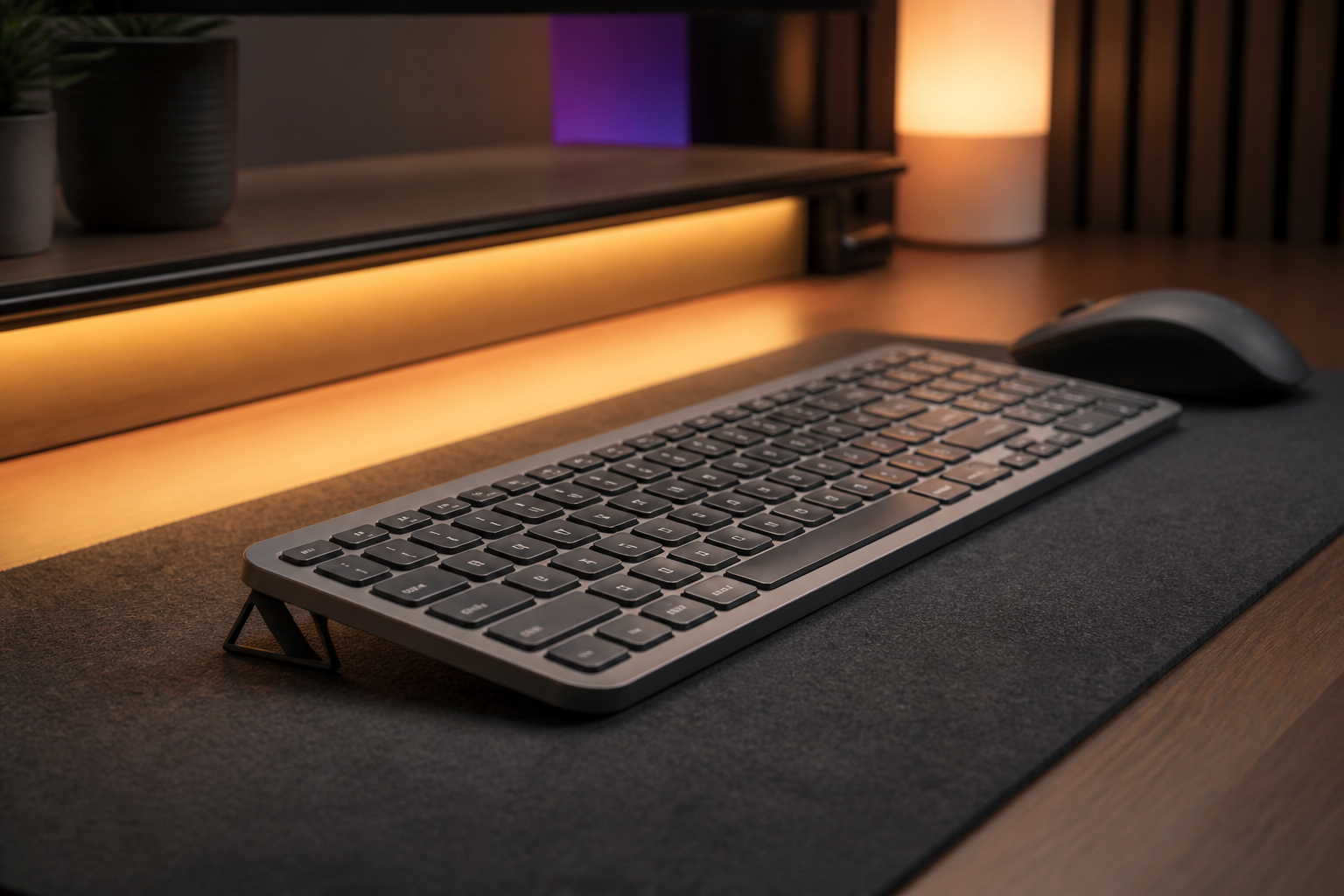
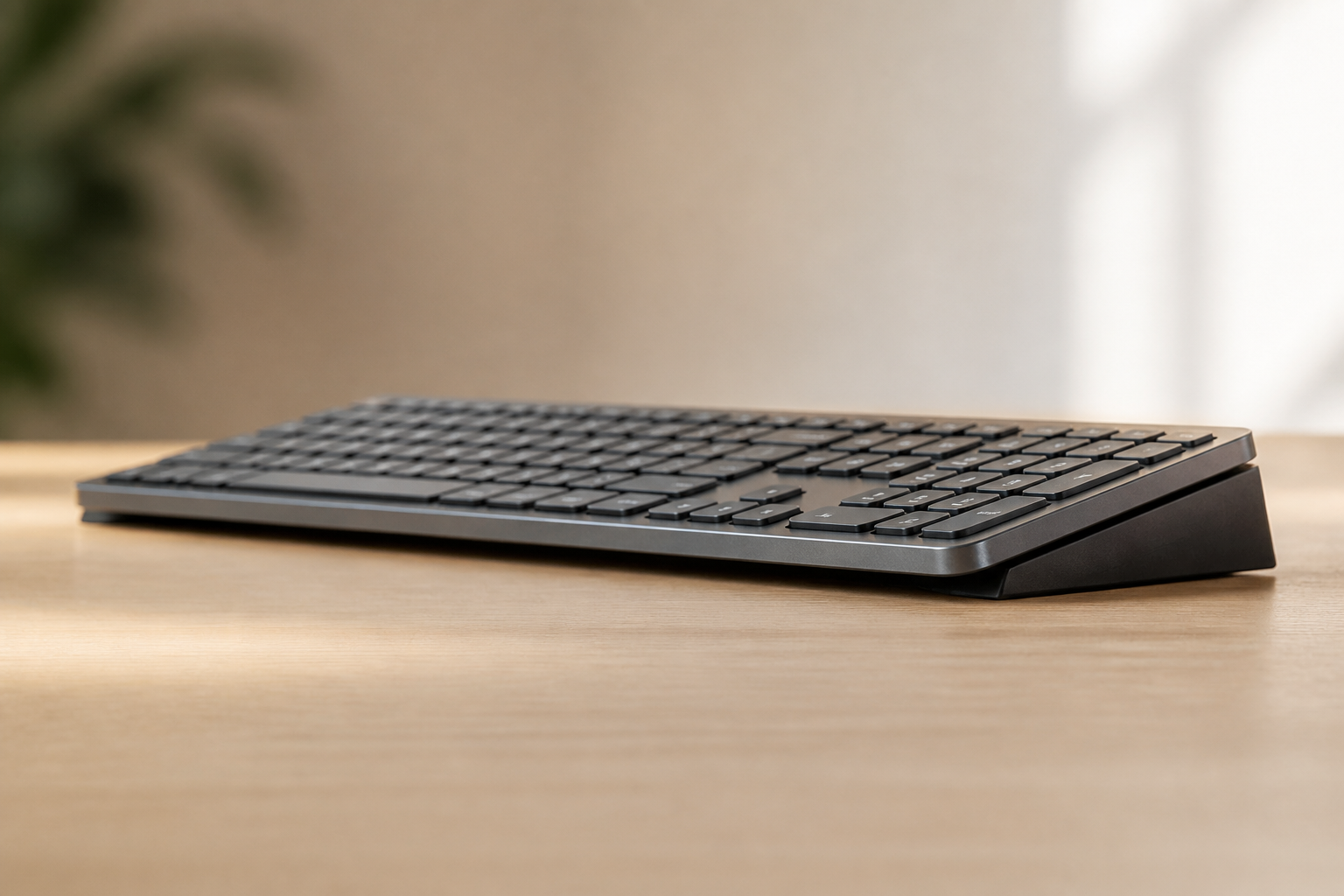
An ergonomic stand like KeyRiser elevates the MX Keys to the recommended 15° angle, transforming its ergonomic potential from 4/10 to 9/10.
Benefits:
- ✅ reduces wrist extension while typing
- ✅ Maintains all premium MX Keys features
- ✅ Minimal investment ($9.99 vs buying a new keyboard)
- ✅ Compatible with multiple devices
For Apple Magic Keyboard:
The same stand works with the Magic Keyboard, improving its ergonomics from 3/10 to 8/10.
Benefits:
- ✅ Improves ergonomics without losing macOS integration
- ✅ Maintains minimalist design
- ✅ Economical solution vs buying a new ergonomic keyboard
Price and Value Comparison
Logitech MX Keys + Ergonomic Stand
- Total investment: ~$114-144 USD
- Value: Excellent price-to-quality ratio
- Versatility: Works with Mac, Windows, iOS, Android
- Durability: Premium construction, designed to last years
Apple Magic Keyboard + Ergonomic Stand
- Total investment: ~$114-164 USD
- Value: Good, but limited to Apple ecosystem
- Versatility: Primarily for Mac/iPad
- Durability: Solid construction, but keys may wear out
Alternative: Dedicated Ergonomic Keyboard
- Price: $200-400 USD
- Problem: You lose all premium features of MX Keys or Magic Keyboard
- Result: Better ergonomics, but worse overall experience
Use Cases: Which Should You Choose?
Choose Logitech MX Keys if:
- ✅ You use multiple devices (Mac + Windows + iPad)
- ✅ You value versatility and compatibility
- ✅ You need high-quality backlit keys
- ✅ You want the best price-to-quality ratio
- ✅ You work across different operating systems
Choose Apple Magic Keyboard if:
- ✅ You use exclusively Mac/iPad
- ✅ You value perfect macOS integration
- ✅ You need integrated Touch ID
- ✅ You prefer Apple’s minimalist design
- ✅ You don’t need cross-platform compatibility
The Best Ergonomic Setup for Both
Regardless of which you choose, here’s the optimal setup:
1. Elevate the Keyboard to 15°
Use an ergonomic stand like KeyRiser to achieve the recommended rear lift angle.
2. Adjust Monitor Height
The top of your monitor should be at eye level or slightly below.
3. Forearm Position
Forearms should be parallel to the floor, with elbows at 90°.
4. Keyboard Distance
The keyboard should be 10-15 cm from the edge of the desk.
5. Regular Breaks
Take breaks every 30-45 minutes to stretch wrists and forearms.
Frequently Asked Questions (FAQ)
Is MX Keys better than Magic Keyboard for ergonomics?
Answer: Yes, the MX Keys has better ergonomic potential due to its greater key height (2.5mm vs 1mm) and better construction. However, both require an ergonomic stand to reach their maximum potential.
Can I make the Magic Keyboard more ergonomic?
Answer: Yes, by using an ergonomic stand that elevates the keyboard to a 15° angle. This significantly improves ergonomics without losing Apple’s native features.
Which is more comfortable for typing for hours?
Answer: The MX Keys is generally more comfortable for long sessions due to its greater key travel (2.5mm) which provides better tactile feedback. However, with a proper ergonomic stand, both can be comfortable.
Does Magic Keyboard cause more wrist pain?
Answer: Both keyboards can cause wrist pain if used flat (without a stand). The Magic Keyboard may be slightly worse due to its shorter key travel, but the difference is minimal. The key is to use an ergonomic stand with either one.
Is it worth buying an ergonomic stand?
Answer: Absolutely. A $9.99 ergonomic stand can transform any flat keyboard into an effective ergonomic solution, saving you hundreds of dollars compared to buying a new ergonomic keyboard.
Which has better battery life?
Answer: The Magic Keyboard has better battery life (up to 1 month) compared to the MX Keys (up to 10 days). However, both have rechargeable batteries and the practical difference is minimal for most users.
Can I use MX Keys with my Mac?
Answer: Yes, the MX Keys is fully compatible with Mac and works perfectly with macOS. You can even use standard macOS keyboard shortcuts.
Conclusion: The Right Choice Depends on Your Needs
For most users: The Logitech MX Keys offers better value and versatility, especially if you use multiple devices.
For Mac-exclusive users: The Apple Magic Keyboard offers perfect integration, though at a premium price.
For both: The key is to combine either of these keyboards with a proper ergonomic stand. This transforms any flat keyboard into an effective ergonomic solution that improves typing comfort and productivity.
Remember: The best ergonomic keyboard is the one you use at the correct angle, not necessarily the most expensive or the one with the most “ergonomic” design.
Ready to improve your setup? Consider adding an ergonomic stand to your current keyboard before investing in a completely new keyboard. It’s the most economical and effective solution for achieving comfortable typing and improving your comfort during long typing sessions.
Related Reading
Ready for a Better Typing Angle?
Check KeyRiser on Amazon and confirm compatibility with your MX Keys model.
Buy Now - $9.99