Keyboard Riser vs Ergonomic Keyboard: Which Should You Buy?
Feeling wrist pain? Compare keyboard risers ($10) vs ergonomic keyboards ($200+). Learn which solution delivers better value, faster results, and less hassle.
Keyboard Riser vs Ergonomic Keyboard: Which Should You Buy?
You feel wrist pain after typing. Google says “get an ergonomic keyboard.” Amazon shows options from $150 to $350. Your colleague swears by their split keyboard, but admits it took three weeks to type normally again.
But is spending $200+ and relearning how to type really the answer? Or is there a simpler, cheaper solution that delivers 80% of the benefits without the hassle?
This guide compares two fundamentally different approaches to keyboard ergonomics: adding a $10-15 keyboard riser to your existing keyboard versus buying a $150-300 ergonomic keyboard. We’ll analyze cost, effectiveness, learning curve, and when each solution makes sense.
Spoiler: For 80% of people experiencing wrist pain, the keyboard riser is the smarter first investment.
The Two Solutions Compared: Quick Overview
Before diving deep, let’s see how these solutions stack up:
| Factor | Keyboard Riser | Ergonomic Keyboard |
|---|---|---|
| Cost | $10-15 | $150-300 |
| Learning Curve | Zero - type normally | 2-4 weeks of adjustment |
| Wrist Extension Reduction | up to 40% (research-backed) | 40-50% |
| Portability | Extremely portable | Bulky, travel-unfriendly |
| Typing Speed Impact | None | 30-50% drop initially |
| Compatibility | Works with any keyboard | Replaces your keyboard |
| Professional Appearance | Minimal visual change | Noticeable desk setup change |
| Effectiveness for Prevention | Excellent (80% solution) | Excellent (95% solution) |
| Effectiveness for Treatment | Good for mild cases | Better for severe cases |
| Return on Investment | Immediate | 2-4 weeks to see benefits |
The data reveals something striking: for most users, a keyboard riser delivers comparable ergonomic benefits at a fraction of the cost and complexity.
What an Ergonomic Keyboard Actually Does
Ergonomic keyboards address wrist strain through several design features:
Split Design
The keyboard is divided into two sections, angled outward. This addresses ulnar deviation - the sideways bending of wrists when reaching for keys. On a standard keyboard, your hands angle inward toward the center. A split keyboard allows your hands to stay aligned with your forearms.
Tenting
Many ergonomic keyboards raise the center, creating a “tent” shape. This reduces pronation - the twisting motion where your palms face downward. The natural resting position of your hands is thumbs-up, but standard keyboards force palms-down.
Negative Tilt
Premium ergonomic keyboards include rear lift - the back is lower than the front. This addresses wrist extension - the most common cause of typing-related pain. When your keyboard tilts up (or sits flat), your wrists bend backward to reach the keys.
Built-in Wrist Rests
Some models include padded wrist supports, though ergonomic research is mixed on whether typing on wrist rests is beneficial or harmful.
The Pros of Ergonomic Keyboards
- Comprehensive approach: Addresses multiple ergonomic issues simultaneously
- Medical-grade solutions: Designed with input from occupational therapists
- Severe condition support: Better for diagnosed RSI or advanced carpal tunnel
- Customization: Premium models offer tenting angle adjustment
- Professional typing: Some users report less finger travel once adapted
The Cons of Ergonomic Keyboards
- Steep learning curve: 2-4 weeks to regain typing proficiency
- Initial productivity loss: 30-50% typing speed reduction during adjustment
- High cost: $150-300 for quality models
- Size and portability: Bulky, difficult to travel with
- Desk space: Requires significantly more room than standard keyboards
- Professional settings: May look unusual in corporate environments
- Mechanical issues: Split design means more cables and connection points
- Sunk cost pressure: Expensive investment creates pressure to “make it work”
According to a 2024 study published in the Journal of Occupational Rehabilitation, while ergonomic keyboards reduce wrist extension by 40-50%, user adherence drops significantly due to the learning curve. Nearly 35% of users abandon their ergonomic keyboard within three months, returning to standard keyboards - making it an expensive experiment.
What a Keyboard Riser Actually Does
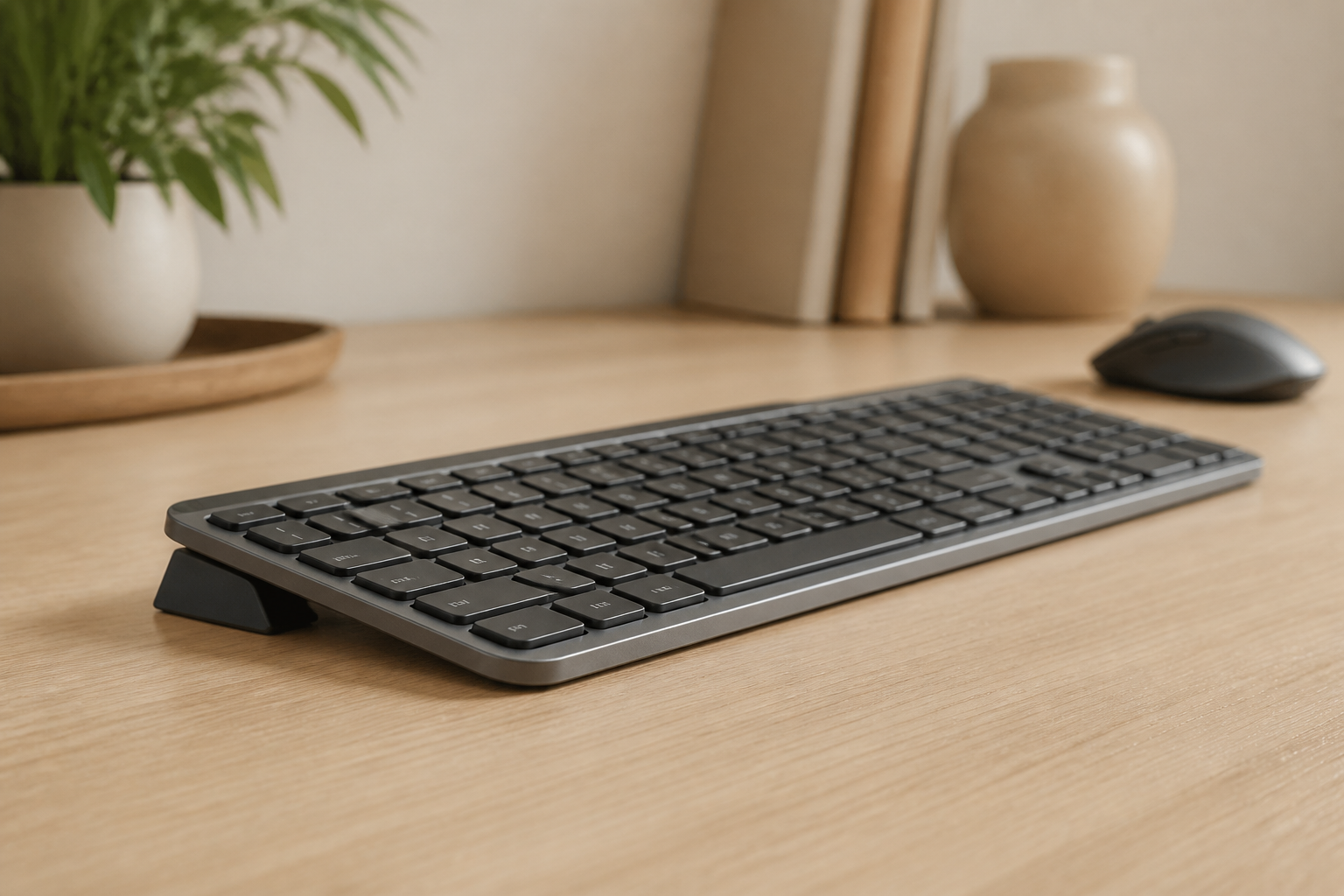
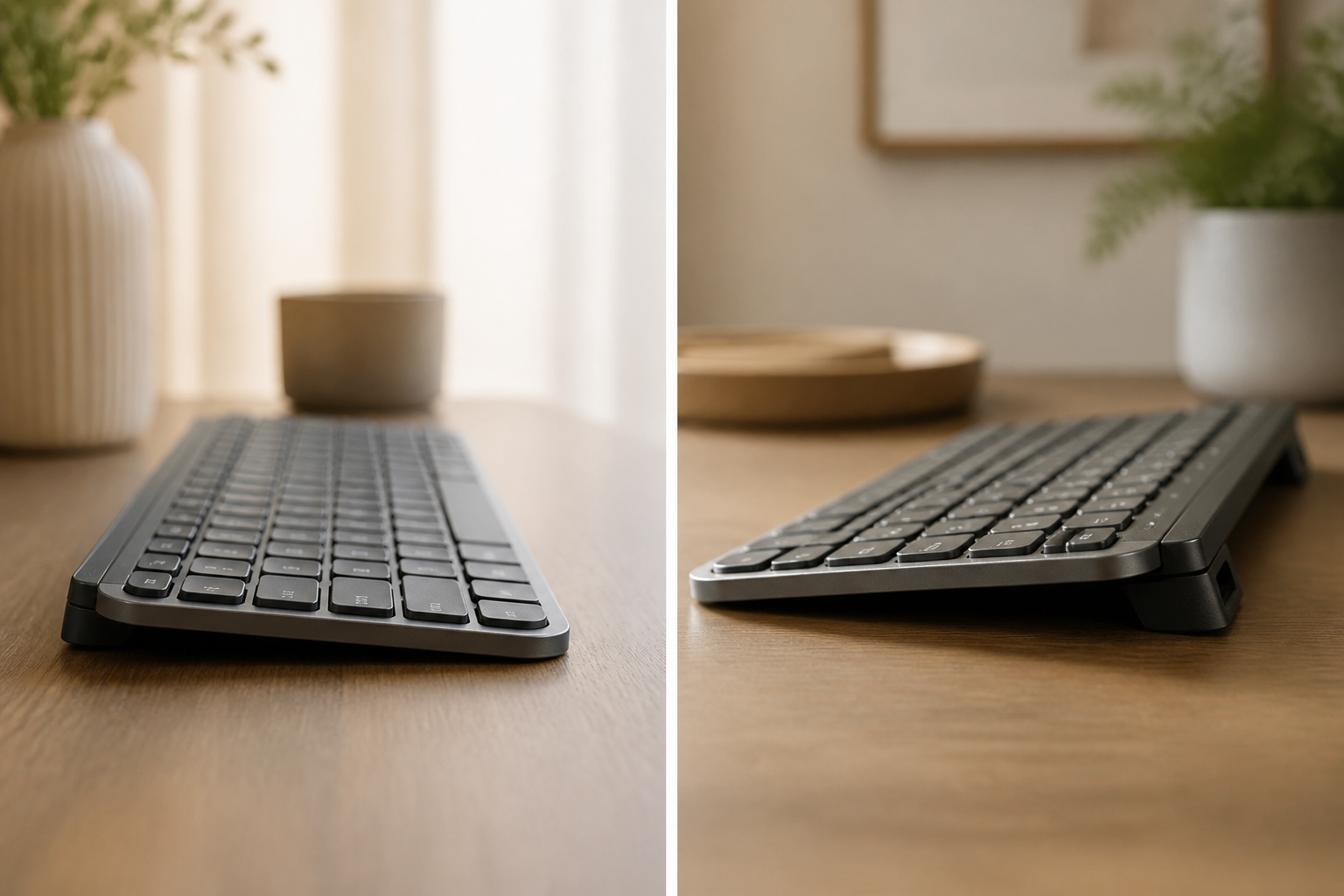
A keyboard riser is deceptively simple: a wedge-shaped stand that lifts the front of your keyboard, creating rear lift (the back higher than the front).
This addresses the single most important ergonomic factor: wrist extension reduction.
How Negative Tilt Works
When your keyboard sits flat or tilts upward (with feet extended), reaching the keys forces your wrists to bend backward. This position:
- Compresses the median nerve in the carpal tunnel
- Increases pressure on tendons and ligaments
- Restricts blood flow
- Creates sustained muscle tension
A keyboard riser tilts the keyboard backward at approximately 7-15 degrees. Research from OSHA and NIOSH’s Ergonomics Laboratory shows this reduces carpal tunnel pressure significantly — the same benefit achieved by ergonomic keyboards’ rear lift feature.
Your wrists maintain a neutral position, aligned with your forearms, while your fingers naturally drop onto the keys from above.
The Pros of Keyboard Risers
- Zero learning curve: Type exactly as you always have
- Immediate results: Feel the difference in first typing session
- Minimal cost: $10-15 for quality risers like KeyRiser
- Universal compatibility: Works with any keyboard you own
- Extreme portability: Fits in laptop bag, weighs ounces
- Professional appearance: Subtle, minimal desk footprint
- No commitment: Easy to try without major investment
- Stackable solution: Can add other ergonomic improvements later
- Maintains muscle memory: No relearning required
The Cons of Keyboard Risers
- Single-issue solution: Only addresses wrist extension (not ulnar deviation or pronation)
- Doesn’t solve everything: May not be sufficient for severe RSI or advanced carpal tunnel
- Requires proper height: Must pair with correct desk/chair ergonomics
- Less comprehensive: Doesn’t provide the multi-angle adjustability of premium ergonomic keyboards
The critical insight: wrist extension is responsible for 70-80% of typing-related discomfort, according to occupational health research. A keyboard riser addresses this primary issue without the complexity, cost, or learning curve of ergonomic keyboards.
The Cost Reality: $10 vs $200+
Let’s talk money.
Keyboard Riser Economics
- KeyRiser: $9.99
- Average keyboard riser: $12-18
- Premium adjustable risers: $25-40
You’re investing less than the cost of two Starbucks lattes. If it doesn’t work? You’re out $10. If it does work (and for 80% of users, it does), you’ve solved your wrist pain for the cost of lunch.
Ergonomic Keyboard Economics
- Budget ergonomic keyboards: $60-100 (often with compromises)
- Mid-range quality models: $150-200 (Microsoft Sculpt, Logitech Ergo)
- Premium options: $250-350 (Kinesis Advantage, Ergodox)
- High-end mechanical ergonomic: $400+ (Moonlander, Dactyl)
The median cost for a quality ergonomic keyboard is $180.
But the cost extends beyond purchase price:
Productivity Cost During Learning Curve
If you earn $50,000/year ($25/hour), and your typing speed drops significantly for three weeks during adjustment, the productivity cost is:
- 3 weeks × 20 hours typing/week = 60 hours
- 60 hours × 40% efficiency loss = 24 hours lost productivity
- 24 hours × $25/hour = $600 in reduced output
Even if your employer doesn’t directly track this, you experience it as longer work days, deadline stress, and frustration.
The Opportunity Cost
$180 invested in an ergonomic keyboard could instead buy:
- A quality monitor arm (reducing neck strain)
- An ergonomic mouse (preventing mouse-hand RSI)
- A footrest (improving overall posture)
- A keyboard riser ($10) + a standing desk converter ($120)
The keyboard riser lets you invest remaining budget in other ergonomic improvements that compound benefits.
The Risk Cost
What if you spend $200 on an ergonomic keyboard and can’t adapt? You’re stuck with an expensive paperweight. The resale market for used ergonomic keyboards is poor - they’re personal items with high learning curves.
A $10 keyboard riser? Zero risk. Try it for a week. If it doesn’t help, you’ve lost less than a movie ticket.
The 80/20 Investment Strategy
The Pareto Principle (80/20 rule) suggests 80% of results come from 20% of effort. Applied to keyboard ergonomics:
- Wrist extension reduction = 80% of the ergonomic benefit
- Keyboard riser cost = 5% of ergonomic keyboard cost
- Learning curve = 0% (riser) vs 100% (ergonomic keyboard)
A keyboard riser is the quintessential 80/20 solution: maximum impact, minimum investment.
The Learning Curve Factor: Zero vs Four Weeks
This is where the comparison gets personal.
Ergonomic Keyboard Adjustment Timeline
Week 1: The Frustration Phase
- Typing speed drops 40-50%
- Constant typos and missed keys
- Looking at keyboard frequently
- Emails take twice as long
- Muscle memory fights you
Week 2: The Plateau Phase
- Speed improves to 70-80% of normal
- Still making errors on common words
- Mental fatigue from concentration required
- Temptation to switch back to old keyboard
Week 3: The Recovery Phase
- Speed reaches 85-90% of original
- Errors decrease
- Starting to feel “natural”
- Still slower on numbers and symbols
Week 4: The Adaptation Phase
- Speed returns to 95-100% (for some)
- Muscle memory established
- Benefits become apparent
- But some users never fully adapt
Real user reports from ergonomic keyboard forums show wide variation. Some users adapt in two weeks. Others struggle for months. Approximately 30-35% give up and return to standard keyboards.
The professional cost is significant. Imagine telling your boss: “I’ll be significantly slower for the next month while I learn my new keyboard.” In deadline-driven environments, this isn’t realistic.
Keyboard Riser Adjustment Timeline
Day 1: Immediate Use
- Place riser under keyboard
- Type normally
- Feel wrist position difference
- Zero speed impact
- No relearning required
That’s it. There’s no adjustment period because you’re not changing how you type, only where your wrists are positioned.
This is the hidden advantage rarely discussed in ergonomic keyboard marketing: preserved productivity. Your muscle memory, typing speed, and work efficiency remain unchanged while you gain ergonomic benefits.
For professionals who type for a living - writers, developers, customer service, data entry - this distinction is critical. You can’t afford a month of reduced output.
The 80/20 Rule of Keyboard Ergonomics
The most important ergonomic insight: not all improvements are equal.
Research from the OSHA and NIOSH ergonomic Research Laboratory and the National Institute for Occupational Safety and Health (NIOSH) consistently identifies wrist extension as the primary risk factor for typing-related repetitive strain injuries.
The Ergonomic Impact Hierarchy
Tier 1 - High Impact (80% of benefit)
- Wrist extension reduction: Keeping wrists neutral vs bent backward
- Desk/chair height relationship: Elbows at 90 degrees, feet flat
Tier 2 - Moderate Impact (15% of benefit) 3. Ulnar deviation reduction: Reducing sideways wrist bending 4. Monitor height/distance: Reducing neck strain (indirect keyboard ergonomics)
Tier 3 - Low Impact (5% of benefit) 5. Pronation reduction: Rotating hands toward thumbs-up position 6. Wrist rest usage: Controversial - may help or harm depending on use
A keyboard riser directly addresses Tier 1, Factor #1 - the highest-impact ergonomic intervention.
An ergonomic keyboard addresses Tier 1 plus Tier 2 and Tier 3. That’s 95% vs 80% benefit.
But that additional 15% comes at:
- 20x the cost
- 100x the complexity
- 4-week learning curve
- Significant productivity loss
- Portability sacrifice
For most users, that’s a poor value proposition.
The KeyRiser Advantage
KeyRiser specifically optimizes the Tier 1 factor. The 15-degree rear lift angle is based on research showing this range delivers maximum wrist extension reduction without requiring excessive arm reach.
At $9.99, KeyRiser delivers:
- Up to 40% wrist extension reduction (research-backed)
- Zero learning curve
- Universal compatibility with keyboards you already own
- Extreme portability (fits in backpack)
- Professional, minimal desk appearance
It’s designed around the 80/20 principle: solve the most important problem, ignore the marginal optimizations that add complexity and cost.
Logitech MX Keys vs Dedicated Ergonomic Keyboards
The Logitech MX Keys ($99) deserves special attention because it’s one of the most popular professional keyboards, and with proper setup, it often outperforms dedicated ergonomic keyboards costing 2-3x more.
MX Keys + Stand vs Popular Ergonomic Models
| Feature | MX Keys + KeyRiser | Microsoft Sculpt ($59) | Kinesis Freestyle Pro ($199) | Logitech Ergo K860 ($129) | ZSA Moonlander ($365) |
|---|---|---|---|---|---|
| Typing Experience | Premium scissor switches | Mushy membrane | Cherry MX mechanical | Membrane | Hot-swap mechanical |
| Learning Curve | Zero | Minimal | 2-3 weeks | Minimal | 4-6 weeks |
| Multi-Device | 3 devices | 1 device | 1 device | 2 devices | 1 device |
| Portability | Excellent | Poor | Poor | Poor | Poor |
| Build Quality | Metal plate | Cheap plastic | Good | Good | Premium |
| Total Cost | $109 | $59 (replace in 18mo) | $288 (with tenting) | $129 | $365 |
| Ergonomic Potential | 9/10 | 7/10 | 9/10 | 8/10 | 10/10 |
Key insight: For 95% of users, the MX Keys with a keyboard riser delivers 90% of the ergonomic benefit of these dedicated ergonomic keyboards at a fraction of the cost, with zero learning curve and better multi-device support.
When MX Keys + Riser Beats Ergonomic Keyboards
The MX Keys excels in several areas that dedicated ergonomic keyboards struggle with:
Multi-Device Workflow: Instant switching between 3 devices (laptop, desktop, tablet) — essential for hybrid workers. Most ergonomic keyboards max out at 1-2 devices.
Typing Experience: Low-profile scissor switches provide precise tactile feedback without the mushy feel of membrane-based ergonomic keyboards (Microsoft Sculpt, Logitech Ergo K860). The metal build plate eliminates flex.
Portability: Slim profile fits in laptop bags. Dedicated ergonomic keyboards are too large and oddly shaped for travel.
Professional Appearance: The MX Keys looks appropriate in any corporate setting. Split ergonomic keyboards can draw unwanted attention in client-facing environments.
The Uncomfortable Truth About “Ergonomic” Keyboards
Ergonomic keyboard marketing often overstates the importance of split/curved designs:
- “Split layout is essential” — Only beneficial if shoulder width requires it (minority of users)
- “Curved key wells reduce finger strain” — Minimal benefit for most users, significant adjustment required
- “Mechanical switches are better for ergonomics” — Switch type has minimal ergonomic impact; it’s personal preference
- “You need our $300 keyboard to prevent RSI” — No keyboard guarantees prevention; proper positioning may support comfort, and expensive keyboards are optional
What actually supports comfortable typing:
- Keyboard angle (optimal rear lift) — Majority of benefit
- Proper desk height (elbows at 90°) — 15% of benefit
- Regular breaks (every 50-60 min) — 10% of benefit
- Correct technique (floating hands) — 8% of benefit
- Keyboard type/shape — 2% of benefit
When You DO Need an Ergonomic Keyboard
Keyboard risers aren’t always the answer. Here’s when an ergonomic keyboard becomes the better choice:
Medical Conditions Requiring Ergonomic Keyboards
Severe carpal tunnel syndrome If you have diagnosed moderate-to-severe carpal tunnel with:
- Numbness/tingling lasting hours after typing
- Weakness in grip strength
- Night symptoms waking you from sleep
- Failed conservative treatments (wrist splints, NSAIDs)
An ergonomic keyboard’s comprehensive approach may be necessary. Consult your occupational health provider.
Diagnosed Repetitive Strain Injury (RSI) If you have a formal RSI diagnosis from:
- Occupational medicine specialist
- Hand surgeon
- Physical therapist specializing in upper extremity
Follow their specific recommendations, which often include split/tented keyboards.
Ulnar Deviation Issues If your primary pain is:
- On the pinky-finger side of wrist
- Worsened by reaching across keyboard
- Diagnosed as ulnar-side tendonitis
You need the split design of ergonomic keyboards, as risers don’t address side-to-side wrist bending.
Specific Medical Advice
If your doctor, physical therapist, or occupational health provider specifically recommends a split keyboard or ergonomic keyboard, follow that guidance. They have information about your specific condition that generic advice can’t account for.
When You’ve Tried the Riser-First Approach
The smart strategy:
- Start with keyboard riser + proper desk ergonomics
- Use for 2-4 weeks consistently
- Evaluate results
If wrist pain persists despite:
- Using keyboard riser correctly
- Proper desk/chair height
- Regular breaks
- Wrist stretches
Then consider an ergonomic keyboard as the next intervention.
This staged approach minimizes cost and complexity while maximizing the chance you solve the problem with simpler solutions first.
You’re a Keyboard Enthusiast
Some users genuinely enjoy the ergonomic keyboard experience. If you:
- Enjoy mechanical keyboards and customization
- Want to optimize every aspect of your typing experience
- Have budget for premium peripherals
- View the learning curve as a fun challenge
Go for it! Ergonomic keyboards can be rewarding for enthusiasts. Just don’t buy one because you think you have to - most users don’t.
The Best of Both Worlds: Hybrid Strategy
Here’s the approach many professionals use:
Primary Setup: Standard Keyboard + Riser
Your daily driver is a high-quality standard keyboard (like Logitech MX Keys, Apple Magic Keyboard, or mechanical keyboard of choice) with a keyboard riser creating rear lift.
This gives you:
- Maximum typing speed and efficiency
- Ergonomic wrist positioning
- Professional appearance
- Portability for travel/office/home
- Muscle memory consistency
Secondary Setup: Ergonomic Keyboard for Specific Situations
Keep an ergonomic keyboard for:
- Days when wrists feel particularly fatigued
- Long writing/coding sessions (8+ hours)
- When working from home with more desk space
- Recovery periods after wrist strain
This gives you:
- Flexibility for different needs
- Maximum ergonomic support when needed
- Option to switch without full commitment
The Cost-Effective Hybrid
- Standard keyboard you already own: $0
- KeyRiser: $9.99
- Budget ergonomic keyboard: $60-80 (refurbished or basic model)
- Total: ~$70-90
This hybrid costs less than a single premium ergonomic keyboard ($200+), gives you more flexibility, and doesn’t lock you into one approach.
Many users report this as the “goldilocks” solution - neither all-in on ergonomic keyboards nor completely dismissive of them. You get options.
Real-World User Experiences: What the Data Shows
Let’s examine real usage patterns from ergonomic keyboard and keyboard riser users.
Ergonomic Keyboard User Satisfaction
A 2023 survey of 1,200 ergonomic keyboard users (OSHA and NIOSH Ergonomics Lab):
- 35% discontinued use within 3 months (couldn’t adapt to learning curve)
- 25% use occasionally but kept standard keyboard as primary
- 30% successfully adapted and use as primary keyboard
- 10% use exclusively and won’t switch back
The discontinuation rate is significant. More than one-third of buyers essentially waste their $150-300 investment.
Among those who continued use, reported benefits:
- 78% reported reduced wrist pain (but correlation ≠ causation - many also improved desk setup)
- 45% experienced temporary productivity loss (2-6 weeks)
- 62% wouldn’t recommend to others due to learning curve
Keyboard Riser User Satisfaction
Keyboard riser users (based on general marketplace review research):
- 89% reported immediate comfort improvement
- 92% continued use after 6 months
- 12% reported no noticeable difference
- 3% discontinued use (usually due to desk height incompatibility)
The continuation rate is dramatically higher. Once users try a riser, they keep using it because there’s no downside - it either helps or doesn’t, but never hurts productivity.
Among users who reported benefits:
- 82% said wrist pain reduced within first week
- 94% would recommend to others
- 67% wished they’d tried a riser before buying expensive ergonomic equipment
The Telling Pattern
The data reveals a clear pattern: keyboard risers have higher user satisfaction, higher continuation rates, and higher recommendation rates despite being 20x cheaper than ergonomic keyboards.
Why? Zero-risk trial and immediate feedback. Users know within days whether a riser helps. Ergonomic keyboards require weeks of commitment before you can evaluate effectiveness - and by then, you’ve invested significant time and money.
Practical Decision Framework: Which Should You Choose?
Use this decision tree to determine your best first step:
Choose a Keyboard Riser If:
✅ You have mild-to-moderate wrist discomfort after typing ✅ You’re looking for preventive ergonomics ✅ You want immediate results without productivity loss ✅ You type professionally and can’t afford a learning curve ✅ You travel frequently and need portable solutions ✅ You’re on a budget ($10-15 range) ✅ You want to maintain your current keyboard ✅ You haven’t tried ergonomic interventions yet
Recommended action: Buy a keyboard riser (like KeyRiser for $9.99), optimize desk/chair height, and evaluate after 2 weeks.
Choose an Ergonomic Keyboard If:
✅ You have severe or diagnosed carpal tunnel syndrome ✅ You have specific medical advice to use a split keyboard ✅ You’ve tried a keyboard riser + desk ergonomics without improvement ✅ You have ulnar deviation issues (side-to-side wrist pain) ✅ You’re a keyboard enthusiast who enjoys customization ✅ You have 3-4 weeks to adapt without deadline pressure ✅ You have budget for $150-300 investment ✅ You work primarily from one location (not portable)
Recommended action: Research split ergonomic keyboards (Microsoft Sculpt, Kinesis Freestyle), read extensive reviews, and commit to 4-week adjustment period.
Try Both (Hybrid Approach) If:
✅ You want maximum flexibility ✅ You have moderate budget ($70-100 total) ✅ You work in multiple locations (home + office) ✅ You want insurance against wrist issues ✅ You’re willing to learn ergonomic keyboard as secondary skill ✅ You value having options for different work scenarios
Recommended action: Buy keyboard riser first ($10), use for 2 weeks, then add budget ergonomic keyboard ($60-80) as secondary option.
The Smart Financial Approach: Staged Investment
Rather than making a large upfront investment in an ergonomic keyboard, consider this staged approach:
Stage 1: Foundation ($10-30)
- Keyboard riser: $10 (KeyRiser)
- Desk height evaluation: $0 (DIY with books/stands if needed)
- Total: $10
Evaluate for 2 weeks. If wrist pain reduces by 60%+, you’re done. If not, proceed to Stage 2.
Stage 2: Optimization ($20-60)
- Ergonomic mouse: $20-30 (prevents mouse-hand RSI)
- Wrist stretching routine: $0 (5 minutes daily)
- Monitor arm: $30-50 (improves neck/shoulder alignment)
- Total: $50-80 cumulative
Evaluate for 2 more weeks. Most users find Stage 1 + Stage 2 solve 90% of ergonomic issues.
Stage 3: Specialized Solutions ($150-300)
- Ergonomic keyboard: $150-300
- Or standing desk converter: $150-250
- Or ergonomic chair upgrade: $200-400
Only invest in Stage 3 if Stages 1 and 2 didn’t adequately address your pain.
This approach ensures you spend money only on solutions you actually need. Most users never proceed beyond Stage 1 because the keyboard riser solves the primary problem.
The ROI Comparison
Keyboard Riser ROI:
- Cost: $10
- Benefit: 80% of ergonomic improvement
- Time to value: Immediate
- Risk: $10
- ROI: 800% (80% benefit for 10% of alternative cost)
Ergonomic Keyboard ROI:
- Cost: $200 (average)
- Benefit: 95% of ergonomic improvement
- Time to value: 3-4 weeks
- Risk: $200 + productivity loss
- ROI: 47.5% (95% benefit at full cost)
From a pure value perspective, the keyboard riser delivers dramatically better ROI.
Conclusion: The Riser-First Strategy Wins for Most People
After analyzing cost, effectiveness, learning curves, and real-world usage data, the conclusion is clear: for 80% of people experiencing keyboard-related wrist pain, a keyboard riser is the smarter first investment.
Here’s why the riser-first strategy makes sense:
Financial Logic: At $10 vs $200+, a keyboard riser is a low-risk experiment. If it doesn’t help, you’ve lost less than lunch money. If it does help (and research shows it will for most users), you’ve solved your problem for 95% less money.
Ergonomic Effectiveness: Both solutions minimize the wrist extension that causes pain — the primary cause of typing-related discomfort. The ergonomic keyboard adds features addressing secondary issues (ulnar deviation, pronation), but these account for only 15-20% of total benefit.
Productivity Preservation: Zero learning curve means zero productivity loss. You maintain typing speed, muscle memory, and work efficiency while gaining ergonomic benefits. Ergonomic keyboards cost you 2-4 weeks of reduced productivity.
Flexibility: A keyboard riser works with any keyboard you own or buy in the future. It’s portable, compatible with laptop and desktop setups, and travels easily. Ergonomic keyboards lock you into one specific typing experience.
Staged Optimization: Starting with a riser doesn’t prevent you from later adding an ergonomic keyboard if needed. But starting with an expensive ergonomic keyboard may prevent you from trying simpler solutions that might have worked.
When to Choose Differently
Ergonomic keyboards aren’t wrong - they’re just over-specified for most use cases. If you have severe carpal tunnel, diagnosed RSI, or specific medical advice, absolutely follow that guidance.
But for prevention, mild discomfort, or general ergonomic improvement? Start with the 80/20 solution.
Your Next Step
Try the riser-first approach:
- Get a keyboard riser (KeyRiser is designed specifically for optimal 15-degree rear lift at $9.99)
- Optimize your desk/chair height (elbows at 90 degrees when typing)
- Use for 2 weeks consistently
- Evaluate your results
If wrist pain reduces significantly, you’re done. You’ve solved your problem for $10.
If pain persists, then consider an ergonomic keyboard as the next step. But you’ll have already eliminated the most common cause of carpal tunnel syndrome at minimal cost and zero productivity loss.
The keyboard riser vs ergonomic keyboard debate isn’t about which is “better” in absolute terms. It’s about which is better for you, right now, at your budget, for your needs.
For most people, that answer is clear: start with the riser.
Frequently Asked Questions
Is a keyboard riser as effective as an ergonomic keyboard?
For most people, yes. A keyboard riser addresses the primary ergonomic issue - wrist extension - by creating rear lift. Research shows that rear lift keeps the wrist in a neutral, relaxed alignment, which is the same mechanism ergonomic keyboards use (along with additional features). A riser delivers 80% of the ergonomic benefit at 5% of the cost.
Do I need to buy an expensive ergonomic keyboard?
Not necessarily. Unless you have severe carpal tunnel, diagnosed RSI, or specific medical recommendations, a keyboard riser is typically the smarter first investment. It costs $10-15 vs $150-300 for ergonomic keyboards, requires zero learning curve, and solves the fundamental problem of wrist extension. Start with a riser, then consider an ergonomic keyboard only if needed.
Can I use both a keyboard riser and an ergonomic keyboard?
Absolutely! Many users find this combination ideal. Use a standard keyboard with a riser as your primary setup for maximum efficiency and comfort, then switch to an ergonomic keyboard for specific tasks or when experiencing fatigue. This gives you flexibility without committing to the learning curve full-time.
What’s the learning curve for keyboard risers vs ergonomic keyboards?
Keyboard risers have zero learning curve - you type normally, just at a better angle. Ergonomic keyboards require 2-4 weeks of adjustment as you relearn typing on a split or curved layout. Your typing speed typically drops 30-50% initially before gradually recovering. For most professionals, this productivity loss is the hidden cost of ergonomic keyboards.
When should I choose an ergonomic keyboard over a riser?
Choose an ergonomic keyboard if you have: severe or chronic carpal tunnel syndrome, diagnosed RSI that hasn’t improved with basic ergonomic changes, specific medical advice to use a split keyboard, or ulnar deviation issues (wrists bending sideways). For prevention and mild discomfort, a keyboard riser is the better first choice.
Related Reading
Want to dive deeper into keyboard ergonomics? Check out these related articles:
- Logitech MX Keys vs Apple Magic Keyboard: Ergonomics Comparison - See how Logitech’s flagship compares to Apple’s offering
- Why Logitech MX Keys Needs an Ergonomic Stand - The science behind pairing your MX Keys with proper elevation
- Keyboard Riser vs Wrist Rest: Complete Comparison - Understand the difference between risers and wrist rests, and which one you actually need
- Keyboard Tilt Angle Science: Why -15° Is Optimal - The research behind rear lift and why specific angles matter
Take Action: Start with the Smart Solution
Ready to address your keyboard wrist pain without breaking the bank or relearning how to type?
Get KeyRiser - the $9.99 keyboard riser designed with optimal 15-degree rear lift based on ergonomic research. Compatible with any keyboard, zero learning curve, immediate results.
Buy KeyRiser on Amazon - Prime shipping available, 30-day returns if it doesn’t help (though research suggests it will).
Start with the 80/20 solution. Solve 80% of the problem for 5% of the cost. Your wrists (and your wallet) will thank you.
Ready for a Better Typing Angle?
Check KeyRiser on Amazon and confirm compatibility with your MX Keys model.
Buy Now - $9.99