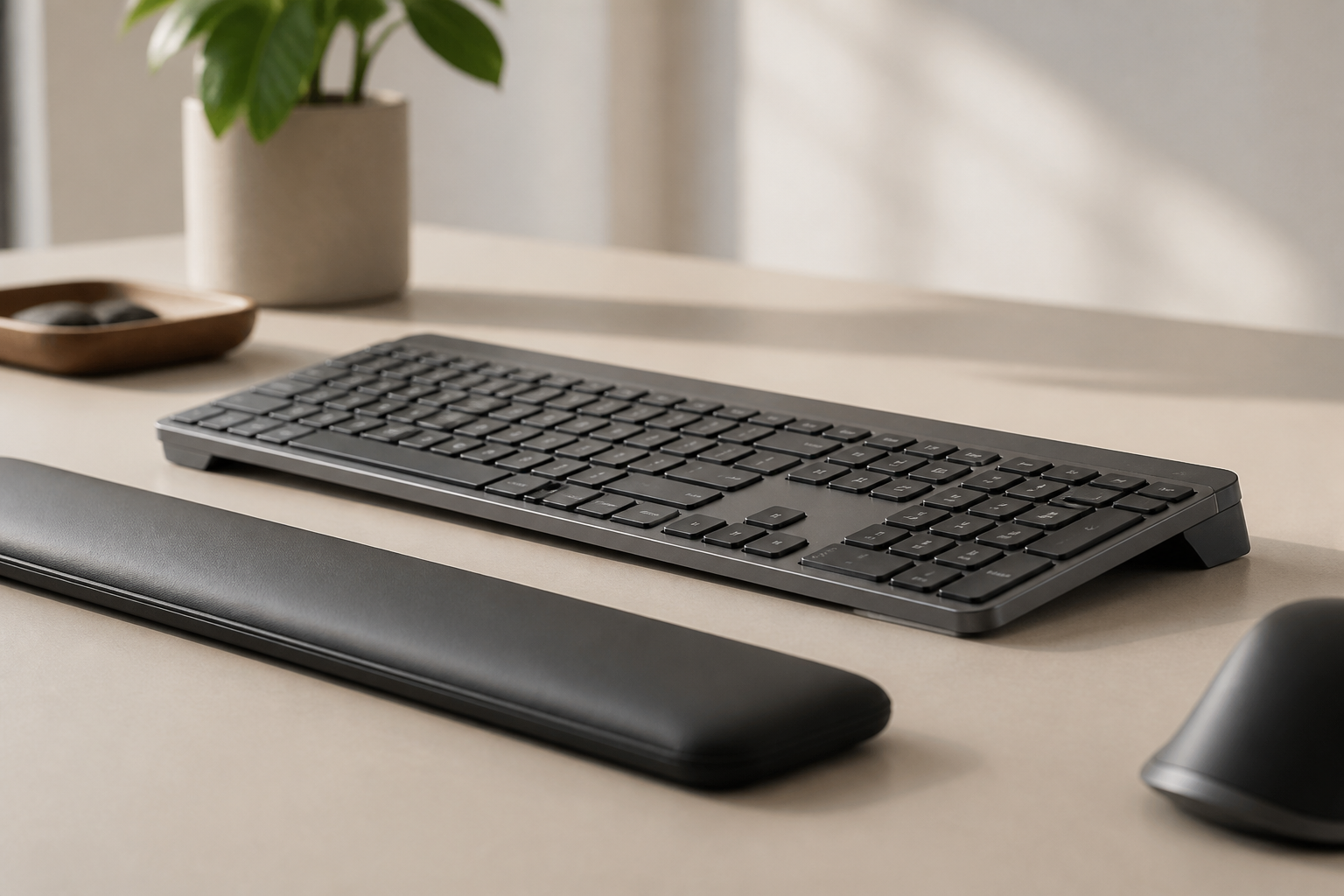
7 Home Office Ergonomic Mistakes You're Making Right Now
Are these 7 common home office ergonomic mistakes hurting you? Learn how to fix bad desk posture, keyboard angle, and setup errors causing wrist pain.
7 Home Office Ergonomic Mistakes You’re Making Right Now
You’ve set up your home office. Your chair looks comfortable, your desk is clean, and you’re ready to be productive. But there’s a good chance you’re making at least a few ergonomic mistakes that are slowly — and silently — damaging your body.
Here’s the uncomfortable truth: most home office setups look fine but are actually full of subtle positioning errors that accumulate into wrist pain, back tension, and long-term injury. The worst part? You won’t feel it today. You’ll feel it six months from now when your wrists ache every morning.
Let’s fix that. Here are the 7 most common home office ergonomic mistakes and exactly how to correct each one.
Mistake #1: Keyboard Sitting Flat on the Desk
What You’re Doing Wrong
You’ve placed your keyboard flat on your desk — which means your wrists are bent backward into 25-35 degrees of extension. This extends your wrists upward and compresses the carpal tunnel.
Why This Is Bad
Flat keyboard positioning is the single most common cause of typing-related wrist pain. When your wrists are extended (bent back), the carpal tunnel narrows, increasing pressure on your median nerve. Studies from OSHA and NIOSH show this position can triple carpal tunnel pressure compared to a neutral wrist position.
How to Fix It
Raise the front of your keyboard so it sits at a 10-15 degree rear lift — the rear edge raised above the front. This brings your wrists into a neutral position where the carpal tunnel is naturally open and pressure-free.
The KeyRiser keyboard stand delivers this exact angle. At $9.99 with no tools or adhesive required, it’s the simplest way to fix the most common ergonomic mistake in home offices worldwide. Just attach the riser feet to the bottom of your Logitech MX Keys, MX Keys S, or MX Keys Mini, and your keyboard immediately shifts to the correct angle.
Mistake #2: Using Laptop Keyboard Instead of External Keyboard
What You’re Doing Wrong
You’re typing directly on your laptop keyboard, or your external keyboard is placed on top of the laptop’s built-in keyboard.
Why This Is Bad
Laptop keyboards force your wrists into a more extreme angle because the keyboard is integrated into the screen. If you raise the laptop to eye level, your keyboard is too high and your wrists bend back painfully. If you lower it to typing height, your screen is too low and you crane your neck forward.
You literally cannot achieve proper ergonomics with a laptop keyboard alone — the screen and keyboard positions are permanently locked together, and they require opposite heights.
How to Fix It
Use an external keyboard at all times. The Logitech MX Keys, MX Keys S, or MX Keys Mini paired with the KeyRiser riser creates a proper ergonomic typing setup. Place the laptop on a stand riser to bring the screen to eye level, and keep the keyboard and mouse at a separate, lower height where your wrists can stay neutral.
Mistake #3: Monitor Too Low (Text Neck)
What You’re Doing Wrong
Your monitor is sitting directly on your desk, and you’re looking down at it.
Why This Is Bad
For every inch you look down, the weight of your head on your cervical spine increases by approximately 10 pounds. Looking down at a monitor all day subjects your neck to the equivalent of carrying a small child on your shoulders for 8 hours. This “tech neck” posture leads to chronic neck pain, tension headaches, and can even cause upper back issues that radiate down to your wrists.
How to Fix It
Raise your monitor so the top bezel is at or slightly below eye level. You should be looking straight ahead — not up and not down. Use a monitor riser, a stack of books, or an adjustable monitor arm.
Once your monitor is at the correct height, you’ll naturally sit up straighter, which also improves your wrist and shoulder alignment.
Mistake #4: Chair Height Wrong
What You’re Doing Wrong
Your chair is too high, too low, or the armrests are poorly positioned.
Why This Is Bad
Wrong chair height causes a cascade of postural problems:
- Too high: Your feet dangle, compressing the back of your thighs and reducing circulation. You also tend to hunch forward.
- Too low: Your knees are higher than your hips, tilting your pelvis backward and rounding your lower back.
- Armrests too high: Your shoulders hike up toward your ears, creating neck and shoulder tension.
- Armrests too low: Your arms hang unsupported, transferring weight to your wrists.
How to Fix It
Adjust your chair so:
- Feet flat on the floor (or on a footrest)
- Knees at 90 degrees, hips slightly higher than knees
- Armrests at elbow height when your arms are at your sides
- Lumbar support pressing into the curve of your lower back
Your chair should be adjusted first, before any other desk component.
Mistake #5: Mouse on a Different Level Than Keyboard
What You’re Doing Wrong
Your mouse is on the desk while your keyboard is on a tray, or vice versa. More commonly, your mouse is placed further away or higher than your keyboard.
Why This Is Bad
When your mouse is on a different level than your keyboard, your reaching shoulder has to constantly engage and disengage. Over the course of a day, this asymmetric load creates shoulder tension, upper back pain, and can even trigger rotator cuff issues.
Even if they’re on the same surface, reaching too far for your mouse repeatedly throughout the day causes wear on your shoulder joint.
How to Fix It
Keep your mouse on the same surface and at the same height as your keyboard. The mouse should be as close to the keyboard as possible — ideally touching the right edge of the keyboard.
Consider a vertical mouse, which positions your hand in a handshake posture (neutral) rather than flat (pronated). This can reduce forearm strain significantly.
Mistake #6: No Break Schedule
What You’re Doing Wrong
You sit and type for hours without breaks, especially during busy periods.
Why This Is Bad
Your tendons and muscles need regular recovery periods. Continuous typing without breaks leads to:
- Accumulation of inflammatory byproducts in your tendons
- Reduced blood flow to your hands and forearms
- Muscle fatigue that causes you to adopt poor positions unconsciously
- Increased risk of repetitive strain injury
The damage from sitting and typing for 4+ hours straight is significantly worse than the same total time broken into 25-minute intervals.
How to Fix It
Use the Pomodoro Technique: 25 minutes of focused work, 5 minutes of active recovery. During your breaks:
- Stand up and walk around
- Shake out your hands and wrists
- Roll your shoulders backward
- Look at something 20 feet away (20-20-20 rule for eyes)
Set a timer. When it goes off, stand up. Don’t negotiate with yourself — the 5-minute break makes you more productive, not less.
Mistake #7: Poor Lighting That Makes You Lean In
What You’re Doing Wrong
Your workspace is too dark, your screen is too dim, or there’s glare on your monitor. You find yourself leaning forward to see clearly.
Why This Is Bad
Leaning forward to see your screen compromises every other ergonomic adjustment you’ve made:
- Your wrists angle differently as your torso moves
- Your shoulders round forward
- Your neck extends forward (tech neck)
- Your lower back loses support against the chair
Poor lighting indirectly causes poor posture because you’re compensating for visibility.
How to Fix It
- Position your desk perpendicular to windows to minimize glare
- Use task lighting (desk lamp) rather than relying only on overhead lights
- Increase screen brightness to match ambient light
- Enable “night light” or blue-light filtering in the evening
- Increase font size if you find yourself squinting
Your screen should be clearly readable without leaning forward even one inch.
The Cumulative Effect of These Mistakes
Each of these 7 mistakes on its own might seem minor. But here’s the problem: they compound.
Poor keyboard angle → wrist extension → shoulder tension → neck compensation → headache. A flat keyboard doesn’t just hurt your wrists — it starts a chain reaction up your entire body.
Most home office workers have 3-5 of these mistakes happening simultaneously. The fix isn’t expensive or complicated. Most of these corrections cost nothing (rearranging your setup) or very little (a keyboard riser for $9.99).
Quick Assessment: How Many of These Are You Doing?
Check which apply to you:
- Keyboard flat on desk (wrists bent back)
- Using laptop keyboard only
- Monitor sitting directly on desk
- Chair not adjusted properly
- Mouse higher or further than keyboard
- No break schedule
- Poor lighting, leaning to see
If you checked 2 or more, you’re at elevated risk for developing ergonomic-related pain. The good news: you can fix all of them today.
One-Minute Fix: Where to Start
If you only have one minute to make the biggest impact, start here:
Walk over to your desk and raise the front of your keyboard. That’s it. This single adjustment — getting your keyboard to a rear lift — addresses the most direct cause of typing-related wrist strain. If you don’t have a keyboard riser, place something thin and firm under the front edge. But for long-term use, get a proper riser like the KeyRiser that provides a stable, consistent 15-degree angle.
Tomorrow, tackle the next most impactful fix. The day after, another one. In one week, your home office will be measurably safer than it is today.
FAQ
Is it really that bad to type on a flat keyboard?
Yes. OSHA and NIOSH research shows that typing on a flat keyboard (0 degrees) forces your wrists into 25-35 degrees of extension. A keyboard riser with 15 degrees of rear lift can reduce carpal tunnel pressure significantly.
How do I know if my chair height is correct?
Sit in your chair with your feet flat on the floor. Your knees should be at a 90-degree angle. If your thighs slope downward (knees higher than hips), the chair is too low. If your feet don’t reach the floor, it’s too high.
Do I need both a keyboard riser and a wrist rest?
No. In fact, using both can be counterproductive. A keyboard riser creates rear lift (front higher than back), while a wrist rest adds a pressure point under your wrist. For most users, a keyboard riser alone is the better solution.
What’s the fastest way to reduce typing pain?
Fix your keyboard angle first. If you’re experiencing wrist pain while typing, the most likely cause is wrist extension from a flat or positively-tilted keyboard. A 15-degree rear lift riser addresses this directly.
Can these mistakes cause permanent damage?
Yes. Chronic poor posture and ergonomic neglect can lead to permanent nerve damage (carpal tunnel syndrome), tendon damage (tendonitis/tenosynovitis), and chronic joint issues. Early intervention prevents permanent changes.
Related articles you might find helpful:
- Do Keyboard Risers Really Work? Evidence-Based Answer
- MX Keys Ergonomic Mistakes and Fixes
- Keyboard Posture Self-Test in 60 Seconds
- The Wrist Epidemic of
Disclaimer: This article is for informational purposes only and does not constitute medical advice. Consult a healthcare professional for persistent pain or discomfort.
Ready for a Better Typing Angle?
Check KeyRiser on Amazon and confirm compatibility with your MX Keys model.
Buy Now - $9.99