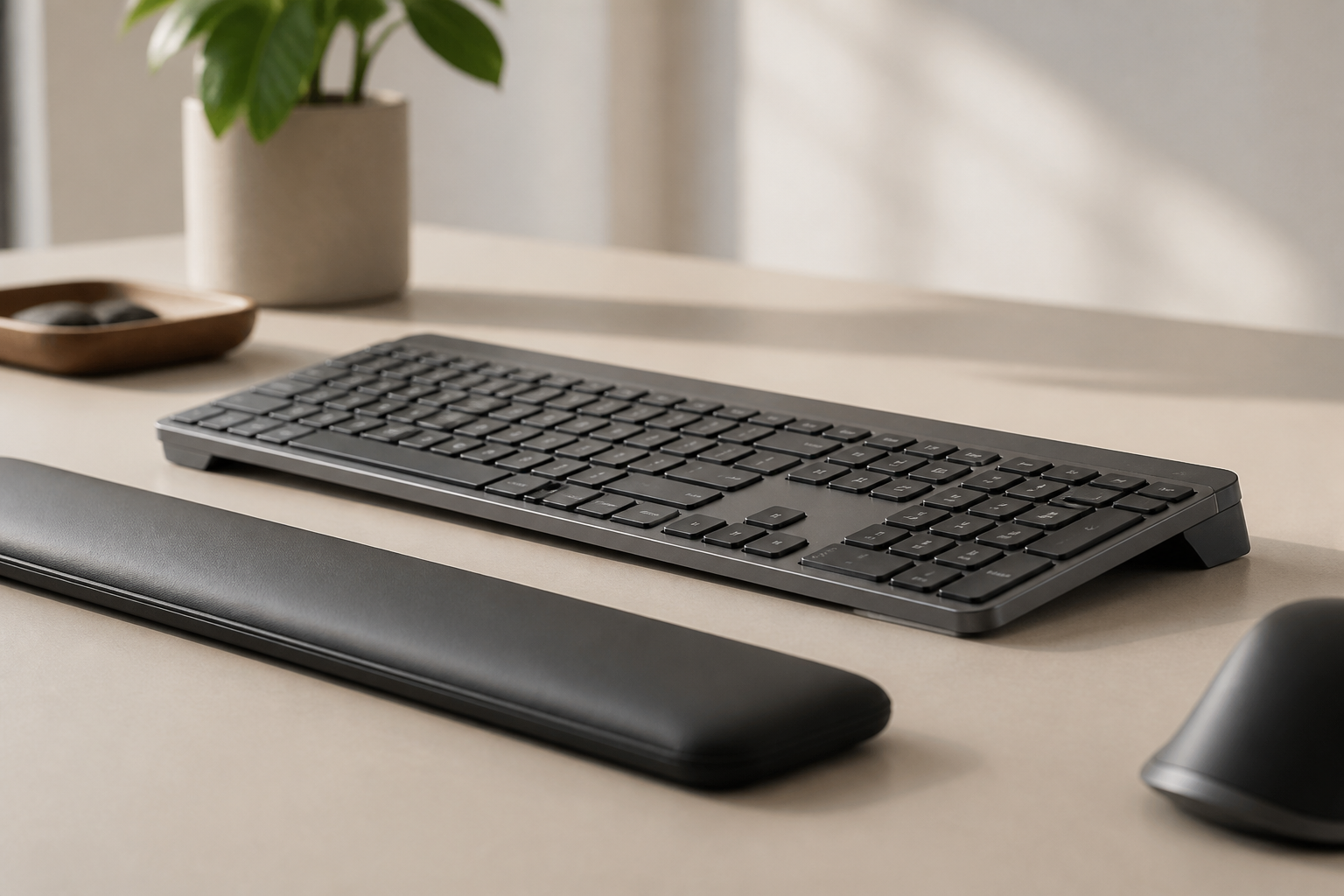
What Angle Should a Keyboard Be? 10–15° Setup Guide
What angle should a keyboard be? Compare flat, positive, and negative tilt, then find a comfortable 10–15° setup for typing and Logitech MX Keys.
Best Keyboard Angle: Is 10–15 Degrees Right for You?
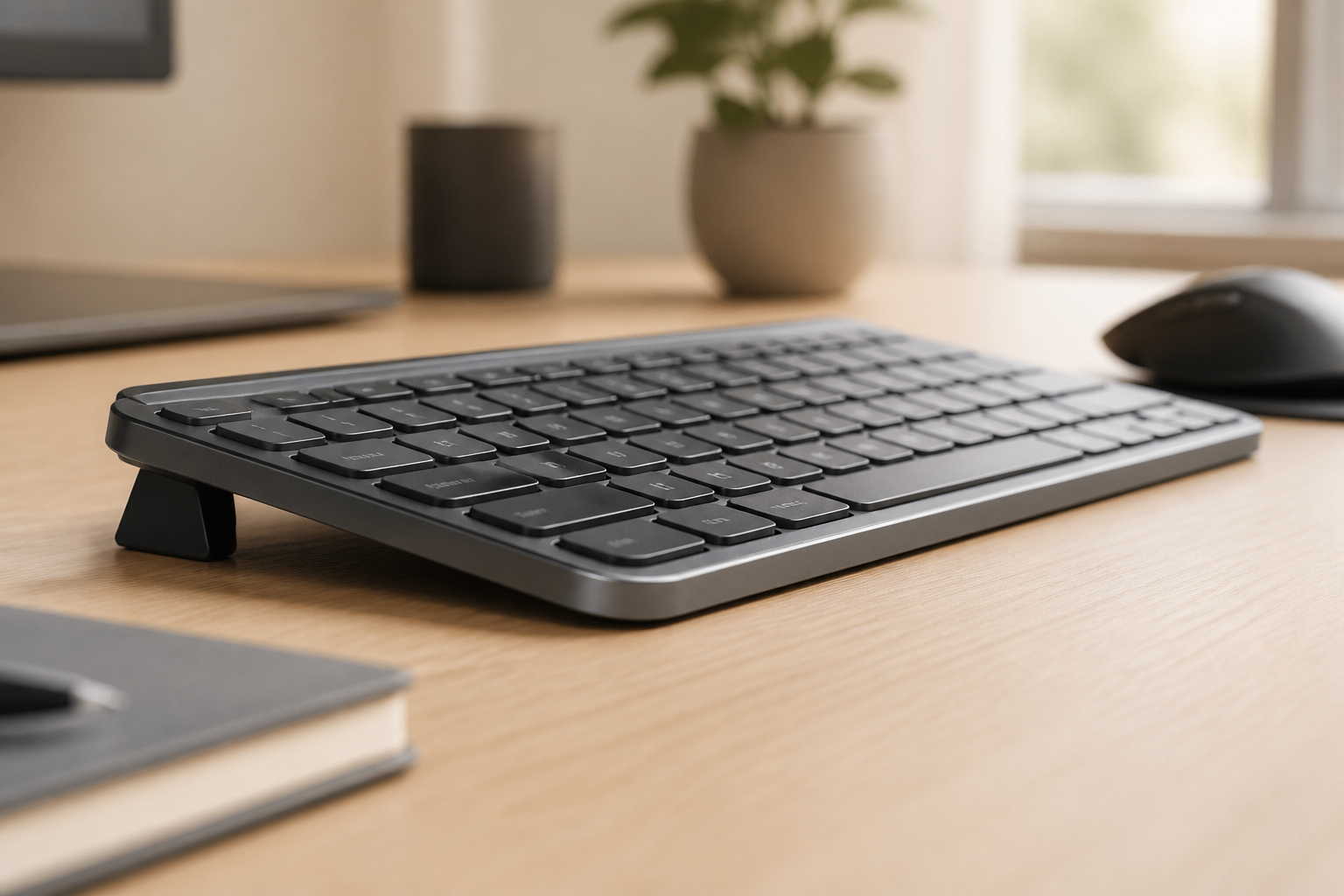
For many people, a comfortable starting point is a flat keyboard or a modest 10–15° rear lift; the right choice is the angle that keeps your wrists relaxed and your shoulders loose. Test the position briefly, adjust it to your desk height, and stop if it increases discomfort. A fixed 15° KeyRiser can provide that rear lift for compatible Logitech MX Keys models, but it is not a medical treatment or a universal prescription.
If you’ve been wondering whether your keyboard is positioned correctly, you’re asking the right question. The angle of your keyboard is one of the most critical yet overlooked aspects of workspace ergonomics. Get it wrong, and you’re setting yourself up for wrist pain, typing discomfort, and chronic discomfort. Get it right, and you’ll type more comfortably for years to come.
In this guide, we’ll cut through the confusion and give you a clear, personalized answer to the question: “What angle should my keyboard be?” We’ll cover the design-focused optimal angle, how to personalize it based on your unique setup, and exactly how to measure and adjust your current configuration.
The Quick Answer: Start Flat, Then Test a 10–15° Rear Lift
There is no single angle that is right for everyone. Start with a flat keyboard or test a modest 10–15° rear lift while keeping your wrists relaxed and your forearms level.
This means:
- The front edge of your keyboard (where the spacebar is) should be higher than the back edge
- The keyboard slopes away from you as you type
- Your wrists remain in a neutral position rather than extending upward
Why 15 degrees specifically? Research analyzing 23 separate ergonomic studies found that a 15-degree rear lift provides the optimal balance between:
- Neutral wrist alignment (minimal extension or flexion)
- Reduced median nerve strain (up to 62% reduction compared to stock feet)
- Comfortable typing posture (sustainable for 8+ hours daily)
- Improved typing accuracy and speed
But here’s the important part: while 15 degrees is the design-informed optimum for the average person, your personal optimal angle might fall anywhere in the 10-15 degree range depending on your height, desk setup, keyboard type, and working position.
Let’s explore how to find YOUR perfect angle.
What Is Negative Tilt?
Before we go further, let’s clarify what “rear lift” actually means—because it’s the opposite of how most keyboards are traditionally set up.
Negative tilt:
- Front edge (spacebar side) is higher than the back edge
- Creates a downward slope away from you
- Keeps your wrists in a neutral or slightly downward position
- Think of it as your keyboard “leaning away” from you
Positive tilt (the traditional setup):
- Back edge (function keys side) is higher than the front edge
- Creates an upward slope toward you
- Forces your wrists to extend upward to reach the keys
- This is what happens when you flip up your keyboard’s built-in feet
Flat (zero tilt):
- Both edges at the same height
- Better than stock feet, but not optimal
- Still requires some wrist extension to type comfortably
Here’s a visual way to remember it: imagine placing a ball on your keyboard. With rear lift (correct), the ball would roll away from you. With stock feet (incorrect), the ball would roll toward you.
The term “negative” simply means the opposite of the traditional keyboard design. It’s not a negative thing—in fact, it’s the most positive change you can make for your wrist health.
Why Most Keyboards Are Set Up Wrong
Walk into any office, coffee shop, or home workspace, and you’ll see the same setup repeated thousands of times: keyboards with their little plastic feet flipped up, creating a steep upward slope.
This is one of the most common ergonomic mistakes in modern workspaces, and it exists because of a combination of outdated design conventions and misunderstanding about what “comfortable” really means.
Keyboard Feet Make Things Worse (Positive Tilt)
Those little flip-out feet on the back of your keyboard? They’re ergonomic sabotage.
When you extend keyboard feet, you create a stock feet that forces your wrists into extension—meaning your hands bend upward at the wrist to reach the keys. This position:
- Increases pressure on the median nerve by up to 400%
- Creates sustained carpal tunnel compression during typing
- Leads to inflammation in the tendons of the wrist and forearm
- Contributes to conditions like carpal tunnel syndrome, RSI, and tendonitis
The irony? Many people flip up keyboard feet because they think it makes typing easier. In the short term, it might feel slightly more natural because it matches the upward angle of your fingers. But this small comfort comes at the cost of significant long-term damage.
What you should do: Keep those feet folded down. Always. If the feet on your keyboard are extended right now, fold them back down as you finish reading this sentence.
The “Flat Is Fine” Myth
Even among people who know not to use keyboard feet, there’s a widespread belief that a flat keyboard (zero tilt) is perfectly adequate for ergonomic typing.
It’s better than stock feet, yes. But it’s not optimal.
Here’s why flat keyboards still create problems:
1. They still require wrist extension Even with a flat keyboard, most people’s natural arm position causes their wrists to extend upward slightly to reach the keys. The forearm rests on the desk at a slight downward angle, but the keyboard is flat—creating a mismatch that forces the wrist to compensate.
2. They don’t accommodate natural hand position When your arms hang naturally at your sides, your hands are in a neutral position with palms facing inward and fingers pointing slightly downward. A flat keyboard doesn’t match this natural alignment.
3. They ignore desk height variables Depending on your desk height, chair height, and arm length, a flat keyboard might position your hands too high or too low relative to your elbows. A rear lift helps compensate for these variables.
Research shows that even a modest rear lift of 10 degrees provides measurable improvements in wrist posture compared to flat keyboards. When you increase that to 15 degrees, you optimize for the natural biomechanics of the hand and wrist during typing.
The bottom line: flat is better than stock feet, but rear lift is better than both.
Finding YOUR Perfect Angle
While 15 degrees is the design-focused angle for most people, your personal ideal might vary based on several factors. Let’s explore how to customize the recommendation to your specific situation.
Based on Your Height
Your height affects your arm length, which in turn affects the natural angle of your forearms when typing.
If you’re shorter (under 5’4” / 163 cm):
- Your optimal angle might be 10-12 degrees
- Shorter arms often create a steeper natural forearm angle
- A slightly reduced keyboard tilt prevents over-correction
- Start at 12 degrees and adjust based on comfort
If you’re average height (5’4” - 5’10” / 163-178 cm):
- Your optimal angle is likely 12-15 degrees
- The standard 15-degree recommendation works well for most people in this range
- This is the height range used in most ergonomic studies
If you’re taller (over 5’10” / 178 cm):
- Your optimal angle is typically 15 degrees
- Longer arms create a shallower forearm angle
- A full 15-degree tilt maintains neutral wrist alignment
- Some very tall individuals (6’2”+) might even benefit from a slightly steeper angle
The test: Sit in your normal typing position with your arms relaxed at your sides and elbows at 90 degrees. Look at the natural angle of your forearms. Your keyboard tilt should create a wrist position where your hands continue that forearm line without bending up or down.
Based on Your Desk Setup
Your desk configuration significantly impacts the optimal keyboard angle.
Standard fixed-height desk (28-30 inches):
- Optimal angle: 15 degrees
- Standard desk height works well with standard keyboard tilt
- Make sure your chair height positions your elbows at 90 degrees
- If your desk is on the higher end (30”), consider a wrist rest to supplement the tilt
Standing desk (adjustable or fixed standing height):
- Optimal angle: 12-15 degrees
- Standing naturally creates a slightly different arm angle than sitting
- Adjust your desk so elbows are at 90 degrees while standing
- You may find a slightly reduced tilt (12-13 degrees) more comfortable when standing
- See our guide on standing desk keyboard ergonomics for more details
Low desk or laptop setup:
- Optimal angle: 10-12 degrees
- Lower typing surfaces often require less aggressive tilt
- If you can’t adjust desk height, compensate with a lower tilt angle
- Consider raising your entire desk with risers rather than just adjusting keyboard angle
Keyboard tray under desk:
- Optimal angle: 15 degrees
- Keyboard trays usually position the keyboard at optimal height
- Full 15-degree tilt works well in most tray configurations
- Make sure the tray itself is at elbow height when seated
Monitor riser / elevated setup:
- Optimal angle: 15 degrees
- Raising your monitor doesn’t change keyboard ergonomics
- Maintain standard 15-degree tilt regardless of monitor height
- Don’t try to “match” keyboard angle to monitor angle—they’re independent
Based on Your Keyboard Type
Different keyboard designs require slightly different tilt adjustments.
Low-profile keyboards (MacBook keyboard, Logitech MX Keys, etc.):
- Optimal angle: 15 degrees
- Low-profile keyboards benefit most from proper tilt
- Their thin design means less built-in angle compensation
- KeyRiser is specifically designed for low-profile keyboards like the Logitech MX Keys
- The 15-degree angle is critical for these keyboards
Mechanical keyboards (standard height):
- Optimal angle: 12-15 degrees
- Thicker keycaps create some natural elevation difference
- Full 15-degree tilt still optimal for most users
- Some very thick mechanical keyboards might feel better at 12-13 degrees
Ergonomic/split keyboards:
- Optimal angle: 10-15 degrees (varies by model)
- Many ergonomic keyboards have built-in tilt or adjustable angles
- Check manufacturer recommendations for your specific model
- If no tilt is built in, apply the standard 15-degree guideline
- Tenting (side-to-side tilt) is separate from front-to-back tilt
Laptop keyboards:
- Optimal angle: Not adjustable, use external keyboard
- Laptop keyboards cannot be tilted without tilting the screen
- For extended typing, always use an external keyboard
- Position external keyboard at 15 degrees and laptop screen at eye level
- Laptop keyboards force poor posture when used for hours daily
Gaming keyboards:
- Optimal angle: 15 degrees
- Gaming keyboards often have wrist rests built in
- Remove or ignore the wrist rest and apply proper 15-degree tilt
- Extended gaming sessions benefit from ergonomic angles just as much as typing
Sitting vs Standing Position
Your working position affects optimal keyboard angle because it changes your arm angle and shoulder position.
When sitting:
- Optimal angle: 15 degrees
- Seated position is the standard for ergonomic research
- Ensure chair height positions elbows at 90 degrees
- Feet flat on floor (or footrest)
- Standard 15-degree tilt provides neutral wrist alignment
When standing:
- Optimal angle: 12-14 degrees
- Standing naturally pulls shoulders back slightly
- This creates a marginally different forearm angle
- Most people find 12-13 degrees comfortable when standing
- Some prefer maintaining 15 degrees—test both
- Make sure desk height keeps elbows at 90 degrees while standing
When alternating (sit-stand desk):
- Best solution: Two keyboard positions OR adjustable riser
- If you switch frequently, consider keeping two keyboards (one for sitting, one for standing)
- Alternatively, use an adjustable keyboard riser that lets you modify angle slightly
- KeyRiser provides consistent 15-degree tilt that works for both positions for most users
- Fine-tune by adjusting desk height rather than keyboard angle when switching positions
The general rule: Your keyboard angle should maintain neutral wrist alignment regardless of sitting or standing. If your wrists bend upward or downward, adjust either your desk height or keyboard angle (or both) until your forearm and hand form a straight line.
How to Measure Your Current Keyboard Angle
Now that you know what angle you’re aiming for, let’s measure your current setup and see how it compares.
You’ll need:
- A ruler or tape measure
- Your keyboard in its normal position
- A calculator (optional, for precise angle calculation)
- 5 minutes
Step 1: Place Keyboard in Normal Typing Position
Position your keyboard exactly as you normally use it:
- On your desk where you regularly type
- Keyboard feet down (retracted, not extended)
- In front of your normal seated position
- At the same distance from you as during regular use
Sit in your chair in your normal posture with:
- Feet flat on the floor (or footrest)
- Elbows at approximately 90 degrees
- Shoulders relaxed, not hunched
Step 2: Measure Front Edge Height
Using your ruler or tape measure:
- Identify the front edge of your keyboard (the side closest to you, where the spacebar is)
- Measure from the desk surface to the bottom of the keyboard’s front edge
- Measure at the center of the keyboard, not the sides
- Record this measurement (for example: 0.8 inches)
Tip: If your keyboard has a curved or angled bottom, measure to the lowest point that touches the desk when the keyboard is in normal position.
Step 3: Measure Back Edge Height
Now measure the back edge:
- Identify the back edge of your keyboard (the side farthest from you, where function keys are)
- Measure from the desk surface to the bottom of the keyboard’s back edge
- Again, measure at the center of the keyboard
- Record this measurement (for example: 1.2 inches)
Step 4: Calculate the Height Difference
Subtract the back edge measurement from the front edge measurement:
Front edge height - Back edge height = Height difference
For example:
- Front edge: 0.8 inches
- Back edge: 1.2 inches
- Height difference: 0.8 - 1.2 = -0.4 inches
Interpreting your result:
- Negative number (like -0.4): You have stock feet (back is higher than front) ❌
- Zero: You have a flat keyboard (no tilt) ⚠️
- Positive number (like +1.0): You have rear lift (front is higher than back) ✅
Step 5: Compare to Optimal Range (10-15°)
To determine if your current setup is in the optimal range, you can either:
Quick method (estimation): For a standard keyboard (approximately 6 inches from front to back):
- 1.0-1.5 inches height difference = approximately 10-15 degrees ✅ Optimal
- 0.6-0.9 inches height difference = approximately 6-9 degrees ⚠️ Needs adjustment
- 0-0.5 inches height difference = approximately 0-5 degrees ❌ Too flat
- Negative height difference = stock feet ❌ Wrong direction
Precise method (calculation): If you want the exact angle:
- Measure your keyboard depth (front edge to back edge): typically 6-7 inches
- Use this formula: Angle = arctan(height difference ÷ keyboard depth) × (180 ÷ π)
Or use an online calculator by searching “calculate angle from height and depth.”
For example:
- Height difference: 1.5 inches
- Keyboard depth: 6 inches
- Angle = arctan(1.5 ÷ 6) × 57.3 = 14 degrees ✅
Step 6: Adjust Using a Keyboard Riser
If your measurement shows you’re not in the optimal 10-15 degree range, it’s time to make an adjustment.
If you have stock feet (negative height difference):
- Fold down your keyboard feet immediately
- This will get you to flat (zero tilt)
- Then proceed to add rear lift using a riser
If you have flat or insufficient rear lift:
- You need to raise the front edge of your keyboard
- The easiest and most precise solution is a keyboard riser
- KeyRiser provides exactly 15 degrees of rear lift—the design-focused angle
- Simply place your keyboard on the riser and you’re immediately at the perfect angle
Test the new angle: After adjusting, type for 10-15 minutes and evaluate:
- Do your wrists feel more neutral (not bending up or down)?
- Is there less tension in your forearms?
- Do your hands feel more relaxed while typing?
- Can you maintain the position comfortably?
If you notice immediate improvement, you’ve found your optimal angle. If it feels uncomfortable, you may need to adjust your chair height or desk height to complement the new keyboard position.
How to Achieve the Perfect Angle
You’ve measured your current setup and identified the need for adjustment. Now let’s explore the practical ways to achieve your optimal 10-15 degree rear lift.
Option 1: Keyboard Riser (Recommended)
The most effective solution is a dedicated keyboard riser—a simple device designed specifically to elevate the front edge of your keyboard to the optimal ergonomic angle.
Why a keyboard riser is the best choice:
✅ Precise angle: Purpose-built risers like KeyRiser provide exactly 15 degrees of rear lift—no guesswork, no measuring, no adjusting
✅ Stability: Designed to hold your keyboard securely without wobbling or sliding during typing
✅ Universal compatibility: Works with virtually any keyboard, especially low-profile models like the Logitech MX Keys
✅ Clean aesthetic: Professional appearance that matches modern desk setups
✅ Durable: Made from quality materials that last for years of daily use
✅ Affordable: One-time investment (typically under $15) for permanent ergonomic improvement
✅ Portable: Can easily move between home and office setups
KeyRiser specifically:
- Provides the design-focused 15-degree rear lift
- Designed for the popular Logitech MX Keys keyboard
- Compatible with most standard keyboards
- Non-slip surface keeps your keyboard in place
- Made from durable, premium materials
- Takes 10 seconds to set up—just place your keyboard on top
How to use a keyboard riser:
- Place the riser on your desk where you normally position your keyboard
- Place your keyboard on top of the riser
- The elevated front edge automatically creates 15-degree rear lift
- Begin typing with improved wrist alignment immediately
Get KeyRiser on Amazon for $9.99 (currently on sale from $9.99).
Option 2: DIY Solutions
If you want to test ergonomic keyboard tilt before investing in a dedicated riser, you can create a temporary DIY solution.
Warning: DIY solutions are useful for testing but not ideal for permanent use due to stability and aesthetic concerns.
DIY methods:
Book or binder method:
- Place a thin hardcover book or binder under the front edge of your keyboard
- Adjust thickness to achieve approximately 1-1.5 inch elevation
- Pros: Free, immediately available
- Cons: Unstable, keyboard may slide, unprofessional appearance
Folded cardboard method:
- Cut sturdy cardboard to keyboard width
- Fold to create a ramp approximately 1-1.5 inches high at the front
- Tape securely to prevent collapse
- Pros: Customizable, free
- Cons: Not durable, looks makeshift, may compress over time
Rubber door wedge method:
- Use a rubber door wedge or furniture riser under the front edge
- Choose height that creates 10-15 degree angle
- Pros: Non-slip, readily available
- Cons: May not fit keyboard width, can look out of place
Wooden block method:
- Cut a wooden block or ramp to proper dimensions
- Sand smooth to prevent desk scratches
- Pros: Durable, can be stained/painted to match desk
- Cons: Requires tools and woodworking skill
For any DIY method:
- Measure the resulting angle using the steps in the previous section
- Ensure stability—your keyboard shouldn’t wobble or slide
- Test for several hours before committing
- Consider upgrading to a purpose-built riser for long-term use
Option 3: Adjustable Desk Accessories
Some keyboard trays and desk accessories offer built-in tilt adjustment.
Adjustable keyboard tray:
- Mounts under your desk
- Allows height and tilt adjustment
- Best for: People who need to adjust frequently or share a desk
- Cost: $50-200 depending on quality
- Pros: Highly adjustable, can optimize both height and tilt
- Cons: Installation required, expensive, may not fit all desk types
Adjustable laptop stand (with external keyboard):
- Elevates laptop screen to eye level
- Use external keyboard positioned at 15-degree tilt
- Best for: Laptop users who need proper screen height
- Cost: $30-100
- Pros: Solves both screen and keyboard ergonomics
- Cons: Requires external keyboard and mouse
Full ergonomic desk setup:
- Adjustable standing desk
- Monitor arm
- Keyboard riser for optimal tilt
- Best for: People investing in complete workspace ergonomics
- Cost: $400-1000+
- Pros: Maximum flexibility and ergonomic optimization
- Cons: Significant investment, more complex setup
Our recommendation: Start simple. For most people, a $10 keyboard riser like KeyRiser solves 90% of the problem with minimal cost and complexity. You can always expand to more elaborate ergonomic accessories later if needed.
The key is to take action now. Even a temporary DIY solution is better than continuing to type on a poorly angled keyboard while you research the perfect setup.
Signs Your Keyboard Angle Is Wrong
Not sure if your current keyboard setup is causing problems? Here are the warning signs that your keyboard angle needs adjustment.
Physical Symptoms
Wrist pain during or after typing:
- Aching, soreness, or sharp pain in the wrists
- Pain that increases after extended typing sessions
- Discomfort that improves when you stop typing
- Cause: Sustained wrist extension from improper keyboard angle
Forearm fatigue:
- Tired, heavy feeling in forearms during work
- Need to shake out or stretch arms frequently
- Forearm muscles feel tight or tense
- Cause: Sustained muscle engagement to hold wrists in extended position
Numbness or tingling in fingers:
- “Pins and needles” sensation in fingers, especially thumb, index, middle
- Numbness that comes and goes during typing
- Sensation that worsens at night or first thing in morning
- Cause: Median nerve compression from wrist extension (early carpal tunnel syndrome)
Palm or base of thumb pain:
- Pain at the base of the thumb or palm
- Discomfort when pressing on the area
- Weakness when gripping or pinching
- Cause: Carpal tunnel pressure affecting thumb nerve branches
Reduced grip strength:
- Difficulty opening jars or bottles
- Trouble holding objects firmly
- Dropping things more frequently
- Cause: Median nerve compression reducing hand muscle function
Stiffness when you stop typing:
- Wrists feel stiff or “locked” after a typing session
- Need to stretch or flex wrists repeatedly
- Difficulty making a fist immediately after typing
- Cause: Prolonged static positioning in non-neutral alignment
Visual Indicators
Your wrists visibly bend upward while typing:
- Look at your hands while typing
- If wrists are bent upward (extension), your angle is wrong
- Wrists should form a straight line with forearms
- Solution: Increase rear lift to bring wrists to neutral
Your keyboard feet are extended:
- If the plastic feet on the back of your keyboard are flipped up, you have stock feet
- This is the most common setup mistake
- Solution: Fold feet down immediately and add rear lift with a riser
Your keyboard is completely flat:
- No tilt in either direction
- While better than stock feet, it’s not optimal
- Solution: Add 10-15 degree rear lift
You type with your wrists resting on the desk:
- Wrists planted on desk surface while fingers reach upward to keys
- Creates pressure points and restricts circulation
- Solution: Proper rear lift allows wrists to float naturally while typing
Behavioral Indicators
You frequently adjust your seating position:
- Constantly shifting in your chair to find comfort
- Repeatedly changing how you sit relative to keyboard
- Cause: Your body is trying to compensate for poor ergonomic alignment
You avoid typing when possible:
- Preferring phone or tablet for tasks you could do on computer
- Procrastinating on writing tasks due to discomfort
- Cause: Subconscious avoidance of pain-inducing activity
You take more breaks than colleagues:
- Need to step away from desk more frequently
- Stretch or shake out hands regularly
- Cause: Discomfort forcing natural break behavior
You’ve tried wrist rests without improvement:
- Purchased wrist rests or ergonomic accessories
- Still experiencing discomfort
- Cause: Wrist rests don’t address root cause (keyboard angle)
Long-Term Warning Signs
Symptoms worsen over weeks/months:
- Pain or discomfort that’s gradually increasing
- Symptoms that started mild but are becoming severe
- Risk: Progressive condition that could become chronic
Symptoms occur outside of work:
- Wrist pain when driving, cooking, or doing other activities
- Nighttime wrist pain or numbness
- Risk: Condition has progressed beyond initial stage
You’ve been diagnosed with carpal tunnel or RSI:
- Medical diagnosis of repetitive strain injury
- carpal tunnel syndrome confirmed by doctor
- Action needed: Address keyboard ergonomics immediately as part of treatment
The bottom line: If you recognize any of these signs, your keyboard angle needs adjustment. The good news is that symptoms often improve within days or weeks of correcting keyboard ergonomics. Don’t wait for pain to become chronic—take action now.
Frequently Asked Questions
Should my keyboard be flat or tilted?
Your keyboard should be tilted at a negative angle of 10-15 degrees, with the rear edge raised above the front edge. A flat keyboard is better than a stock feet (back higher than front), but it’s not optimal. Negative tilt maintains neutral wrist alignment and reduces strain on the median nerve, which can decrease wrist pain and prevent conditions like carpal tunnel syndrome.
What angle should my wrists be when typing?
Your wrists should be at a neutral angle—meaning your hand, wrist, and forearm form a straight line without bending upward (extension) or downward (flexion). This neutral position minimizes strain on the median nerve and surrounding tendons. A 10-15 degree negative keyboard tilt helps achieve this neutral wrist angle naturally during typing.
Is 10 degrees enough for keyboard tilt?
10 degrees of rear lift is the minimum recommended angle and works well for some people, particularly those who are shorter or use standing desks. However, 15 degrees is the design-focused angle for most users based on ergonomic research. Start with 15 degrees and adjust to 10-12 degrees only if 15 feels too steep for your specific setup.
Can I use my keyboard without a riser?
You can type without a keyboard riser, but you’ll likely be typing at a suboptimal angle. Most keyboards are designed to sit flat or with stock feet (when feet are extended), neither of which provides the ergonomically ideal rear lift. For long-term wrist health and comfort, a keyboard riser is a simple, inexpensive investment that creates the proper 10-15 degree angle.
How do I know if my keyboard angle is correct?
Your keyboard angle is correct if: (1) your wrists remain in a neutral position (straight line from forearm through hand) while typing, (2) you don’t experience wrist pain, fatigue, or numbness during or after typing sessions, and (3) measurements show 10-15 degrees of rear lift. Test by typing for 15-20 minutes—if your wrists feel relaxed and pain-free, your angle is likely correct.
Does keyboard angle really make a difference?
Yes, keyboard angle makes a significant difference in wrist health and typing comfort. Research shows that typing with stock feet (traditional keyboard feet up) can increase wrist extension by 20-30 degrees and increase median nerve pressure by up to 400%. Conversely, a fixed rear lift of 10-15 degrees can reduce nerve strain by over 60% and significantly decrease the risk of carpal tunnel syndrome and repetitive strain injuries.
Conclusion: Take Action Today
The angle of your keyboard is not a minor detail—it’s a critical factor in your long-term wrist health and daily typing comfort.
Here’s what you’ve learned:
✅ The optimal keyboard angle is 10-15 degrees of rear lift, with 15 degrees being ideal for most people
✅ Negative tilt means the front edge is higher than the back edge, keeping your wrists in a neutral position
✅ Traditional keyboard feet create stock feet, which increases wrist strain and can lead to carpal tunnel syndrome
✅ Your personal optimal angle may vary based on your height, desk setup, keyboard type, and working position (sitting vs standing)
✅ You can measure your current keyboard angle in just a few minutes and compare it to the optimal range
✅ The easiest solution is a dedicated keyboard riser that provides precise 15-degree rear lift
What to do right now:
- Fold down your keyboard feet if they’re currently extended
- Measure your current keyboard angle using the steps in this guide
- Get a keyboard riser if your angle is not in the 10-15 degree range—KeyRiser provides the perfect 15-degree tilt for just $9.99
- Test the new setup for a few days and notice the reduction in wrist strain
Your wrists type thousands of words every day. The cumulative strain from improper keyboard angle adds up over weeks, months, and years. Making this simple adjustment today can prevent chronic pain and serious conditions like carpal tunnel syndrome tomorrow.
Don’t wait until pain becomes unbearable. Take control of your workspace ergonomics now.
Want to learn more?
Ready to fix your keyboard angle? Get KeyRiser on Amazon and start typing at the perfect angle today.
Ready for a Better Typing Angle?
Check KeyRiser on Amazon and confirm compatibility with your MX Keys model.
Buy Now - $9.99