
Keyboard Setup for Translators & Localizers (2026)
A keyboard setup for translators and localizers: CAT tool layout, dual screens, glossary lookups and a 15° riser for the long revision passes that hurt wrists.
Translation looks like typing, but it is closer to a continuous decision stream. A translator reads a source segment, checks a term, chooses a register, types a target segment, confirms a match, then repeats. A localizer adds formatting tags, string lengths, screenshots and QA passes. The hands stay on the keyboard for hours, and the eyes move constantly between source, target, glossary and reference.
That rhythm creates a specific ergonomic profile. It is not the heavy-force typing of a programmer under deadline, and it is not the short-burst charting of a nurse. It is long, low-force, high-frequency work with a lot of modifier keys and a lot of mouse or trackpad reaching. This guide covers a setup that fits that rhythm, including where a fixed 15° riser helps and where it does not.
Why translation work loads the wrists differently
Three features of the job matter:
 Desk complementAnker Wireless Vertical Ergonomic MouseContoured vertical grip keeps your wrist in a handshake position for lighter everyday mousing.View on AmazonPaid link
As an Amazon Associate I earn from qualifying purchases.
- Modifier-heavy shortcuts. CAT tools rely on Ctrl/Cmd, Alt, Shift and function keys. The little finger and thumb do far more work than in ordinary typing.
- Constant context switching. Source, target, glossary, QA and reference material compete for screen space, so the hand leaves the keyboard to click, scroll and zoom.
- Long revision passes. Reviewing a finished translation is slower and more repetitive than drafting it. The hand hovers over the same keys for minutes at a time.
The result is a wrist that rarely gets a full rest, even though the keystrokes are light. That is why translators often notice discomfort in the forearm and thumb before they notice it in the fingers.
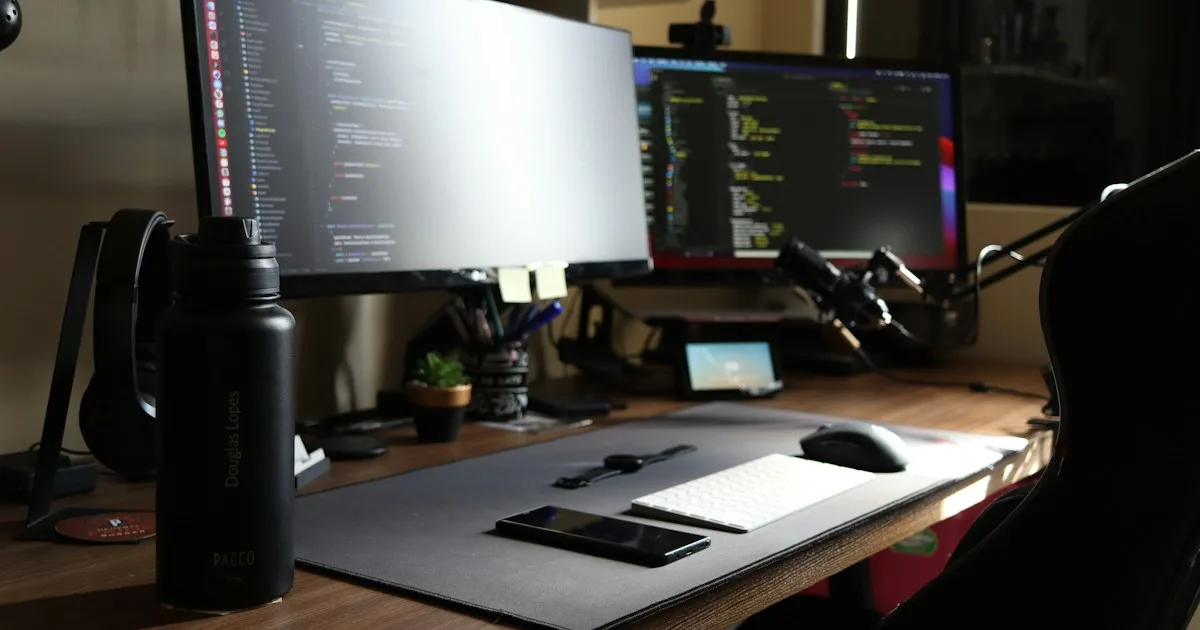
The desk layout: source, target, glossary
Start with the screens, because the screen layout decides how often the hand leaves the keyboard.
- Put the target segment in front of you. The text you are writing should own the primary screen and the keyboard lane.
- Put the source beside it, not above it. A vertical stack forces more neck movement than a horizontal pair at the same height.
- Keep the glossary on the second screen, not on paper. A paper glossary at the side of the desk pulls the eyes and the hand away from the keyboard.
- Move the QA panel to the edge. You need it, but not every minute. The centre of the screen should be target text.
If you work on a laptop, the same rule applies at a smaller scale: the laptop screen is the target, and an external monitor holds the source. Do not translate on a laptop keyboard for a full day; the screen and keyboard cannot both be at the right height. The external keyboard setup guide covers the geometry.
Keyboard angle for long, low-force typing
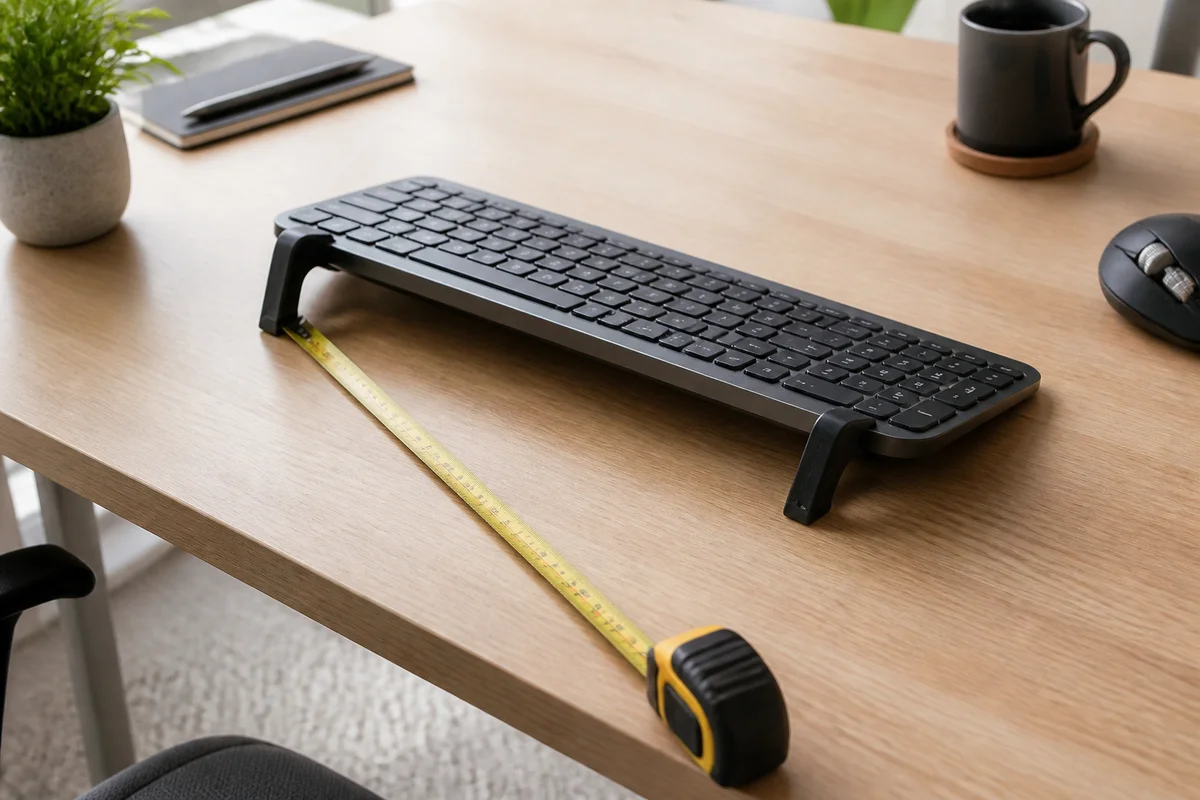
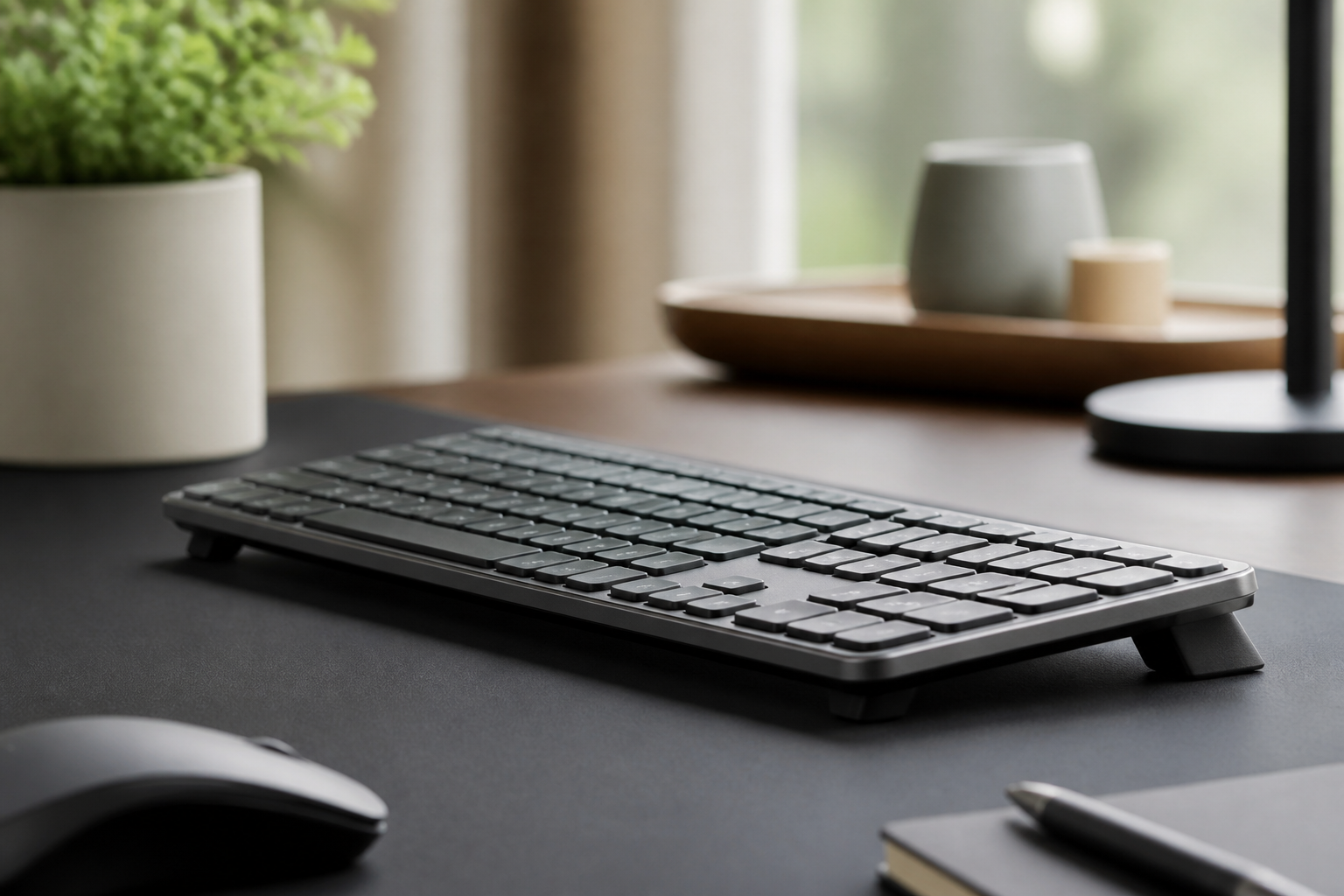
A flat keyboard encourages the wrist to extend upward, especially when the keyboard sits at the front edge of a deep desk. A raised rear edge reduces that extension and puts the hand closer to neutral.
KeyRiser holds the Logitech MX Keys, MX Keys S and MX Keys Mini at a fixed 15°. For translation work, the useful part is consistency: the angle is the same at the start of a revision pass and three hours later, without a stack of books to rebuild. The riser is two removable pieces, so it does not interfere with switching the keyboard between a desktop and a laptop bag.
A 15° angle is not right for everyone. If you have small hands, use a wrist rest, or already type on a negatively tilted keyboard, test the angle for short sessions first. The guide to whether 15° is too steep explains the trade-offs without assuming the answer.
Shortcuts that reduce reaching
The cheapest ergonomic upgrade for a translator is a better shortcut map. Every reach for the mouse is a small shoulder and wrist movement; a thousand a day adds up.
- Learn the CAT tool’s segment-confirm and match-insert shortcuts. Confirming with the keyboard instead of the mouse keeps both hands in place.
- Remap glossary lookup to a single modifier combination. A two-key chord beats a toolbar click.
- Use keyboard navigation for QA results. Jump to the next issue, fix it, jump again.
- Keep one hand on the keyboard and one on the mouse only when the task truly needs both. For terminology work, the keyboard alone is often faster.
- Turn off sticky keys and slow-key filters if they fire accidentally during fast modifier use.
If you use a Mac, check the modifier layout before remapping. A shortcut that requires an awkward thumb stretch is not an improvement, even if it saves a click.
Mouse, trackpad and the thumb
Translators often use a mouse for selection, formatting and glossary management. The mouse hand is the one that tends to ache first, because it sits farther from the body and higher than the keyboard.
- Put the mouse at the same height as the key surface. A tall mouse beside a low keyboard creates an uneven shoulder line.
- Keep the mouse close. If you have to extend the arm, the mouse is too far right.
- Consider a trackpad only if it does not force a reach. A trackpad placed below the keyboard can be worse than a mouse beside it.
- Do not grip. A light hold is enough for selection work; a tight grip turns a low-force task into a sustained one.
A wrist rest under the mouse can reduce contact pressure on the desk edge, but it does not lower the mouse. Fix the height relationship first.
Revision passes: the part nobody plans for
Drafting gets the attention; revision is where the hours disappear. A full revision pass combines reading, comparing, searching and editing, often with the hand hovering over the same keys.
Three habits make revision safer:
- Zoom in. Small text makes you lean forward and tighten the shoulders. A slightly larger font is cheaper than a new chair.
- Use find-and-replace deliberately. Batch terminology changes instead of fixing them one by one; fewer repeated micro-movements.
- Stand up between files. Use the end of a file as the trigger, not a timer you will ignore.
For long passes, a 15° keyboard angle and a low wrist rest are supporting pieces, not the whole solution. The main variable is still how long you sit without moving.
A realistic daily setup
A translator’s desk does not need to be elaborate. It needs to be repeatable:
- Chair height set once, feet flat, knees level with the hips.
- Keyboard centred on the letter block, with the numpad to the right if you use one.
- Screen top third near eye level, source and target at the same height.
- Mouse beside the keyboard, not behind a dictionary.
- Riser attached, so the angle is the same every morning.
- One break per hour, even if it is only standing up to refill a glass.
The goal is not a perfect posture held for eight hours. It is a setup that makes the neutral position the default when you are concentrating on the text rather than on your hands.
Frequently asked questions
What is the best keyboard for translators?
A low-profile keyboard with a comfortable key travel and reliable modifier keys is usually better than a tall mechanical keyboard for long, low-force sessions. The Logitech MX Keys family is a common choice because it is quiet, has a familiar layout and works across devices.
Should translators use a keyboard riser?
It can help if your wrists extend upward on a flat keyboard. A fixed riser keeps the angle consistent across long revision passes. It is not a substitute for correct chair height and keyboard distance.
How do I reduce mouse use in a CAT tool?
Learn the segment-confirm, match-insert and QA-navigation shortcuts, remap glossary lookup to a single chord, and use keyboard navigation for search results. Every task you can finish without leaving the keyboard removes a reach.
Is a dual-monitor setup better than one large screen?
For most translators, two screens at the same height are easier on the neck than one wide screen with the source and target at the edges. The key is to keep the target directly in front of you.
Can KeyRiser fit a translation laptop keyboard?
No. KeyRiser fits only the Logitech MX Keys, MX Keys S and MX Keys Mini. If you translate on a laptop, use an external supported keyboard and a stand for the laptop screen.
Related KeyRiser resources
- Check current Amazon availability
- Read the keyboard ergonomics by job type guide
- Set up a laptop with an external keyboard
- Compare a keyboard riser with a wrist rest
- Confirm MX Keys, MX Keys S or MX Keys Mini fit
- See specifications and setup details
This guide is educational content, not medical advice. If pain, numbness, tingling, weakness or swelling persists, consult a qualified healthcare professional. Product availability, price and returns are controlled by Amazon.
Ready for a Better Typing Angle?
Check KeyRiser on Amazon and confirm compatibility with your MX Keys model.
Buy Now - $16.99Related Articles

Complete your MX Keys setup
KeyRiser first, then the desk complements
KeyRiser addresses keyboard angle. These recommendations cover adjacent setup needs without replacing it.
Complete your MX Keys setup
KeyRiser lifts your keyboard; these complements cover mouse, wrist, monitor, or desk support — they do not replace it.
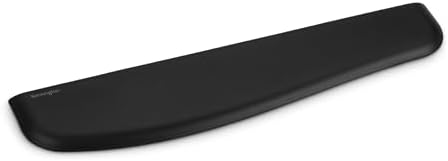 Desk complementKensington ErgoSoft Wrist Rest for Slim KeyboardsLow-profile ErgoSoft rest sized for slim keyboards that supports the wrists without raising the typing angle.View on AmazonPaid link
 Desk complementLogitech MX Master 3SThe natural wireless partner for the MX Keys — same MX ecosystem, silent clicks, and precise scrolling on any surface.View on AmazonPaid link
 Desk complementMicrosoft Bluetooth Ergonomic MouseErgonomic Bluetooth mouse with a thumb rest and customizable buttons shaped to reduce hand fatigue.View on AmazonPaid link
 Desk complementRazer Gaming Mouse Bungee V3 ChromaWeighted mouse bungee with a flexible arm that keeps wired cables off the pad.View on AmazonPaid link
As an Amazon Associate, we earn from qualifying purchases.