Laptop Ergonomics: Why an External Keyboard Is Your Best
Fix laptop ergonomics with an external keyboard and stand. Learn why built-in laptop keyboards cause wrist pain and how an MX Keys + KeyRiser setup helps.
Quick answer: The most impactful laptop ergonomics upgrade you can make is using an external keyboard. Built-in laptop keyboards force a poor wrist angle, shallow key travel, and a compromised screen position. Adding a Logitech MX Keys with KeyRiser fixes your typing angle while letting you raise the laptop screen to eye level — solving two of the biggest ergonomic problems at once.
Laptops are designed for portability, not ergonomics. Every time you type on a built-in keyboard, you accept a compromise: the screen is too low, the keyboard is too shallow, and the wrists are bent in a position that adds strain over time.
The Core Problem: One Device Cannot Fit Both Hands and Eyes
A laptop forces a single distance for both screen and keyboard. If the screen is at eye level, your arms are too high to type comfortably. If the keyboard is at elbow height, the screen is too low and your neck flexes forward.
That dilemma is the root cause of most laptop-related ergonomic issues:
- Neck strain from looking down at a low screen
- Wrist strain from typing on a shallow, flat keyboard
- Shoulder tension from hunched posture while trying to see the display
The fix is simple: separate the keyboard from the screen.
The External Keyboard Solution
Using an external keyboard breaks the laptop compromise. You can raise the laptop (or monitor) to eye level while keeping the keyboard at the correct height for your elbows and wrists.
Why Logitech MX Keys Works Well for Laptop Users
The Logitech MX Keys family — MX Keys, MX Keys S, and MX Keys Mini — is a natural fit for laptop-heavy workflows:
- Low-profile keys feel familiar to laptop typists
- Wireless connection (via Bluetooth or Logi Bolt) keeps the desk clean
- Multi-device pairing lets you switch between laptop, desktop, and tablet
- Full-size layout gives your fingers room without the cramped laptop feel
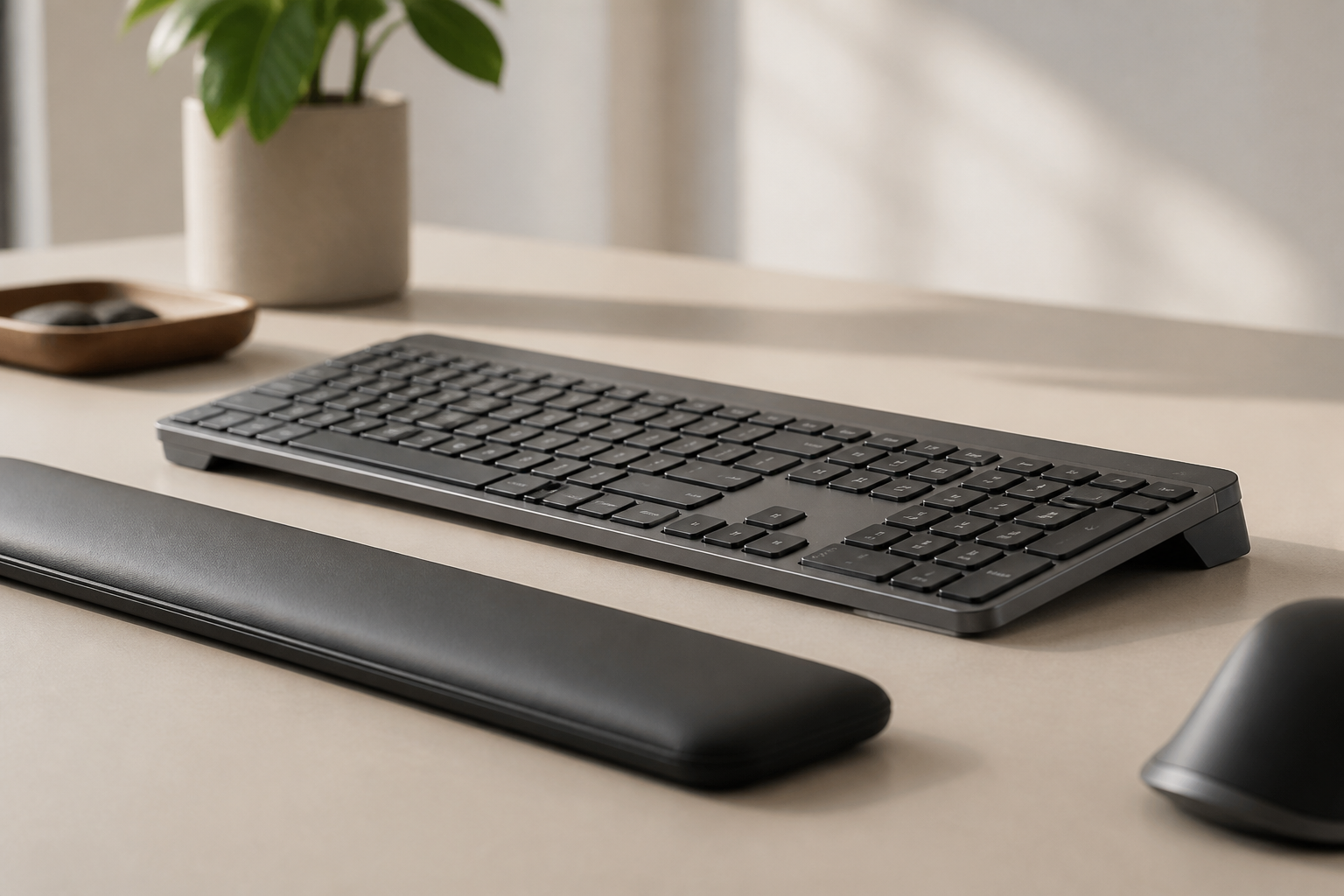
When paired with KeyRiser, the MX Keys gains a 15-degree rear lift that creates a rear lift angle. This positions your wrists in a more neutral, straight alignment instead of the extended position that flat laptop keyboards force.
How to Set Up Your Laptop Ergonomics Correctly
Step 1: Raise the Screen
Use a laptop stand, stack of books, or monitor arm to bring the top of the screen to eye level. Your gaze should hit roughly the top third of the display without tilting your head.
Step 2: Add an External Keyboard
Place your MX Keys at elbow height — your forearms should be parallel to the floor or sloping slightly downward. Add KeyRiser if your desk surface is flat and your wrists feel bent upward.
Step 3: Position the Mouse or Trackpad
Keep your mouse or trackpad right next to the keyboard at the same depth. Reaching too far to the side introduces shoulder strain.
Step 4: Align the Keyboard to Your Body
Center the keyboard on your torso, not on the desk. The letter keys (the G and H zone) should be directly in front of you.
Where KeyRiser Fits in a Laptop Setup
KeyRiser is designed for MX Keys, MX Keys S, and MX Keys Mini users who want a stable, tool-free way to improve keyboard angle. In a laptop ergonomics context, it matters most when:
- Your desk surface is flat and your wrists bend upward while typing
- You switch between sitting and standing and need consistent angle
- You want the same comfortable typing angle you get from a well-designed desktop workstation
It is lightweight (~3g per piece), installs in under 60 seconds, and does not alter the keyboard footprint — making it practical for laptop users who pack up and move regularly.
Does a Laptop Stand Alone Fix Ergonomics?
A laptop stand raises the screen, which helps neck posture. But it does nothing for wrist position unless you also use an external keyboard. Typing on a raised laptop means your wrists are held at an even sharper angle, which can increase strain.
The winning combination is:
Laptop stand (for screen height) + External keyboard with KeyRiser (for typing angle)
A Quick Laptop Ergonomic Audit
Run through this checklist at your current workspace:
- Top of screen at or near eye level
- External keyboard at elbow height
- Wrists straight (not bent up or down) while typing
- Mouse close to the keyboard
- Shoulders relaxed, not hunched
- Keyboard centered on your body
If you checked “no” to more than one, your laptop setup is likely costing you comfort and productivity every day.
FAQ
Is typing on a laptop keyboard bad for you?
Not inherently, but the fixed screen-keyboard distance forces a compromise. Most users end up with poor neck or wrist posture. An external keyboard removes that compromise.
Can I use KeyRiser with a laptop keyboard?
No. KeyRiser is designed specifically for Logitech MX Keys, MX Keys S, and MX Keys Mini. It does not attach to laptop keyboards.
Does KeyRiser work with standing desks?
Yes. KeyRiser works on any flat surface. The angle stays consistent whether you sit or stand.
What is the cheapest laptop ergonomics fix?
The cheapest effective fix is raising your laptop on a stack of books and adding any external keyboard. For MX Keys users, KeyRiser adds the angle improvement at a low cost.
Do I need a separate monitor too?
An external monitor helps but is optional. The essential change is separating keyboard from screen so each can be at the right height.
Final Takeaway
Good laptop ergonomics starts with one decision: stop using the built-in keyboard. Once you add an external keyboard and raise your screen, your wrists, neck, and shoulders will thank you by the end of the day. For MX Keys users, KeyRiser makes that external setup even better by fixing the one thing most external keyboards leave wrong — the angle.
Ready for a Better Typing Angle?
Check KeyRiser on Amazon and confirm compatibility with your MX Keys model.
Buy Now - $9.99