Will a Keyboard Riser Block Charging? MX Keys Cable Checks
Does a rear keyboard riser interfere with charging or the USB-C cable on a Logitech MX Keys? Run these four clearance checks before you order riser feet.
Will a Keyboard Riser Block Charging? MX Keys Cable Checks
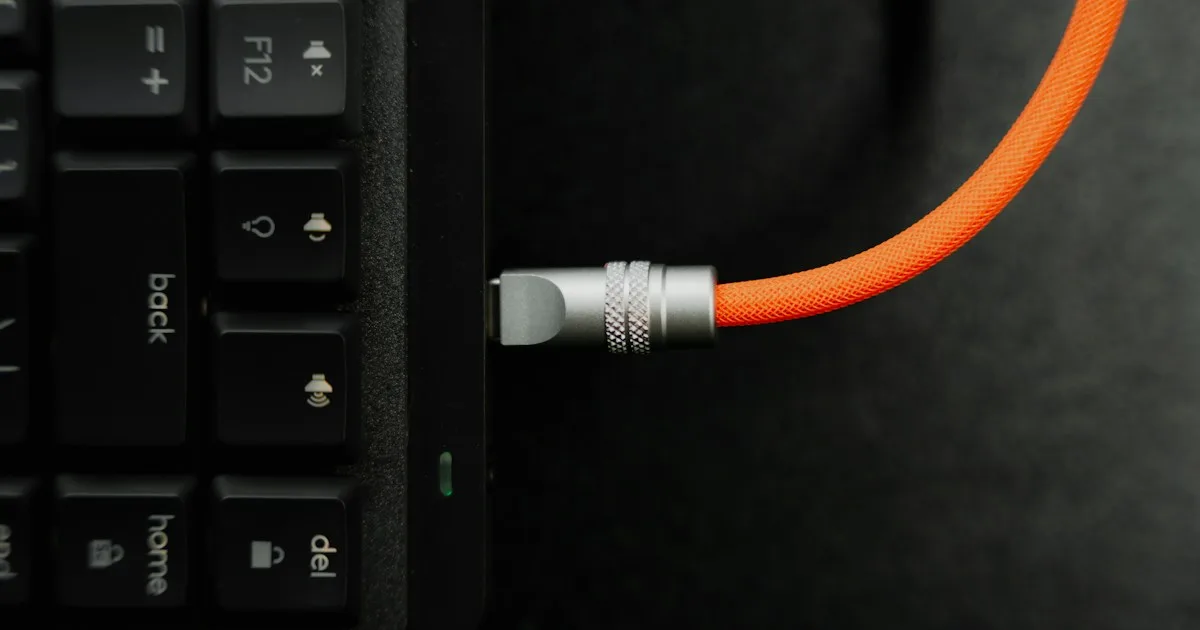
Short answer: KeyRiser adds two small feet at the rear corners and lifts the keyboard’s rear edge, so it does not cover the middle of the board. But on the Logitech MX Keys family the USB-C charging port sits at the top-right corner, which is exactly the area a rear riser changes. Whether that matters depends on your cable, your connector, and how you route it. Before ordering, check the port position, the cable you actually use, and how the keyboard sits at your desk.
This is a fit-and-clearance question, not a product-tier question. It is the same kind of check you would run before adding a riser to a keyboard tray: measure the real arrangement rather than trusting a listing photo. The goal here is narrow — confirm that a rear riser will not fight your charging setup, then decide.
KeyRiser is an independent accessory and is not affiliated with Logitech. It is not a medical device.
Where the charging port actually is
Logitech’s own setup guides for the MX Keys family tell you to plug the USB-C cable into the top-right corner of the keyboard. The MX Keys Mini setup guide words it that way, and the MX Keys S guidance uses the same instruction. “Top” here means the edge furthest from you when you type — the rear edge, next to the monitor.
That detail matters because KeyRiser is a rear-edge accessory. The two feet seat on the rear underside corners. So the honest answer to “will it block the port?” is: the port is not in the middle of the board where a center block would sit, but it is on the same rear edge the riser lifts, near the right corner. The interaction is worth checking rather than assuming.
KeyRiser does not publish a clearance specification for every cable, dock, or connector. That would be misleading, because cables vary. What follows is the check you can run yourself in a few minutes.
Four checks before you order
1. Find the port on your exact keyboard
Do not rely on a photo of a different model. Flip the board or look along the rear edge and find the USB-C port. Confirm whether it is at the right corner (typical for the MX Keys family) or somewhere else, because the MX Keys Mini and the full-size models can differ in small ways. If your keyboard has no USB-C port at all, it is probably not a supported model — check the model name first with the model identification guide.
2. Look at the connector you actually use
The port position is only half the question. The other half is the plug. Charging cables come with straight connectors, right-angle connectors, and long molded housings that occupy more space around the port. A straight connector that already sits close to the desk is more likely to matter than a slim right-angle cable. If you charge often, a right-angle USB-C cable is the simplest way to keep the plug low-profile regardless of the riser.
3. Check how the keyboard sits at the rear edge
A riser changes the rear-edge height, so the space behind and around the port changes slightly. Set the keyboard where you normally keep it and look at the gap between the port, the cable, and whatever is behind the board — a monitor base, a dock, a cable tray, or the desk edge. If the cable currently has room and enters at a shallow angle, a rear riser rarely changes the picture. If the cable is already tight or pinched, fix that first; it is a cable-management problem, not a riser problem.
4. Decide whether you charge while typing
Logitech notes that you can keep typing while the keyboard charges, so many people leave the cable connected during long sessions. If that is you, the relevant question is whether the connected cable keeps the keyboard stable and the feet seated. If you only plug in overnight, the cable is a non-issue because it is not part of your typing position. Match the check to how you actually work.
What KeyRiser changes — and what it does not
For a supported keyboard, KeyRiser is:
- Two separate rear feet at the rear corners, not a full-width platform.
- A fixed 15° rear lift that raises the back edge.
- Matte-black PLA, tool-free, no adhesive, no screws.
- Sold without the keyboard — you add the feet to a keyboard you already own.
It changes the keyboard’s rear-edge height and angle. It does not move the port, add or remove ports, or change how the keyboard charges. It also does not block the front, the number pad, the Easy-Switch keys, or the backlight, because none of those sit where the feet go. The only area worth a real look is the rear-right corner where the charging port sits.
If you want the mechanical details before deciding, read the install guide and the specifications page. Both describe the two-piece, rear-edge design rather than a full stand.
A 60-second clearance test you can run after install
If you already own KeyRiser, you can answer the charging question directly instead of guessing:
- Seat both feet on a supported keyboard following the install steps, and confirm the seat is flush.
- Plug in the USB-C cable you normally use, at the rear-right corner.
- Type a short passage while it charges. Watch whether the plug pushes the cable into the desk, whether the keyboard shifts, or whether a foot lifts.
- Check that the charge indicator behaves normally — the riser should not interrupt charging, but confirm rather than assume.
- Unplug and repeat a short block on battery.
If the arrangement is stable and charging continues, you have your answer. If a straight connector catches the desk, a right-angle cable usually solves it. Do not file, sand, or bend the feet to make room for a cable; that is a sign the cable, not the riser, is the constraint.
When a rear riser is the wrong choice anyway
Charging clearance is one reason people hesitate, but it is not the only thing that can rule out a rear riser. Choose a different solution if:
- You need an adjustable angle. KeyRiser is a fixed 15° rear lift.
- You want a tray or platform that lowers the keyboard under the desk, not a lift.
- Your keyboard is not one of the supported models. Confirm with the compatibility page.
- Your only real problem is a charging cable that already gets in the way. A better cable or a small cable-management clip fixes that without buying hardware.
Buying the right category matters more than buying quickly. A rear riser solves a rear-edge height problem. It is not the tool for every desk issue.
Charging, ports, and the rest of the setup
The charging check is one piece of a broader question: does a fixed rear lift suit your desk at all? If the answer is yes, the riser feet buying guide covers the rest of the decision, and the too-steep guide covers what to do if the angle feels like a lot on day one. If your desk surface is the variable instead of the cable, the sliding fix guide handles grip on glass and other slick tops.
FAQ
Does KeyRiser block the MX Keys charging port?
The charging port on the MX Keys family is at the top-right corner, and KeyRiser adds feet at the rear corners. The feet do not cover the middle of the board. Because the port is on the rear edge, check your specific connector and cable routing rather than assuming; KeyRiser does not publish a per-cable clearance guarantee.
Can I charge the keyboard while the riser feet are on?
Yes — the feet are separate parts on the rear underside and do not touch the port. Logitech notes you can keep typing while the keyboard charges. Confirm with your own cable, and prefer a right-angle connector if a straight plug is tight against the desk.
Will the riser make the cable pull out?
A correctly seated pair of feet does not pull on the cable. If your cable is short or routed tightly, give it slack or use a right-angle plug. Cable tension is a routing issue, not a feature of the riser.
Does the riser affect Easy-Switch, the backlight, or the receiver?
No. Easy-Switch keys, the backlight, and the Logi Bolt or Bluetooth connection are unrelated to the two rear feet. You should not need to re-pair the keyboard after installing them.
Can I use any USB-C cable with a riser?
Use a cable that fits the port and reaches your power source comfortably. A right-angle or low-profile USB-C cable tends to sit better at the rear edge than a long molded straight plug. Match the cable to your desk, not to the riser.
What if the keyboard rocks once the cable is plugged in?
Reseat both feet, then check the cable routing. A rocking board is usually an unseated foot or a cable pushing one corner up, not the riser blocking the port. If a foot will not sit flush, the keyboard is likely not a supported model — verify it first.
Bottom line
A rear keyboard riser does not cover the middle of an MX Keys, and it does not change how the keyboard charges. The one area worth checking is the rear-right corner, where Logitech places the USB-C port. Find the port, look at your actual cable and connector, and confirm the keyboard sits stably with the cable connected. If it does — and you already want a fixed 15° rear lift — the charging question is settled. If your cable is the real constraint, fix the cable first and revisit the riser afterward. When the model and the clearance both check out, review the current details on the product page or go to the purchase page.
This article is educational and is not medical advice. KeyRiser is an independent accessory and is not affiliated with Logitech. If you experience persistent pain, numbness, tingling, or weakness, consult a qualified health professional.
Sources
- Logitech Sync Hub — MX Keys Mini setup guide (USB-C charging port at the top-right corner; typing while charging).
- KeyRiser specifications and compatibility guide for the current two-piece, rear-edge design and supported models.
Ready for a Better Typing Angle?
Check KeyRiser on Amazon and confirm compatibility with your MX Keys model.
Buy Now - $9.99Related Articles



Complete your MX Keys setup
KeyRiser first, then the desk complements
KeyRiser addresses keyboard angle. These recommendations cover adjacent setup needs without replacing it.