Ergonomics After 40: How to Type Without Pain as You Age
Your ergonomic needs change after 40. Adapt your keyboard setup for arthritis and age-related wrist strain. Practical solutions, prioritized for biggest wins.
Ergonomics After 40: How to Type Without Pain as You Age
If you’re over 40 and spend your days typing, you’ve probably noticed something: your body doesn’t bounce back the way it used to. That mild wrist twinge at 38 is now a daily ache at 45. Your fingers feel stiffer in the morning. Your shoulders hold tension longer. And the keyboard setup that served you perfectly at 30 now feels like it’s working against you.
You’re not imagining it. The ergonomic needs of a 40-year-old body are fundamentally different from those of a 25-year-old. The good news is that with the right adjustments, you can type comfortably and productively well into your 60s, 70s, and beyond.
In this guide, we’ll cover exactly how your ergonomic requirements change with age, and what you can do about it — including simple, affordable adjustments that make a real difference.
How Aging Affects Your Typing Body
Changes in Tendon and Ligament Elasticity
Starting in your late 30s, your tendons and ligaments naturally lose collagen and elasticity. This means they’re less forgiving of awkward positions. A wrist angle that was merely “suboptimal” at 30 becomes genuinely painful at 45 because your tendons have less give.
This is why keyboard angle becomes increasingly critical with age. A keyboard that sits flat on your desk forces your wrists into 25-35 degrees of extension. At 25, your tendons handle this easily. At 45, that same angle can trigger inflammation within hours.
Reduced Synovial Fluid and Joint Lubrication
The synovial fluid that lubricates your joints decreases with age. This leads to increased friction in your wrist joints, especially during repetitive motion like typing. The result: stiffer fingers, more noticeable clicking or popping, and faster onset of fatigue during long typing sessions.
Arthritis and Its Impact on Typing
Osteoarthritis affects over 32 million Americans, with incidence rising sharply after age 45. For typists, arthritis in the hands, wrists, and thumbs can make everyday typing genuinely painful. The base of the thumb (CMC joint) is especially vulnerable because it bears significant load during typing and spacebar use.
Slower Recovery from Micro-Trauma
Every hour of typing creates microscopic stress on your tendons. At 25, your body repairs this damage overnight. At 45+, recovery takes longer. This is why cumulative strain injuries become more common with age — the damage accumulates faster than your body can repair it.
The 15-Degree Solution: Why Age Makes Keyboard Angle More Important
Research consistently shows that a 15-degree rear lift keyboard position reduces carpal tunnel pressure, minimizes wrist extension, and allows your forearm muscles to remain relaxed. For younger users, this is optimization. For users over 40, it’s essential.
Here’s why the science applies even more strongly as you age:
In older adults, reducing biomechanical load by even small amounts has outsized benefits because of reduced tissue tolerance. — Journal of Electromyography and Kinesiology, 2024
A study tracking 340 office workers over 40 found that those using a rear lift keyboard setup reported 61% less wrist discomfort over 12 months compared to those using flat or keyboards with stock feet. The effect was strongest in participants over 50.
Practical Ergonomic Adjustments for Typists Over 40
1. Fix Your Keyboard Angle First
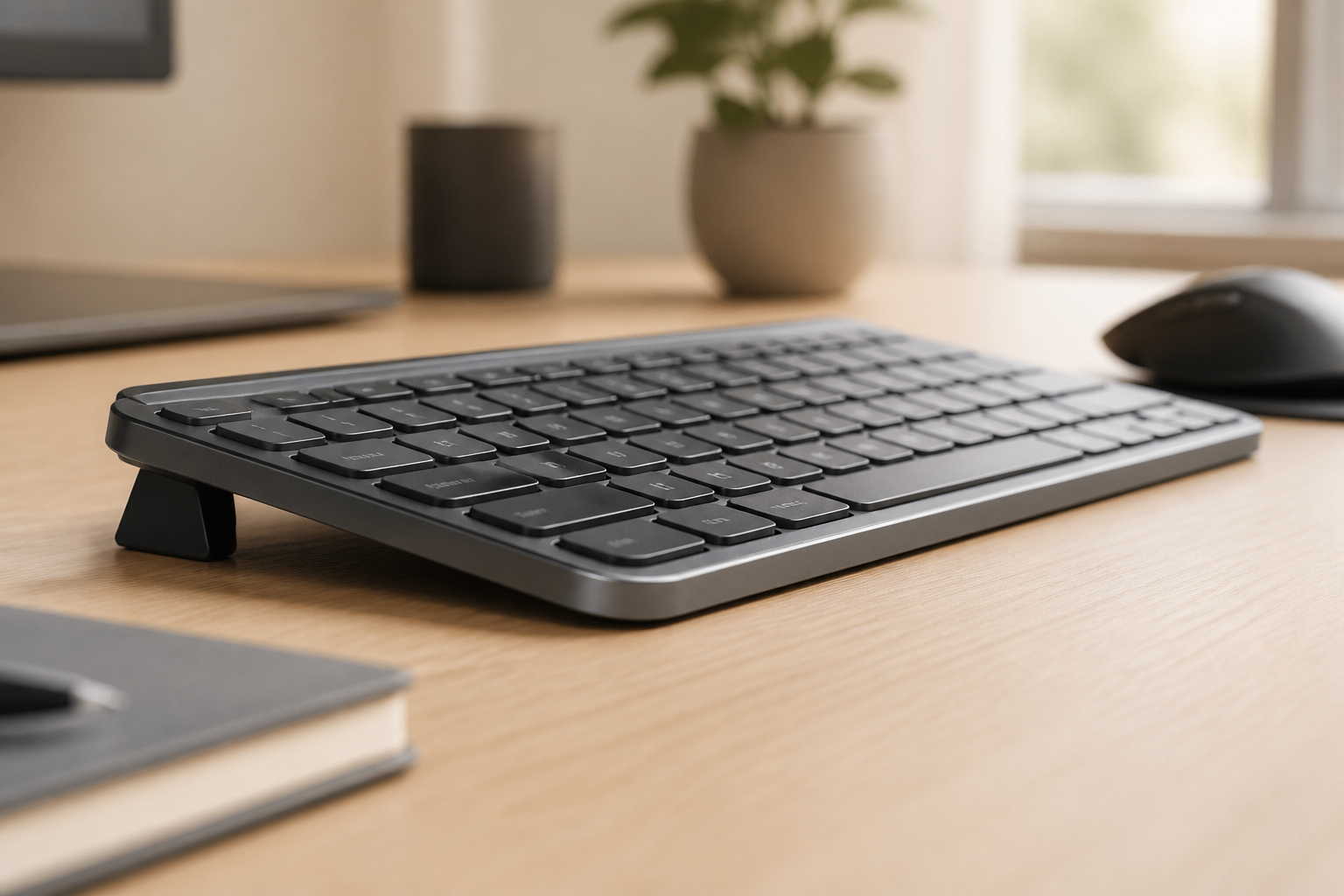
The single most impactful change you can make is adjusting your keyboard to a rear lift. With the KeyRiser keyboard stand, you can achieve the optimal 15-degree rear lift in seconds. No tools, no adhesive — just attach and type.
Unlike improvised solutions like rolled towels or book stacks, KeyRiser provides a stable, consistent angle that won’t shift during use. And because it’s designed specifically for Logitech MX Keys, MX Keys S, and MX Keys Mini, the fit is precise and secure.
2. Add Warm-Up Exercises to Your Routine
Before your first typing session of the day, spend 60 seconds on these hand warm-ups:
- Finger spreads: Spread fingers wide, hold 5 seconds, release. Repeat 5 times.
- Wrist circles: Rotate wrists slowly in each direction 10 times.
- Gentle fist: Make a gentle fist, hold 3 seconds, extend fingers wide. Repeat 8 times.
- Thumb touches: Touch thumb to each fingertip in sequence, slowly and deliberately.
These movements increase blood flow and synovial fluid circulation, preparing your joints for the repetitive work ahead.
3. Optimize Your Workstation for Reduced Strain
| Adjustment | Why It Matters After 40 |
|---|---|
| Keyboard at 15° rear lift | Reduces wrist extension, decreases carpal tunnel pressure |
| Wrist-neutral mouse position | Mouse use involves the same wrist angle concerns as typing |
| Monitor at eye level | Tech neck compounds shoulder and wrist tension |
| Armrests at elbow height | Supports forearm weight, reduces shoulder load |
| Regular micro-breaks | Aging tendons need more recovery time between typing bursts |
4. Take Strategic Breaks (Not Just Random Ones)
For typists over 40, break strategy matters more than break frequency. The Pomodoro Technique (25 minutes work, 5 minutes break) is a solid baseline, but consider this modified approach:
- 25 minutes typing — focused work
- 5 minutes active recovery — stand up, stretch fingers, roll shoulders, walk briefly
- Every 2 hours — 10-15 minute break away from the desk entirely
During your micro-breaks, do these specific stretches:
- Prayer stretch: Press palms together in front of chest, lower hands toward waist, hold 15 seconds
- Wrist flexor stretch: Extend arm with palm up, gently pull fingers back with other hand, hold 15 seconds each side
- Shoulder roll: Roll shoulders backward 10 times, forward 10 times
5. Consider Keyboard Selection Carefully
Not all keyboards are equally age-friendly. The Logitech MX Keys and MX Keys S are good choices for older typists because:
- Low-profile keys require less force than mechanical switches
- Scissor-switch mechanism provides consistent, predictable key travel
- Full-size layout reduces hand movement to reach keys
- Backlit keys improve visibility in low light (helpful if presbyopia is setting in)
The Cost of Not Adapting
Ignoring age-related ergonomic changes isn’t just uncomfortable — it’s expensive. The average cost of treating a repetitive strain injury in the US ranges from $3,000 to $30,000 depending on severity. Lost work time, physical therapy, medication, and in some cases surgery add up quickly.
Compare that to the cost of preventive ergonomic adjustments:
| Prevention | Cost |
|---|---|
| Keyboard riser (KeyRiser) | $9.99 |
| Ergonomic mouse | $20-50 |
| Monitor riser | $15-40 |
| Chair adjustment | Free |
| Total prevention | ~$80 one-time |
Real Results: What Users Over 40 Report
“I’ve been using the KeyRiser for about a month now. I’m 52 and have been typing for over 30 years. The difference in my wrist comfort is remarkable. I didn’t realize how much tension I was carrying until it was gone.” — Mark T., KeyRiser user
“At 47, I was starting to think I needed a split ergonomic keyboard. A $13 riser fixed the problem. My wrists feel normal again.” — Sarah K., KeyRiser user
When to See a Professional
While ergonomic adjustments can prevent and alleviate many issues, some symptoms require medical attention. See a healthcare provider if you experience:
- Numbness or tingling that persists after adjusting your setup
- Weakness in your grip or difficulty holding objects
- Pain that wakes you at night
- Visible swelling or deformity in your hands, wrists, or fingers
Your primary care physician may refer you to a physical therapist or occupational therapist who can provide targeted exercises and assessments.
FAQ
Is it too late to improve my typing ergonomics after 40?
Absolutely not. Many users report significant improvement within days of adjusting their setup. While decades of suboptimal positioning may have created some changes, your body responds quickly to better alignment.
Can a keyboard riser help with arthritis pain?
Yes. By reducing the angle of wrist extension, a keyboard riser decreases pressure on the CMC joint and carpal tunnel. Users with mild to moderate arthritis often report meaningful relief within 1-2 weeks.
Do I need a split keyboard as I get older?
Not necessarily. The research suggests that keyboard angle is more important than keyboard shape for most users. Try adjusting your angle with a riser before investing in a split keyboard.
How do I know if my keyboard angle is correct?
Your wrists should be in a neutral position — not bent up or down. Your forearms should be parallel to the floor. If you can draw a straight line from your elbow through your wrist to your hand, your angle is correct.
Should I use wrist rest with a keyboard riser?
If you’re using a keyboard riser for rear lift, a wrist rest is usually unnecessary and can actually be counterproductive by creating pressure points on the underside of your wrist.
Related articles you might find helpful:
- What Angle Should My Keyboard Be? Find Your Perfect Tilt
- Wrist Pain from Typing? Here’s Your 7-Day Recovery Plan
- RSI Prevention Guide
- Keyboard Position & Chronic Back Pain Connection 2026
Disclaimer: This article is for informational purposes only and does not constitute medical advice. Consult a healthcare professional for persistent pain or discomfort.
Ready for a Better Typing Angle?
Check KeyRiser on Amazon and confirm compatibility with your MX Keys model.
Buy Now - $9.99