Ergonomic Desk Setup for Teachers & Online Tutors
Teachers and online tutors spend hours grading and typing between lessons. Learn an ergonomic desk setup that protects your wrists and voice all day.
Ergonomic Desk Setup for Teachers & Online Tutors
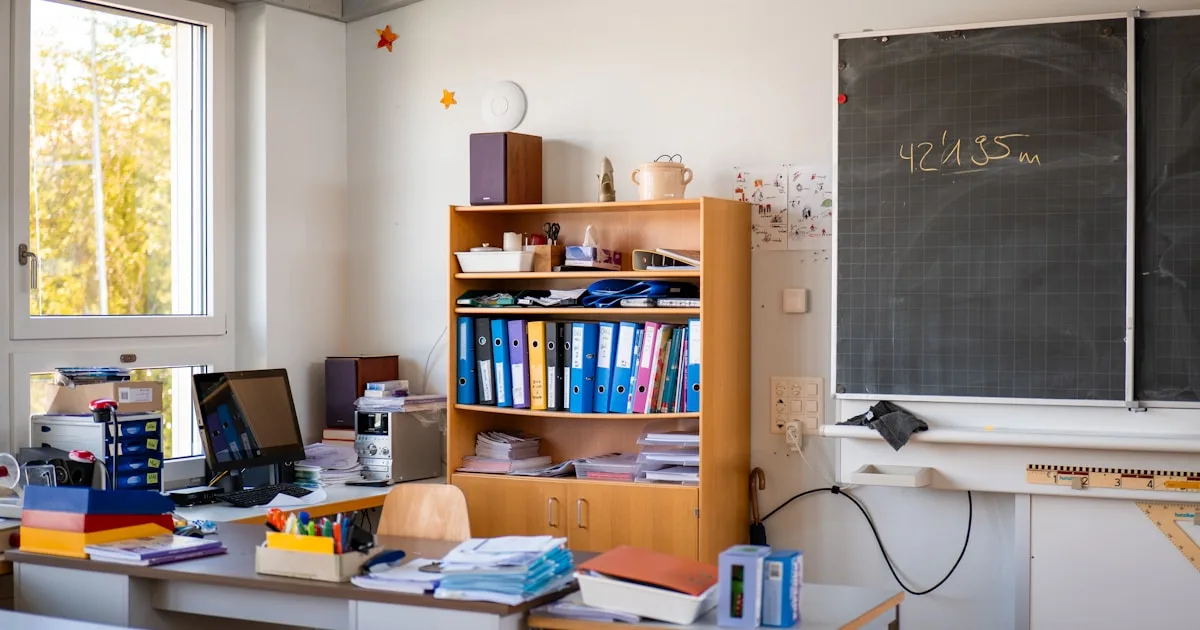
Teaching has quietly become one of the most computer-intensive jobs there is. Between writing lesson plans, grading assignments, replying to parents and students, and running back-to-back video lessons, many teachers and online tutors now spend more hours at a keyboard than the average office worker.
The catch: most teachers set up their workspace around paper, books, and a webcam — not around their wrists and neck. This guide builds an ergonomic desk that handles both sides of the job: the typing and the teaching.
Why Teachers Get Wrist and Neck Pain
Teachers face a specific mix of demands that standard office advice rarely covers.
Long typing in short bursts
Teachers rarely type for one long, continuous session. Instead they type in many short bursts — a grade here, a message there — often leaning over a laptop or a desk covered in papers. Short bursts can still cause strain, because the awkward positions repeat all day.
Looking down at papers and screens
Grading means constantly switching between a screen and a stack of papers. The head bobs up and down for hours, which loads the neck and upper back.
The webcam posture
Online tutors often hunch toward the camera or angle their screen oddly to look presentable on video. That fixed, front-facing posture is hard on the neck and shoulders.
One-size-fits-none furniture
Many teachers work from home at a kitchen table or a repurposed desk that was never adjusted for typing. The keyboard sits flat, the screen sits low, and the wrists take the toll.
The Teacher’s Desk, Layer by Layer
1. Screen and camera at eye level
- Raise the monitor or laptop so the top of the screen is at or just below eye level.
- Put the webcam near the top of the screen so you look straight ahead on video, not down.
- Keep the papers you grade on a document holder between the keyboard and the screen so you stop bobbing your head.
For the full neck checklist, see our tech neck prevention guide.
2. Keyboard close and slightly tilted
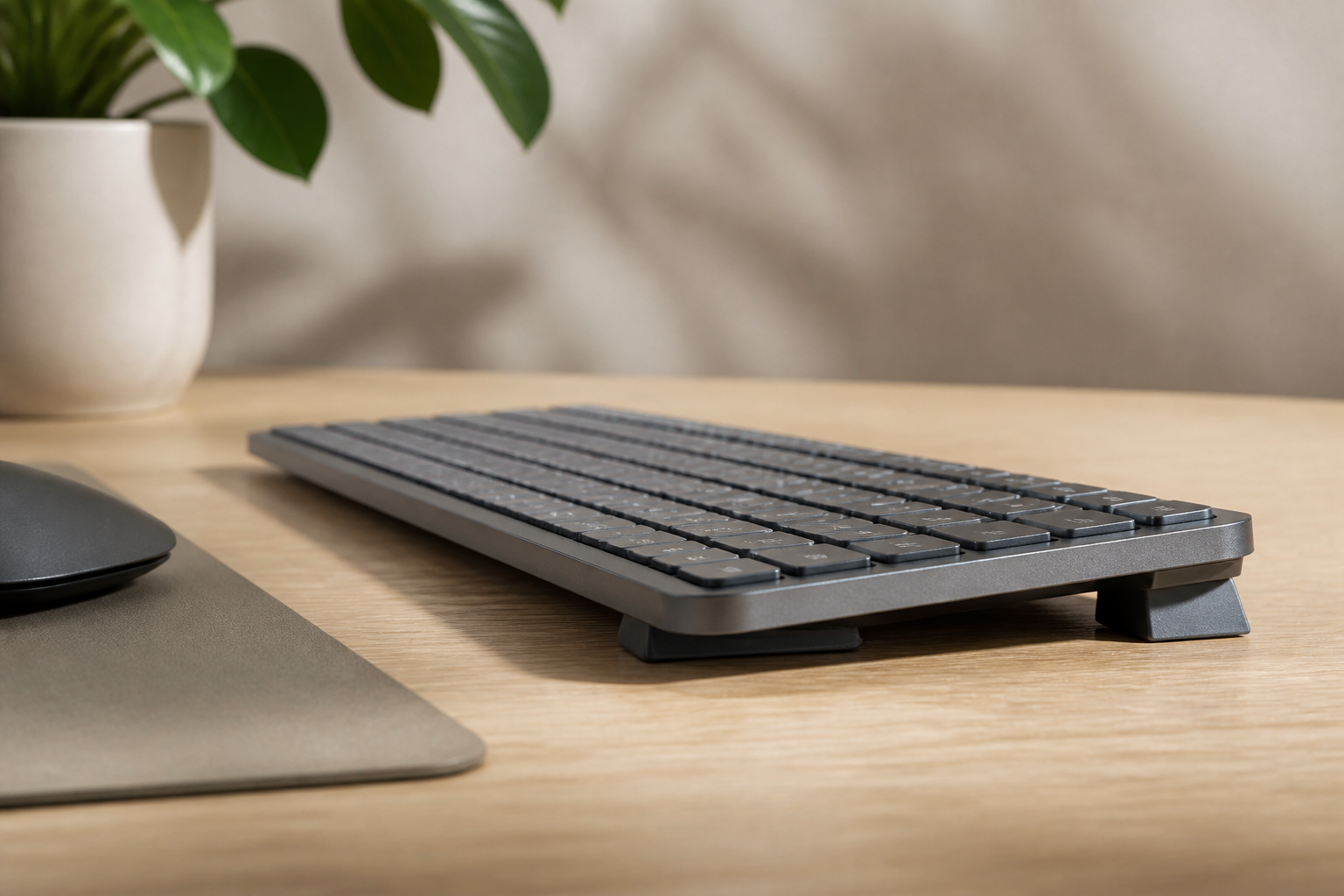
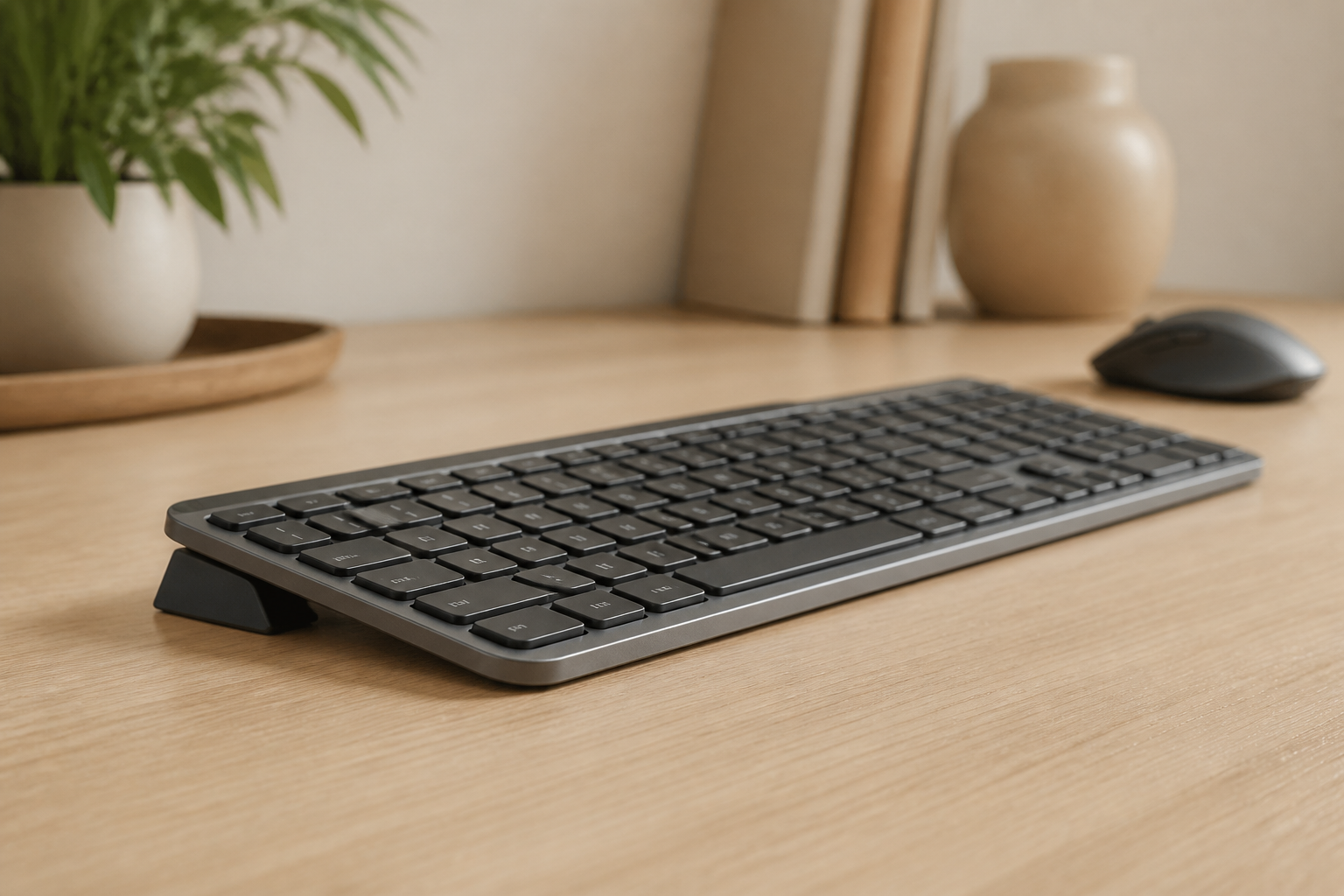
Bring the keyboard to the front edge of the desk and add a rear lift so your wrists stay straight while you grade and message. This is the highest-impact change for the typing half of a teacher’s day.
If you use the Logitech MX Keys, the KeyRiser adds that 10-15 degree rear lift in a low-profile form that does not crowd the papers and books already on your desk.
3. A document holder instead of a head-bob
A simple document holder keeps the page you are grading near eye level, directly under the monitor. It removes the repetitive up-and-down head movement that builds neck tension across a grading session.
4. A headset for long lessons
A comfortable headset or earbuds with a good microphone lets you sit back naturally during video lessons instead of leaning into the laptop. It also saves your voice, which you need for the next class.
Between Lessons: 30-Second Reset
Teachers rarely get long breaks, so the reset has to be quick.
- Stand up and roll the shoulders back.
- Gently extend the wrists and open the fingers.
- Look at something far away for 20 seconds to rest the eyes.
- Reset the chair and keyboard before the next lesson.
These micro-resets add up and are realistic even on a tight schedule. For targeted hand relief, see 5 wrist exercises for office workers.
Grading Without Wrecking Your Wrists
Grading is the hidden wrist hazard. It combines typing, clicking, and handwriting in a repetitive loop.
- Use keyboard shortcuts for common comments so you type less.
- Dictate longer feedback with voice typing instead of typing it all. See our voice typing guide.
- Alternate hands for scrolling and clicking to avoid loading one side all day.
- Keep the mouse close so you do not reach across the desk for every click.
A Setup That Works for Video Lessons
On camera, posture matters for both comfort and professionalism.
- Frame yourself at eye level so you sit tall instead of slouching.
- Keep the light in front of you, not behind.
- Position the keyboard so your elbows stay near your sides and your shoulders stay down.
- Use a stable, low-profile keyboard angle so your hands look and feel relaxed during long lessons.
A well-framed, comfortable setup also means fewer fidgets and less fatigue by the last lesson of the day.
Frequently Asked Questions
How do I set up an ergonomic desk for online teaching?
Raise the screen and webcam to eye level, bring the keyboard to the front edge with a slight rear lift, use a document holder for papers, and wear a headset. These four changes cover the neck, wrist, and posture demands of teaching.
Why do teachers get wrist pain?
Teachers get wrist pain from repeated short typing and grading sessions in awkward positions — often on a flat laptop keyboard at a table that was never adjusted for typing. A keyboard riser that adds a rear lift is one of the fastest fixes.
What is the best keyboard for teachers?
The best keyboard is one you can position correctly: close to the edge of the desk with a slight rear lift. The Logitech MX Keys is a popular choice for its quiet, comfortable keys, and the KeyRiser gives it the ergonomic angle it lacks out of the box.
Do I need a standing desk to teach online?
Not necessarily. A standing desk adds position variety and can help between lessons, but the more immediate fixes are screen height and keyboard angle. Start there, then add a height-adjustable desk if you want to alternate sitting and standing.
How can I protect my wrists while grading?
Use keyboard shortcuts, dictate longer comments with voice typing, alternate hands for scrolling, and keep the keyboard at a neutral rear lift. These habits reduce the repetitive strain that grading creates.
The Bottom Line
A teacher’s desk has to serve two jobs — typing and teaching — and most setups optimize for neither. Raise the screen, add a document holder, wear a headset, and give the keyboard a neutral tilt, and the whole day gets easier on your wrists, neck, and voice.
For Logitech MX Keys users, the KeyRiser is a simple way to add that missing rear lift without turning your desk into a tech setup that crowds out the lesson plans and papers.
Related articles you might find helpful:
Ready for a Better Typing Angle?
Check KeyRiser on Amazon and confirm compatibility with your MX Keys model.
Buy Now - $9.99Related Articles

Complete your MX Keys setup
KeyRiser first, then the desk complements
KeyRiser addresses keyboard angle. These recommendations cover adjacent setup needs without replacing it.