
Why Your Keyboard Angle Matters More Than Your Chair: The Foundation of Desk Ergonomics
You spent hundreds on an ergonomic chair but your wrists still hurt. Here is why keyboard tilt is the overlooked foundation of desk comfort and how to fix it.
Why Your Keyboard Angle Matters More Than Your Chair: The Foundation of Desk Ergonomics
Your chair is fine. Your keyboard is the problem. Get KeyRiser on Amazon for $9.99 (on sale from $9.99) and fix the foundation of your desk setup.
You bought the Herman Miller. Or the Steelcase. Or the “highly rated ergonomic chair” that cost more than your first car. Your back feels better. Your posture has improved. But your wrists? They still ache at 4 PM.
Here’s what most ergonomic guides get wrong: they treat the chair as the starting point and the keyboard as an afterthought. In reality, for anyone who types for a living, the keyboard is where the damage happens — and fixing the keyboard angle should come first, not last.
The Chair Obsession (And Why It’s Not Enough)
What a Good Chair Actually Fixes
A high-quality ergonomic chair addresses three things:
- Spinal alignment — supporting the natural S-curve of your spine
- Hip angle — keeping your hips at roughly 90-100 degrees
- Weight distribution — reducing pressure points on your thighs and lower back
These are important. Sitting with poor spinal support for 8 hours a day leads to back pain, and back pain is miserable.
But here’s the critical distinction: your chair affects your spine. Your keyboard affects your hands, wrists, forearms, shoulders, and neck. That’s because the kinetic chain runs from your fingertips through your wrists, up your forearms, across your shoulders, and into your neck. A problem at the keyboard radiates upward through the entire chain.
The Problem With “Chair First” Thinking
When someone experiences wrist pain, the standard advice is:
- Get a better chair
- Adjust the chair height so your feet are flat on the floor
- Position your monitor at eye level
- Oh, and make sure your keyboard is comfortable, somehow
Steps 1-3 are about your chair and monitor. Step 4 — the one that actually addresses wrist pain — is treated as an afterthought. This is backwards.
If your wrists are in pain, the most direct fix involves your keyboard angle — not your chair height. A chair cannot compensate for a flat keyboard that forces your wrists into extension for 50,000 keystrokes per day.
The Kinetic Chain: Why the Keyboard Controls Everything Upstream
From Fingertips to Neck
Your body is connected. When you type with your wrists bent upward, here’s what happens:
- Wrist extension — Your wrist bends back, compressing the carpal tunnel
- Forearm tension — Muscles in your forearm tighten to stabilize the wrist
- Shoulder elevation — Your shoulders creep up to compensate for the awkward forearm angle
- Neck tension — Tight shoulders pull on your neck muscles
- Headaches and upper back pain — The final result of a problem that started at your keyboard
This is why people with “good chairs” still get tension headaches by the end of the workday. The chair is doing its job — but the damage is entering the system at the keyboard, not the seat.
What Science Says About Keyboard Tilt
Research from the Canadian Centre for Occupational Health and Safety (CCOHS) and guidelines from NIOSH consistently recommend a neutral or slightly negative keyboard tilt for reducing wrist strain. A flat or positively tilted keyboard — where the spacebar is higher than the top row — increases wrist extension and carpal tunnel pressure.
A study published in Applied Ergonomics found that a 15° negative tilt (rear edge raised, front edge flat) significantly reduced muscle activity in the forearm extensors compared to a flat keyboard — meaning less strain on the muscles and tendons that control your wrists and fingers.
The Real Ergonomic Foundation: What to Fix First
If you were building a desk setup from scratch or fixing an existing one that causes pain, here is the correct priority order:
1. Keyboard Angle (Fix This First)
The keyboard is where the majority of repetitive stress enters your body. A flat keyboard forces your wrists into extension for 6-10 hours a day, 250+ days per year. That’s thousands of hours of accumulated strain.
The fix: Raise the rear edge of your keyboard to approximately 15 degrees. This brings your wrists closer to a neutral position, reducing carpal tunnel pressure and forearm muscle tension.
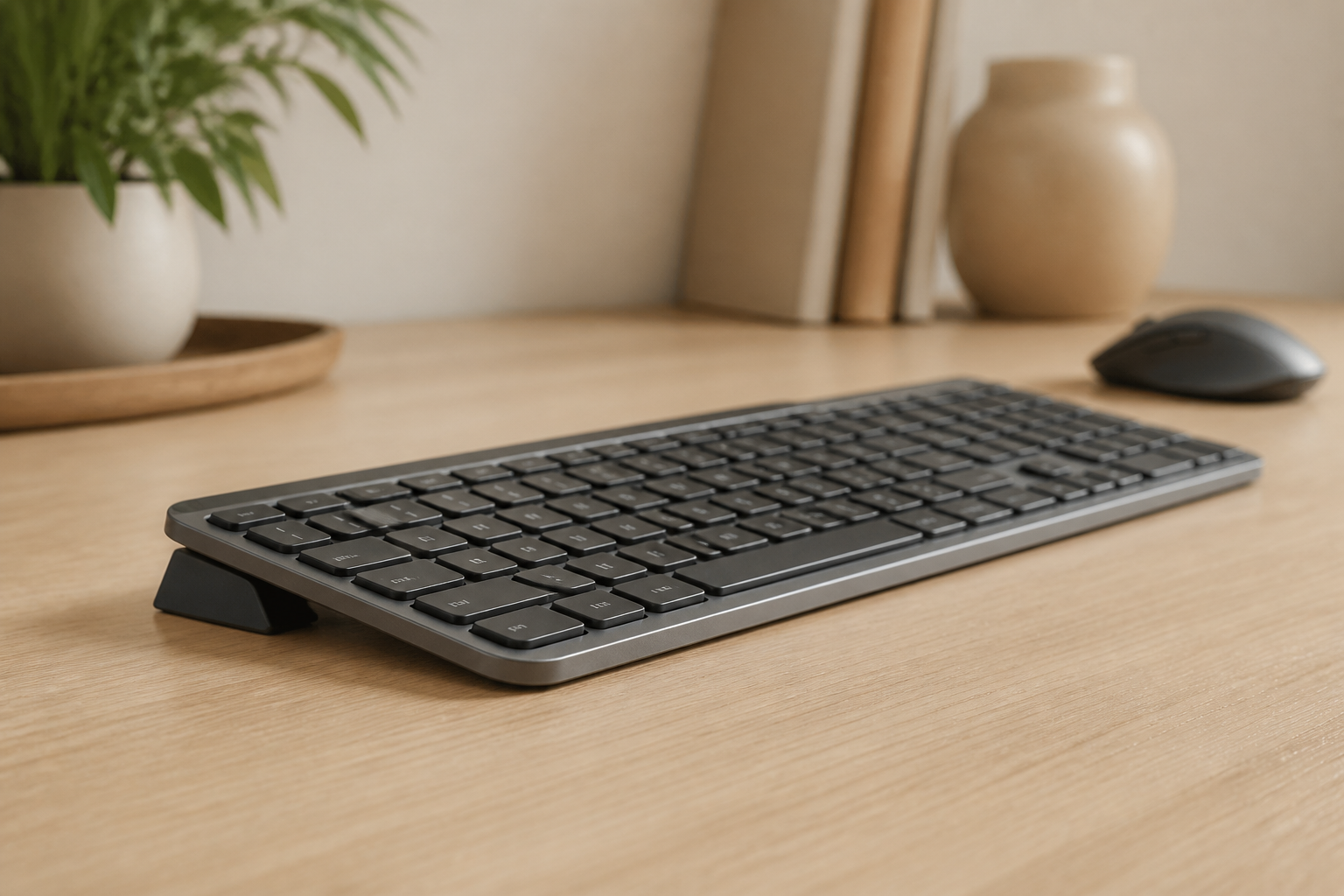
For Logitech MX Keys users, this is especially critical because these keyboards ship with no adjustable feet — they sit completely flat. A snap-on riser like KeyRiser adds the 15° rear lift in seconds without tools or permanent modification.
2. Monitor Height (Fix This Second)
Once your keyboard angle is correct, adjust your monitor so the top of the screen is at or slightly below eye level. This prevents you from tilting your head up or down, which starting from the correct keyboard position, keeps your entire upper-body chain aligned.
3. Chair Height and Support (Fix This Third)
Now adjust your chair. With your keyboard at the correct angle and your monitor at the right height, set your chair so that:
- Your elbows are at roughly 90 degrees when typing
- Your feet are flat on the floor (or on a footrest)
- Your lower back is supported
Notice the order: keyboard → monitor → chair. The chair adjusts to the keyboard, not the other way around. When you set the chair first and then place the keyboard wherever it ends up, you optimize for your back at the expense of your wrists — and your wrists do far more repetitive work.
4. Desk Height (Fix This Fourth — Or Accept It)
Desk height is the hardest variable to change because most desks are fixed. If your desk is too high, a keyboard tray can help. If it’s too low, risers or adjustable legs are an option. But because desk height is often a constraint you can’t easily change, it should be the last thing you optimize around — not the first.
The Chair-Only Trap: A Real Example
Consider a typical scenario:
You buy an expensive ergonomic chair. You set it to the “correct” height — knees at 90 degrees, feet flat. Now your desk, which is a standard 73-75 cm height, determines where your keyboard sits. And because most standard desks are slightly too high for most people, your keyboard ends up forcing your wrists into extension. Your back feels fine, but your wrists are slowly accumulating damage.
Six months later: wrist pain. You blame the mouse. Or your typing technique. Or “getting older.” But the root cause was the priority order: you optimized for your back and ignored your wrists — the body part doing 50,000 repetitive motions per day.
Reverse the order. Set the keyboard angle first for neutral wrists, adjust the monitor to match, and then set the chair to support that position. Your back will still be supported. But now your wrists will be, too.
Practical Steps to Fix Your Setup Today
Step 1: Check Your Current Keyboard Angle
Place your hands on your keyboard as you normally would. Look at your wrists from the side. Are they bent upward (extended)? Is there a visible angle between your forearm and the back of your hand?
A neutral wrist position means your hand is roughly in line with your forearm — no visible bend. If you see any upward angle, your keyboard is too flat.
Step 2: Add a Riser or Keyboard Tilt
If your keyboard has built-in adjustable feet, try lowering the front feet and see if that helps. But most modern keyboards — including the Logitech MX Keys series — don’t have any adjustable feet at all. They’re designed to sit flat.
For these keyboards, a clip-on riser is the simplest solution. KeyRiser adds a fixed 15° rear lift to the Logitech MX Keys, MX Keys S, and MX Keys Mini. It clips on in seconds, adds zero extra desk footprint, and can be removed without leaving any trace.
Step 3: Re-check Your Entire Chain
After adjusting your keyboard angle:
- Check that your wrists are neutral when typing
- Check that your shoulders are relaxed, not elevated
- Check your monitor height — you may need to raise it slightly
- Adjust your chair height to match the new keyboard position
Step 4: Give It a Week
Your body has adapted to your old setup. When you change your keyboard angle, your muscles and tendons need time to adjust. You may feel slightly different — or even slightly uncomfortable — for the first few days. This is normal. Persist for at least a week before judging the change.
Frequently Asked Questions
”I already have an expensive chair. Do I really need to change my keyboard angle?”
Yes. A chair supports your spine. It does not change the angle of your wrists. If your keyboard is flat, your wrists are in extension regardless of how good your chair is. The two problems are independent — and the keyboard problem causes more direct damage to the body parts doing the work.
”Can’t I just use a wrist rest instead of changing the keyboard angle?”
Wrist rests can provide comfort, but they do not fix the underlying angle problem. A wrist rest supports your wrists in their current (extended) position — it doesn’t bring them into neutral. In some cases, resting on a wrist rest can actually increase carpal tunnel pressure because it compresses the underside of the wrist. A keyboard angle change addresses the root cause.
”What if my keyboard already has built-in feet?”
Check what those feet actually do. On most keyboards, the built-in feet at the back tilt the keyboard upward — raising the side closest to you (the spacebar side). This increases, rather than decreases, wrist extension. The name “ergonomic” often refers to the typing angle for your fingers, not the biomechanical angle for your wrists.
For optimal wrist health, you want the front edge of the keyboard (the spacebar end) to be lower than or level with the rear edge — the opposite of what most built-in feet provide.
The Bottom Line
Your chair matters. But the repetitive stress that causes wrist pain, forearm tension, shoulder tightness, and tension headaches enters your body through your keyboard — not your chair.
Fix the foundation first: set your keyboard to a 15° angle for neutral wrists, then adjust everything else to match. Your body will thank you.
Ready to fix the foundation? Get KeyRiser on Amazon for $9.99 (on sale from $9.99). Designed specifically for Logitech MX Keys, MX Keys S, and MX Keys Mini. Clips on in seconds. No tools. No permanent changes.
Disclaimer: This article provides general ergonomic guidance and is not a substitute for professional medical advice. If you are experiencing persistent pain, numbness, or loss of function, consult a qualified healthcare professional.
Ready for a Better Typing Angle?
Check KeyRiser on Amazon and confirm compatibility with your MX Keys model.
Buy Now - $9.99Related Articles



Complete your MX Keys setup
KeyRiser first, then the desk complements
KeyRiser addresses keyboard angle. These recommendations cover adjacent setup needs without replacing it.