Is Logitech MX Keys Good for Programming? A Developer Review
Is the Logitech MX Keys good for programming? We evaluate key feel, layout, ergonomics and battery life for developers who type all day. Plus our verdict.
Is the Logitech MX Keys Good for Programming? A Developer’s Honest Review
The Logitech MX Keys is one of the most frequently recommended keyboards in developer forums — and one of the most misunderstood. This review evaluates the MX Keys against the specific demands of programming: key feel during long sessions, layout for code navigation, ergonomics for eight-hour coding days, and the flat-keyboard problem that affects every developer who uses one.
What Developers Actually Need From a Keyboard
Programming is not typing. Typing is about key-entry speed in words per minute. Programming is about sustained, low-motion hand position for hours with periodic burst input — writing a function, navigating a file tree, switching between editor and terminal, reviewing a pull request. The keyboard that is fastest for typing ISO-norms is not necessarily the keyboard that keeps a developer’s wrists neutral across the nine-hour session.
The requirements for a developer keyboard are:
- Low activation force. You should not have to fight the keys to register a keystroke. Heavy switches fatigue the finger flexors over hours.
- Precise actuation. The key should register cleanly on a light press. The difference between
=and==should never be a keyboard error. - Quiet operation. Open-plan dev offices and video calls reward quiet keyboards. Clicking mechanical switches annoy the person next to you.
- Sustainably flat wrist angle. The geometry matters more than the switch type. A keyboard that forces wrist extension during static holding positions is a repetitive strain injury with a future timestamp.
- Function key and modifier access.
Ctrl,Cmd,Option,Alt,Fn— the chording keys need to be reachable without contorting the hand.
The MX Keys meets most of these criteria. The one it misses out of the box is the wrist angle. More on that below.
Key Feel: Scissor Switches, Not Mechanical
The MX Keys uses Logitech’s Perfect Stroke scissor-switch mechanism, not a mechanical switch. Each key has a shallow, precise travel of about 1.8 mm with a crisp actuation point near the top of the stroke. The force required is approximately 60-65 grams — light enough to avoid fatigue, heavy enough to avoid accidental presses.
For comparison:
| Keyboard | Switch type | Key travel | Actuation force | Sound level |
|---|---|---|---|---|
| MX Keys | Scissor (Perfect Stroke) | 1.8 mm | ~60 g | Quiet |
| MX Mechanical | Low-profile mechanical (Tactile Quiet) | 2.8 mm | ~45 g | Medium-quiet |
| Keychron K3 | Low-profile Gateron mechanical | 2.5 mm | ~50 g | Medium |
| Apple Magic Keyboard | Scissor | 1.0 mm | ~55 g | Very quiet |
| Cherry MX Brown (full-height) | Mechanical tactile | 4.0 mm | ~55 g | Medium-loud |
The scissor-switch feel is polarizing among developers. Those who prefer it cite the short travel and crisp bottom-out — every keystroke feels intentional. Those who dislike it cite the lack of tactile feedback compared to mechanical switches — you cannot feel the actuation point through your fingers the way you can on a Cherry MX Brown or Gateron Brown.
The verdict: for developers who prioritize speed and quiet operation, the MX Keys scissor switches are an excellent fit. For developers who prioritize tactile feedback — the physical sensation of a key firing — a mechanical keyboard delivers more sensory information per keystroke. Neither is objectively better for code output. The difference is preference.
Layout: Full-Size vs Mini for Coding
The full-size MX Keys includes a dedicated number pad, function row, and full navigation cluster (Home, End, PgUp, PgDn, arrow keys). The MX Keys Mini removes the numpad and compresses the navigation cluster into a function-layer layout.
For developers, the full-size layout has one significant drawback: the numpad pushes the mouse about six inches to the right of where the hand naturally rests. Over a nine-hour coding day, the repeated reach to the mouse loads the right shoulder asymmetrically. The Mini fixes this by removing the numpad entirely and centering the letter cluster with the user’s body.
The trade-off: without a numpad, developers who frequently enter numeric data — IP addresses, port numbers, hex values in CSS, financial calculations — lose a dedicated number-entry row. The workaround is a standalone USB numpad placed to the left of the keyboard, which keeps the mouse close while providing number entry when needed.
The Flat-Keyboard Problem for Developers
This is the most important section of this review, and the one most MX Keys reviews skip.
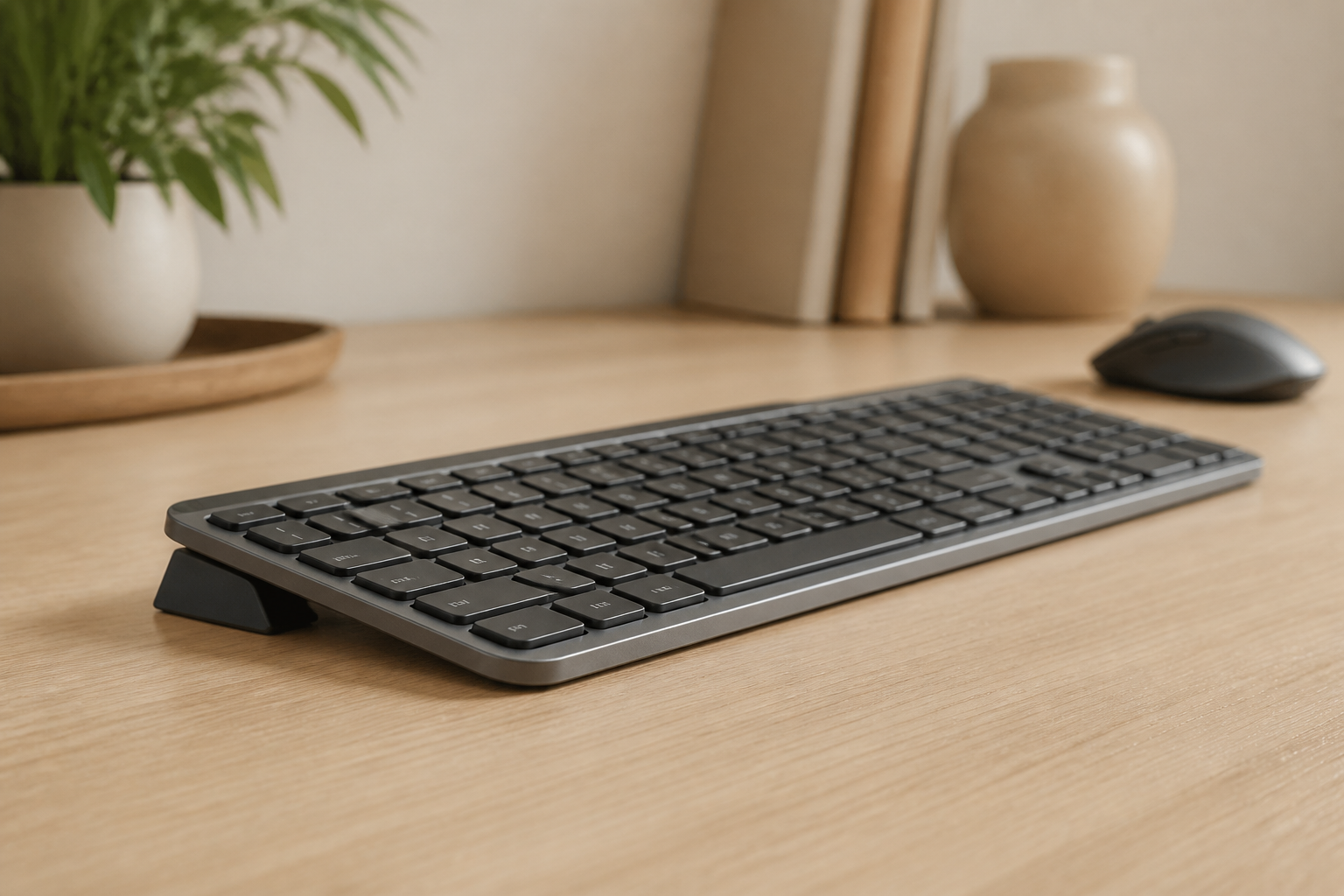
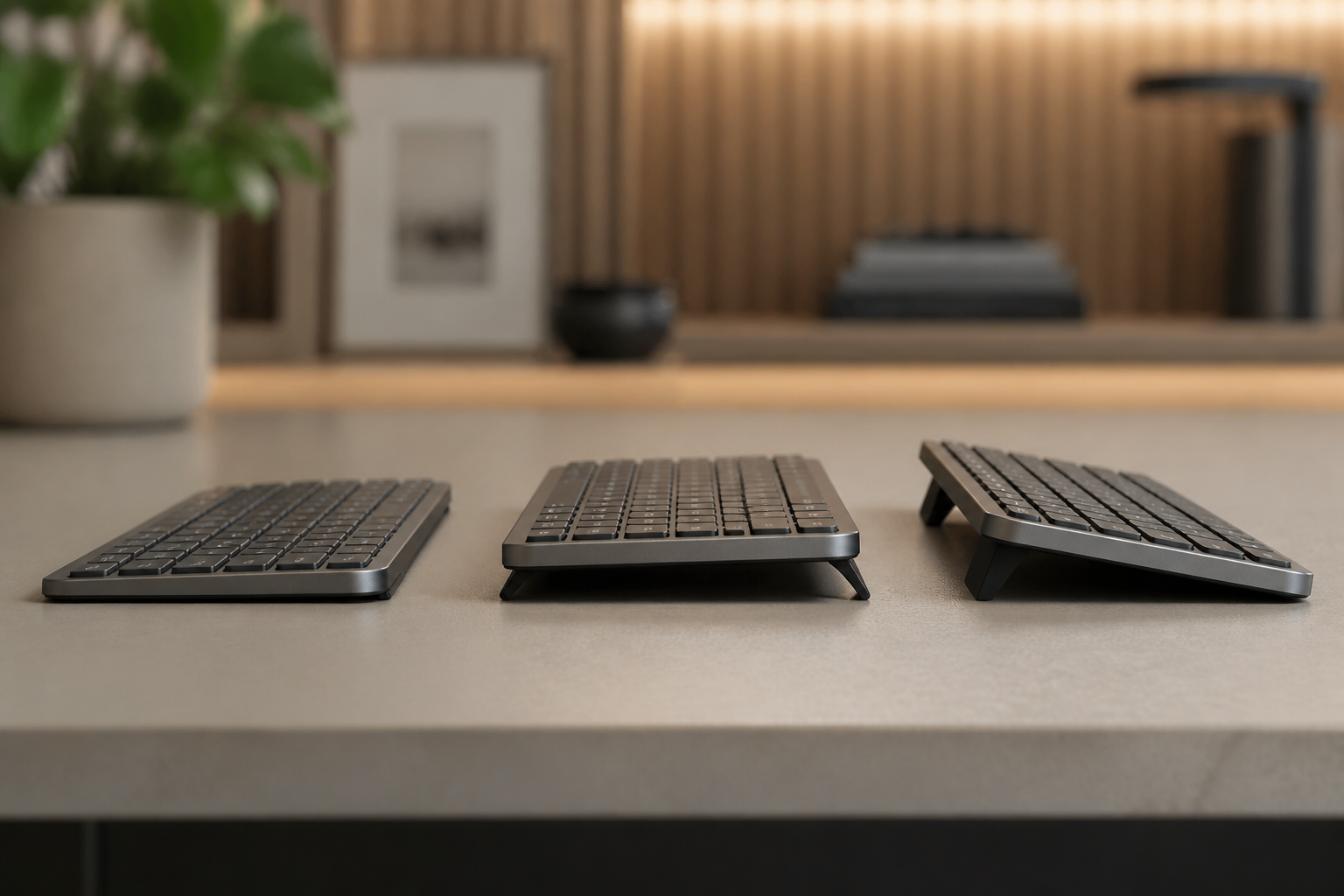
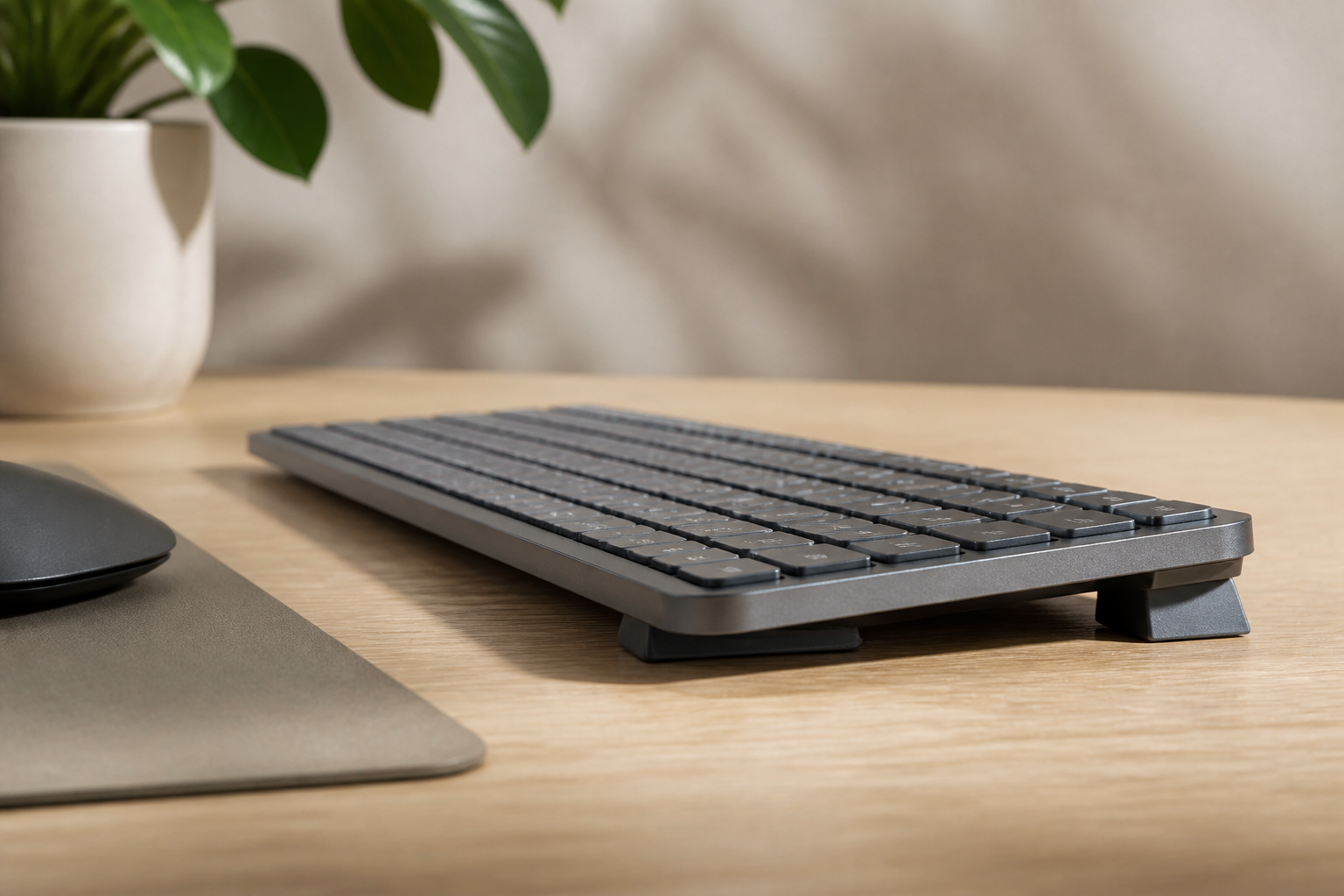
The MX Keys ships nearly flat. The integrated rear feet add approximately 4-6 degrees of tilt when deployed toward the user, which is stock feet — the exact opposite of what the ergonomic research recommends. When the keyboard sits flat on a standard 29-inch desk and the developer’s forearms are parallel to the floor, the wrists extend 20-30 degrees upward to reach the keys.
Marklin and Simmons (1997), in a study published in the Journal of the American Industrial Hygiene Association, measured carpal tunnel pressure during typing under three keyboard tilt conditions. The finding: rear lift — rear of the keyboard higher than the front — produces the lowest median nerve pressure. Positive tilt produces the highest.
For a developer typing for eight hours a day, 20-30 degrees of sustained wrist extension is not sustainable. The median nerve in the carpal tunnel bears thousands of low-grade compressions per day. Over months, the nerve adapts poorly. Tingling in the thumb and first two fingers is the first sign. By the time it is persistent, the damage has been accumulating for weeks.
The fix is a rear-lift keyboard riser that lifts the rear of the MX Keys 12-15 degrees above the front. The riser must match the keyboard’s footprint — 430 × 131 mm for the full-size MX Keys, 296 × 132 mm for the Mini — to sit flush without overhang. A footprint-matched riser keeps the keyboard stable during use and looks intentional on a clean desk.
Battery and Connectivity for Developer Workflows
The MX Keys connects via Bluetooth or the included Logi Bolt USB receiver. Up to three devices can be paired and switched between using the Easy-Switch keys. This is genuinely useful for developers who split their work across a desktop machine, a laptop, and occasionally a tablet for documentation or testing.
Battery life: Logitech rates the MX Keys at 10 days with backlight on, or up to 5 months with backlight off. In real-world developer use — backlight at roughly 60% brightness, 8-9 hours a day — the keyboard typically lasts 7-8 working days between charges. Charging is via USB-C, and 15 minutes of charge provides roughly a day of use.
The Logi Bolt receiver is worth using over Bluetooth if your machine has a USB-A port available. Bluetooth introduces variable latency depending on the wireless environment. For coding, the latency difference between Bluetooth and Bolt is not noticeable. For gaming or real-time applications, Bolt is the better connection method.
Who Should Use the MX Keys for Programming
The MX Keys is an excellent programming keyboard for developers who:
- Work in open-plan offices or shared spaces and need a quiet keyboard
- Prefer short key travel with crisp actuation (laptop-style feel on a desktop)
- Switch between multiple devices during the workday
- Want a keyboard that looks professional on a desk
- Use the function row frequently for debugger shortcuts and IDE commands
The MX Keys is not ideal for developers who:
- Prefer deep key travel with tactile feedback (mechanical switch preference)
- Need a split or ortholinear layout for specific ergonomic needs
- Type on a keyboard that sits far from their body (the flat-problem worsens with distance)
- Have persistent wrist numbness or tingling — see a clinician before changing keyboards
The Bottom Line
The MX Keys is a quiet, precise, multi-device keyboard that suits the developer workflow well. Its single ergonomic weakness — the flat-profile wrist extension problem — has a straightforward mechanical fix: a footprint-matched rear-lift riser at 12-15 degrees. With the riser, the MX Keys keeps wrists neutral during both active typing and the long static-holding intervals that characterize code review, documentation reading, and debugging sessions.
Without the riser, the MX Keys is an ergonomic liability for developers who type more than six hours a day. With it, it is one of the best developer keyboards in the low-profile category.
If you are evaluating the MX Keys for programming, evaluate the keyboard angle at the same time. The keyboard itself is excellent. The angle out of the box needs correction.
Ready to fix your MX Keys angle? Get the KeyRiser — designed for the exact MX Keys footprint →
Related: Logitech MX Keys: The Complete Guide | Programmer Ergonomic Setup Guide | Keyboard Risers Buyer’s Guide
Frequently Asked Questions
Q: Is the MX Keys better than a mechanical keyboard for programming?
A: Depends on preference. Mechanical switches provide more tactile feedback — you can feel the actuation point. Scissor switches are quieter and require less travel. For wrist posture, neither is inherently better. What matters is the keyboard angle. A low-profile keyboard with a rear-lift riser at 15 degrees is more ergonomic than a mechanical keyboard at zero degrees.
Q: Can I use MX Keys with VS Code and IntelliJ?
A: Yes. The MX Keys works as a standard HID keyboard. All IDE shortcuts function normally. The function row defaults to media keys; press Fn+Esc to lock it to standard F1-F12 mode, which is the preferred setup for IDE shortcut-heavy workflows.
Q: How long does the MX Keys battery last for developers?
A: In real-world developer use — 8-9 hours a day, backlight at medium brightness — expect 7-8 working days between charges. Charging is USB-C. A 15-minute charge gives about a day of use.
Q: Does the MX Keys have programmable keys?
A: Yes, through the Logi Options+ software. The function-row keys and several top-row keys can be remapped to application-specific shortcuts, which is useful for IDE commands that aren’t bound to standard shortcuts.
Ready for a Better Typing Angle?
Check KeyRiser on Amazon and confirm compatibility with your MX Keys model.
Buy Now - $9.99