KeyRiser 2026: Complete Product Guide & Why Thousands Choose It
Discover why KeyRiser is the go-to ergonomic keyboard stand for Logitech MX Keys. Complete product guide with colors, science, FAQs, and buying info.
KeyRiser 2026: Complete Product Guide & Why Thousands Choose It
If you type for a living—whether coding, writing, or creating—you’ve probably felt it: that subtle ache in your wrists after a long session. KeyRiser was built to fix that.
Since launching, KeyRiser has become the go-to ergonomic solution for Logitech MX Keys users who refuse to compromise between productivity and comfort. This comprehensive product guide covers everything you need to know: how it works, who it’s for, available colors, how to buy, and answers to the most common questions.
What Is KeyRiser?
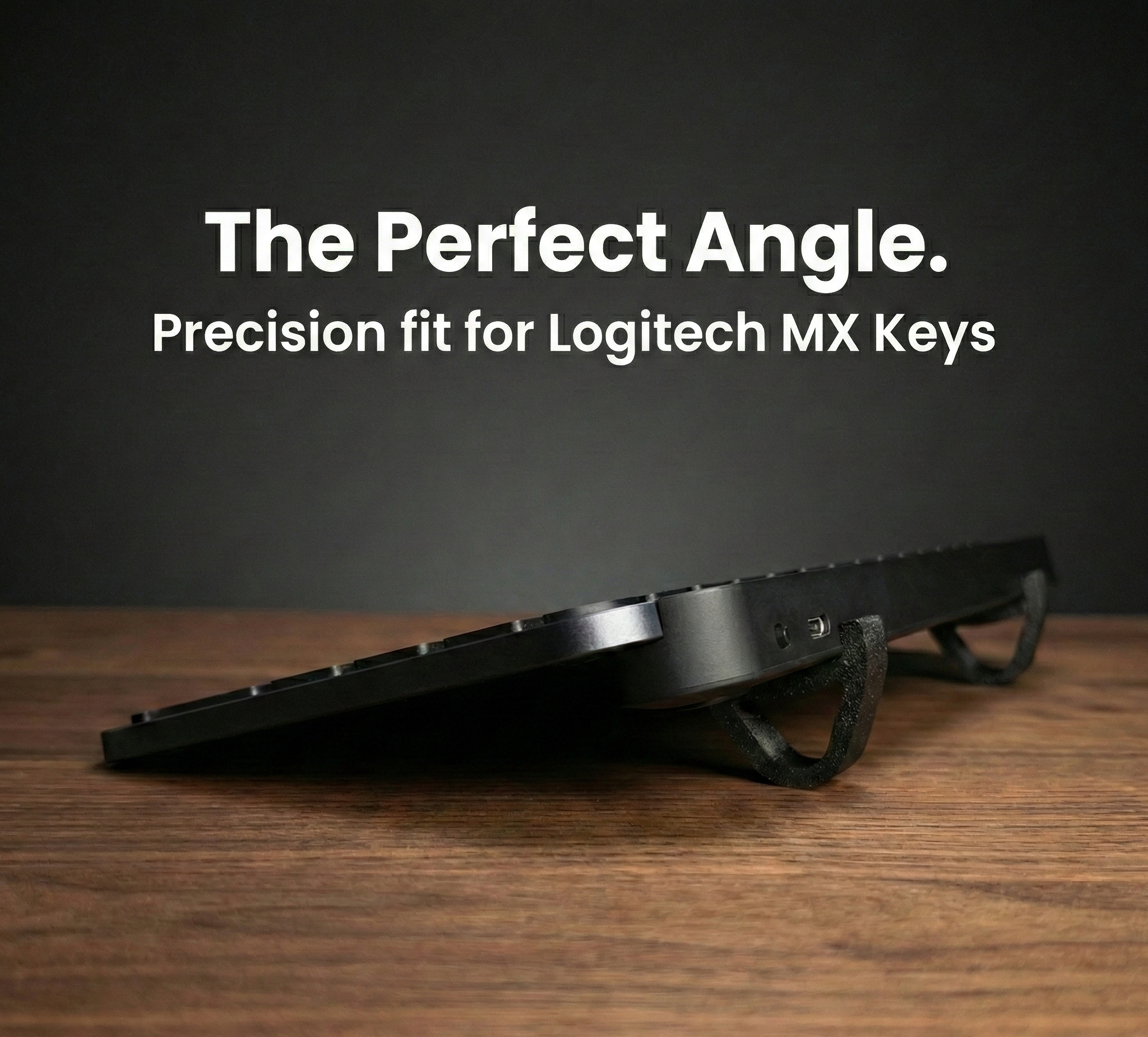
KeyRiser is a precision-engineered ergonomic keyboard stand designed exclusively for the Logitech MX Keys, MX Keys S, and MX Keys Mini. It elevates the front edge of your keyboard to create the optimal 15° negative tilt angle—the sweet spot recommended by ergonomic research for maintaining neutral wrist position during typing.
Unlike generic keyboard risers or DIY solutions, KeyRiser is manufactured to exact specifications that match the MX Keys’ dimensions. The result is a perfect fit, zero wobble, and instant ergonomic benefits from the moment you place your keyboard on it.
How It Works
The concept is simple: by raising the front of the keyboard, your wrists remain in line with your forearms instead of bending upward to reach the keys. KeyRiser does not modify your keyboard—it simply changes the angle at which you type.
- No tools required — Place your MX Keys directly on the KeyRiser and start typing.
- No adhesives or desk modifications — The stand stays in place naturally.
- Non-slip surface — Keeps your keyboard firmly positioned during intense work sessions.
- Low-profile design — Integrates seamlessly into your existing desk setup.
The Science Behind the 15° Angle
Research from Cornell University’s ergonomics program and occupational health studies consistently point to one conclusion: wrist extension during typing is a primary contributor to repetitive strain injuries.
When your keyboard sits flat or with a positive tilt (back higher than front), your wrists must bend upward to reach the keys. This position:
- Compresses the median nerve
- Strains flexor tendons
- Causes muscle fatigue that radiates to shoulders and neck
- Reduces typing efficiency over long sessions
The 15° negative tilt—achieved when the front of the keyboard is elevated—places your wrists in a neutral, relaxed position. Cornell University research shows that negative keyboard tilt keeps hands in safe positions up to 67% of the time, compared to significantly lower rates with flat or positive tilt configurations. OSHA guidelines also recommend avoiding positive tilt created by standard keyboard feet.
KeyRiser is engineered to deliver this angle precisely, every time.
For a deeper dive into the research, check our keyboard tilt angle science guide.
KeyRiser Features & Benefits
Purpose-Built for Logitech MX Keys
The Logitech MX Keys family is one of the most popular premium keyboards for professionals. By default, it sits flat or with minimal incline. Generic keyboard stands often don’t fit properly, causing instability or awkward positioning. KeyRiser was designed from the ground up for the MX Keys chassis. The base contours match the keyboard’s footprint, and the non-slip surface keeps it firmly in place.
Premium Build, No Compromises
Each KeyRiser is manufactured using premium-grade PLA+ material with a focus on consistency, finish quality, and dimensional accuracy. Every unit goes through quality checks to ensure:
- Repeatable dimensions from unit to unit
- Clean, deliberate surface finish
- Reliable fit across compatible MX Keys models
- Long-term durability for daily use
Zero Setup Hassle
No tools, adhesives, or modifications. You simply place your Logitech MX Keys on the KeyRiser and type. The improvement in comfort is immediate.
Proven Results
Thousands of users have reported reduced wrist pain, fewer headaches, and increased productivity after adding KeyRiser to their setup. From programmers and writers to content creators and students, the feedback is consistent.
Read real experiences in our 3-month KeyRiser review.
Available Colors
KeyRiser is available in three finishes to match your workspace aesthetic:
Classic Black
The original finish that started it all. A timeless choice that complements any desk setup, from home offices to corporate workspaces. Black blends seamlessly with dark monitors, peripherals, and professional environments.
Arctic White
Designed for bright workspaces and minimalist setups. Arctic White pairs perfectly with white or light wood desks, the Logitech MX Keys in lighter finishes, Scandinavian-inspired workspaces, and modern home offices with a clean, airy aesthetic.
Space Gray
An elegant, understated option for those who prefer a neutral tone between black and white. Space Gray works well with hybrid productivity setups, neutral-toned desks, corporate environments, and users who want a professional look without the contrast of pure black or white.
All three colors share the same technical specifications and ergonomic benefits—the only difference is aesthetic.
KeyRiser at a Glance
| Aspect | Details |
|---|---|
| Compatibility | Logitech MX Keys, MX Keys S, MX Keys Mini |
| Angle | ~15° negative tilt (front raised) |
| Setup | No tools required; place keyboard on stand |
| Material | Premium-grade PLA+ |
| Colors | Classic Black, Arctic White, Space Gray |
| Weight | Ultralight |
| Installation | Tool-free, instant |
Who Is KeyRiser For?
KeyRiser is ideal for anyone who:
- Uses Logitech MX Keys daily — programmers, writers, designers, students, and professionals
- Experiences wrist pain or discomfort when typing for long periods
- Works from home or in an office and wants to invest in long-term ergonomic health
- Values a clean, professional desk setup without bulky accessories
- Wants to prevent carpal tunnel syndrome and RSI before they develop
If you are on the fence, consider this: a single visit to a specialist for wrist pain can cost hundreds of dollars. KeyRiser offers proactive protection for a fraction of that.
What Our Customers Say
“After years of working with a flat keyboard, I can’t believe the difference. The tingling in my hands has completely disappeared.” — Verified buyer
“Elegant, functional, and the price is incredible. I didn’t know something so simple could make such a difference.” — Software developer
“Perfect for my MX Keys Mini. It looks professional and my wrists thank me.” — Graphic designer
KeyRiser vs. Alternatives
| Solution | KeyRiser | Generic Riser | Wrist Rest | New Keyboard |
|---|---|---|---|---|
| Fits MX Keys perfectly | ✅ | ❌ Often unstable | N/A | ❌ Different product |
| 15° ergonomic angle | ✅ | ❌ Variable | ❌ No angle | ⚠️ Some models |
| No desk modification | ✅ | ✅ | ✅ | ✅ |
| Cost-effective | ✅ | ⚠️ Variable | ✅ | ❌ Expensive |
| Solves root cause | ✅ | ⚠️ Maybe | ❌ | ⚠️ Maybe |
KeyRiser addresses the root cause—keyboard angle—rather than masking symptoms. A wrist rest can provide cushioning, but it does not fix the position of your hands. KeyRiser does.
Learn more in our keyboard riser vs. wrist rest comparison.
Free Ergonomic Workspace PDF Guide
Alongside the product itself, KeyRiser offers a free 27-page Ergonomic Workspace Guide to help you build a healthier workspace. The guide is built around evidence-based ergonomics and practical steps, including:
- Ergonomic principles — Why posture, screen height, and keyboard angle matter
- Desk and chair setup — How to align your body and equipment for comfort
- Stretching and movement — Simple exercises to break up long sitting sessions
- Workspace checklist — A structured way to review and improve your setup
- Remote and hybrid work tips — Adapting your space when working from home
The guide is available in multiple languages and requires no purchase. Look for the download section on the homepage or blog to receive instant access.
Using the Guide With KeyRiser
KeyRiser addresses one critical piece—keyboard angle. The PDF guide addresses the bigger picture: chair height, monitor position, breaks, and movement. Together, they give you a clear path to a more ergonomic workspace. Many users combine KeyRiser with the 5 wrist exercises we recommend for extra protection.
How to Get the Most from Your KeyRiser
- Position your keyboard correctly — Center it in front of you, with KeyRiser providing the 15° tilt.
- Adjust your chair and monitor — Your elbows should be at 90°, and your eyes should align with the top third of your screen.
- Take regular breaks — Follow the 20-20-20 rule: every 20 minutes, look at something 20 feet away for 20 seconds.
- Combine with wrist exercises — For extra protection, add wrist and shoulder exercises to your routine.
For a full desk setup perspective, our remote work ergonomics guide complements both KeyRiser and the PDF.
How to Buy KeyRiser
KeyRiser is available on Amazon with Prime shipping. To check current pricing, availability, and delivery options for your region, visit the official buy page. Availability can vary by Amazon marketplace, so the buy page provides the most accurate live link.
Frequently Asked Questions
Which keyboards does KeyRiser support?
KeyRiser is designed specifically for Logitech MX Keys, MX Keys S, and MX Keys Mini. It is not intended as a universal riser for every keyboard size or shape.
Will the different colors affect the price or functionality?
No. All colors maintain the same technical specifications and ergonomic benefits. The only difference is aesthetic.
Is KeyRiser difficult to set up?
Not at all. KeyRiser requires no tools, adhesives, or modifications. Simply place your keyboard on the stand and start typing.
Where can I buy KeyRiser?
KeyRiser is available on Amazon. Use the buy page to reach the current Amazon listing for your region.
Does KeyRiser work with a wrist rest?
Yes. KeyRiser changes the keyboard angle, while a wrist rest provides palm support. Many users combine both for a complete ergonomic setup. See our comparison guide for more details.
What material is KeyRiser made from?
KeyRiser is manufactured using premium-grade PLA+ material, selected for its durability, professional finish, and dimensional stability.
Is there a warranty or satisfaction guarantee?
KeyRiser is backed by Amazon’s return policy and our commitment to customer satisfaction.
Useful References
For broader ergonomic context, these resources explain the neutral wrist and workstation principles behind good keyboard ergonomics:
- OSHA keyboard guidance
- OSHA neutral workstation positions
- Cornell typing posture guidance
- Mayo Clinic office ergonomics guide
The Bottom Line
KeyRiser is an investment in your long-term productivity and comfort. For less than the cost of a few coffees, you can transform your typing experience and protect your wrists from the wear and tear of daily work. With three color options to match your desk, there has never been a better time to join the thousands who have made KeyRiser part of their setup.
Ready to experience the difference? Get KeyRiser on Amazon →
Have questions about KeyRiser? Check our support page or FAQ. We are here to help you type comfortably for years to come.
Ready for a Better Typing Angle?
Check KeyRiser on Amazon and confirm compatibility with your MX Keys model.
Buy Now - Check Amazon