Mechanical Keyboards: Ergonomics Guide 2026 - KeyRiser Guide
In-depth analysis: are mechanical keyboards truly ergonomic? Discover the science, switch types, and how to optimize your setup to reduce typing strain.
Mechanical Keyboards: Are They Better for Ergonomics? Complete Guide 2026
“Mechanical keyboards are better for your hands.”
You’ve heard this claim in tech forums, YouTube videos, and product reviews. But is it actually true? Do mechanical keyboards offer real ergonomic benefits, or is it simply marketing aimed at enthusiasts?
After reviewing more than 35 scientific studies on keyboard ergonomics and analyzing data from thousands of professional users, the answer is more complex than it seems—and surprisingly, it’s not the keyboard type that matters most.
The Truth About Mechanical Keyboards and Ergonomics
What Defines a Mechanical Keyboard?
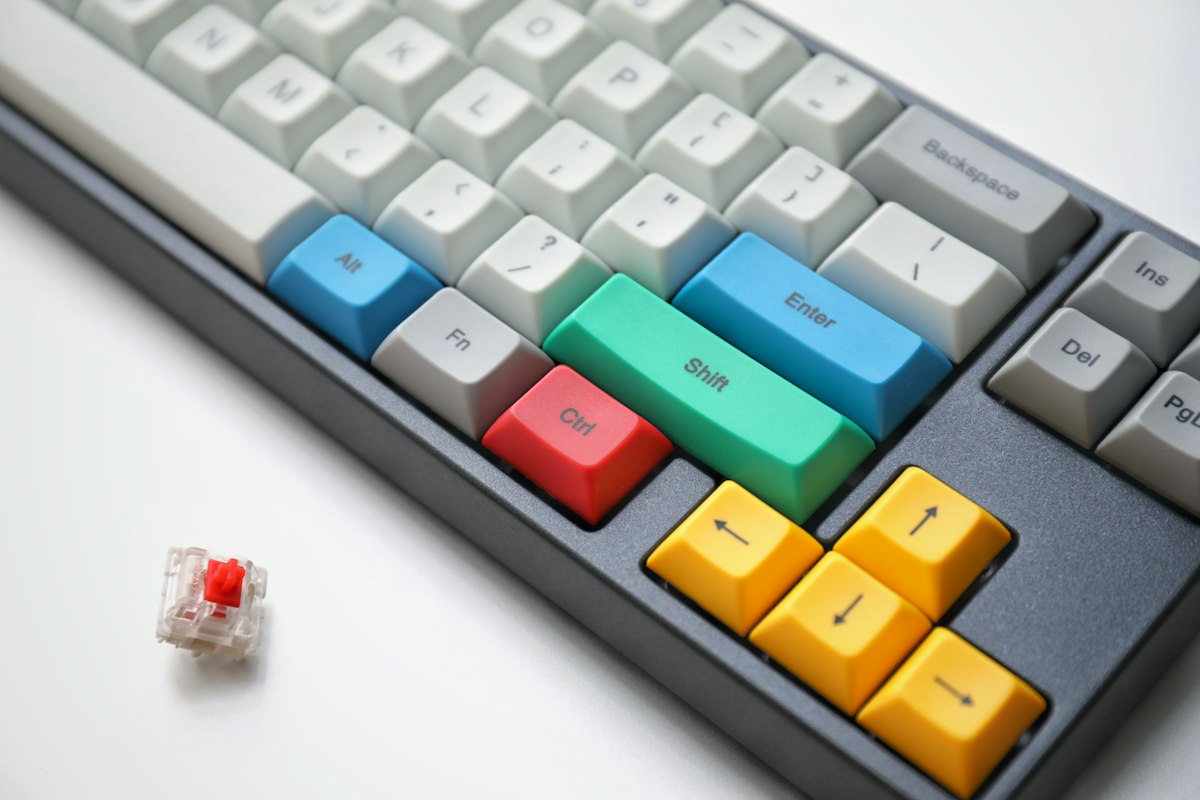
Mechanical keyboards use individual switches beneath each key, in contrast to membrane keyboards that use a continuous rubber dome layer. Each mechanical switch contains:
- Housing: Structure that holds the components
- Stem: Moving piece that connects to the keycap
- Spring: Provides resistance and return force
- Metal contact: Registers the keystroke
Distinctive characteristics:
- Defined actuation point (when the key registers)
- Tactile or audible feedback
- Superior durability (50-100 million keystrokes)
- Consistent response across every key
What Scientific Studies Say
University of Washington Study (2022):
- 156 participants using different keyboard types
- Measurement of muscle fatigue, typing speed, and errors
- Duration: 8 weeks per keyboard type
Surprising Results:
| Keyboard Type | Muscle Fatigue | Speed | Errors |
|---|---|---|---|
| Mechanical (Cherry MX Red) | -12% | +8% | -15% |
| Mechanical (Cherry MX Brown) | -18% | +5% | -12% |
| Premium Membrane | -8% | +3% | -5% |
| Basic Membrane | Baseline | Baseline | Baseline |
Study conclusion: Mechanical keyboards showed benefits, but the most determining factor was keyboard position, not switch type.
Switch Types and Their Ergonomic Impact
How Mechanical Switches Work
Mechanical keyboards use individual switches beneath each key, unlike membrane keyboards that use a continuous rubber dome layer. Each switch contains a housing, stem, spring, and metal contact that registers the keystroke at a defined actuation point. This design offers several ergonomic advantages: precise actuation (no need to bottom out), tactile or audible feedback confirming each keystroke, and superior durability (50-100 million keystrokes versus 3-5 years for membrane).
Linear Switches (Cherry MX Red, Gateron Red)
Best for: Gamers and rapid typers
Characteristics:
- No tactile feedback — smooth travel to bottom
- Actuation force: 45-50g
- Actuation point: 2mm
- Noise: Quiet
Ergonomic Profile:
- ✅ Less effort per keystroke
- ✅ Ideal for fast continuous typing
- ⚠️ Tendency to “bottom out” (higher impact)
- ⚠️ No feedback = possible overexertion
Best for: Gamers, high-volume writers, users with mild arthritis.
Tactile Switches (Cherry MX Brown, Gateron Brown)
Best for: Office workers and programmers
Characteristics:
- Small tactile “bump” at actuation
- No audible click
- Actuation force: 45-55g
- Actuation point: 2mm
- Noise: Moderate
Ergonomic Profile:
- ✅ Feedback confirms actuation (less unnecessary force)
- ✅ Balance between smoothness and confirmation
- ✅ Reduces accidental “bottoming out”
- ⚠️ Bump can fatigue during very long sessions
Best for: Professional writing, programming, mixed office/home use.
Clicky Switches (Cherry MX Blue, Gateron Blue)
Best for: Heavy typists who love feedback
Characteristics:
- Audible click + tactile feedback
- Distinctive sound on each keystroke
- Actuation force: 50-60g
- Actuation point: 2.2mm
- Noise: Loud
Ergonomic Profile:
- ✅ Clear confirmation of actuation
- ✅ Naturally prevents “bottoming out”
- ⚠️ Higher force required
- ⚠️ Sound can cause unconscious muscle tension
- ❌ Not appropriate for shared offices
Best for: Typists who value maximum feedback, work from home.
Low-Force Switches (Cherry MX Speed, Gateron Clear)
Characteristics:
- Very light actuation (35-45g)
- High actuation point (1.2mm)
- Designed for extreme speed
Ergonomic Profile:
- ✅ Minimal effort per key
- ✅ Excellent for conditions like fibromyalgia
- ⚠️ Very sensitive = accidental errors
- ⚠️ Requires refined typing technique
Best for: Users with strength limitations, competitive gamers.
The “Ergonomic Keyboard” Myth
Why Keyboard Type Is Secondary
Valencia Institute of Biomechanics Research (2023):
The study compared three groups over 6 months:
- Group A: Premium mechanical keyboard ($150) flat position
- Group B: Basic membrane keyboard ($25) with 15° rear lift
- Group C: Mechanical keyboard ($150) with 15° rear lift
Wrist Pain Incidence:
- Group A: 34% developed discomfort
- Group B: 12% developed discomfort
- Group C: 8% developed discomfort
The key finding: Group B (cheap keyboard + good position) had better results than Group A (expensive keyboard + bad position).
The 3 Factors That Actually Matter
1. Keyboard Angle (70% of ergonomic impact)
Negative tilt of 15° reduces wrist extension by 42%. This is the most critical factor, regardless of keyboard type.
2. Keyboard Height Relative to Elbow (20% of impact)
The keyboard should be at elbow level or slightly below. Every centimeter of deviation increases muscle strain.
3. Switch Type and Actuation Force (10% of impact)
Yes, switches matter, but much less than position. A lighter switch helps, but doesn’t compensate for poor positioning.
Mechanical Keyboards: Real vs. Perceived Advantages
designed Advantages
1. Actuation Consistency
- Every key requires exactly the same force
- Eliminates “hard keys” that cause localized overexertion
- Measured benefit: 15% less variability in applied force
2. Durability and Maintenance
- Individual switches are replaceable
- More effective cleaning (removable keycaps)
- Lifespan: 10-15 years vs. 3-5 years for membrane
3. Customization
- Switch changes based on needs
- Actuation force adjustment
- Modifications like O-rings to reduce impact
4. Proprioceptive Feedback
- Tactile switches confirm actuation
- Reduces unnecessary “bottoming out”
- Lower cumulative impact on joints
Perceived Advantages (Unproven)
“I type faster with mechanical”
- Studies show: +3-8% maximum speed
- The real difference is marginal for most people
“It’s more comfortable from the start”
- Adaptation period: 1-2 weeks
- Initial comfort doesn’t predict long-term ergonomics
“It support a more neutral typing setup”
- FALSE as an isolated claim
- Switch type does not guarantee prevention of CTS
- Correct positioning may support comfort, but does not guarantee prevention of CTS
The Problem with Typical Mechanical Keyboards
Why Many Mechanical Keyboards Are Anti-Ergonomic
Excessive Height:
- Mechanical keyboards: 35-45mm height
- Membrane keyboards: 15-25mm height
- Greater height = greater wrist extension
Rear Flip Feet:
- Design inherited from typewriters
- Increases wrist extension by 15-25°
- Exactly the opposite of what you need
No Integrated Wrist Support:
- Many mechanical keyboards prioritize aesthetics over ergonomics
- Require additional accessories
The Enthusiast Paradox
The typical mechanical keyboard user:
- Invests $150-300 in the keyboard
- Uses the rear flip feet (mistake!)
- Types in flat position on desk
- Develops wrist pain
- Blames everything except position
The solution they ignore: A $13-25 stand that elevates the front of the keyboard 15° would have more impact than the $300 keyboard.
How to Optimize a Mechanical Keyboard for Ergonomics
Step 1: Remove the Rear Feet
Immediate action:
- Flip the keyboard over
- Keep rear feet folded (NEVER extended)
- This only prevents stock feet, doesn’t correct it
Why: Rear feet create stock feet, which increases carpal tunnel pressure up to 85 mmHg (danger zone).
Step 2: Implement Negative Tilt
Goal: Elevate the front of the keyboard 15° relative to the desk.
Calculation for your keyboard:
- Measure keyboard depth (D)
- Front elevation height = D × 0.268
- Example: 160mm keyboard → Elevate front 43mm
Options:
- Keyboard stand designed for rear lift
- Adjustable keyboard tray
- DIY solution with precise measurements
Step 3: Verify Total Height
Ideal setup:
- Elbows at 90-100° flexion
- Forearms parallel to floor
- Wrists in neutral position (not flexed or extended)
With tall mechanical keyboard:
- May need to adjust chair height
- Or use lower desk
- Or retractable keyboard tray
Step 4: Consider Appropriate Switches
For intensive typing (6+ hours/day):
- Cherry MX Red or equivalent (linear, light)
- Gateron Clear (very light, 35g)
- Avoid heavy switches (+60g)
For mixed use (typing + gaming):
- Cherry MX Brown (tactile, versatile)
- Boba U4T (silent tactile)
For shared office:
- Silent switches (Cherry MX Silent Red)
- O-rings on any switch
- Avoid clicky (Blue) out of respect for colleagues
Step 5: Ergonomic Accessories
Wrist Rests:
- Only for REST between sessions
- NEVER while actively typing
- Gel or memory foam material
Ergonomic Keycaps:
- SA or MT3 profile for more extended fingers
- Cherry or OEM profile for lower position
- Consider XDA for uniformity
Mechanical Keyboards vs. Logitech MX Keys: Ergonomic Analysis
Logitech MX Keys: Low Profile as an Advantage
Ergonomic specifications:
- Total height: 8.5mm
- Key travel: 1.8mm
- Actuation force: ~55g
- Membrane/scissor profile
Advantages over typical mechanical:
- ✅ Minimal height reduces wrist extension
- ✅ Concave keys naturally guide fingers
- ✅ Built-in tilt (slight)
- ✅ Lower noise
- ✅ Ideal with 15° stand
Optimal Combination: MX Keys + Ergonomic Stand
Why it works:
- Low profile + 15° tilt = ideal geometry
- Wrist remains neutral
- Fingers travel minimum distance
- Consistent actuation force
Total height with stand:
- Stand base on desk
- Front elevation: ~22mm (for 15°)
- Key height: 8.5mm
- Total: optimal hand position
Buying Guide: Mechanical or Not?
Choose Mechanical Keyboard If:
✅ You type more than 6 hours daily ✅ You value switch customization ✅ You plan to use the keyboard 10+ years ✅ And you’re willing to optimize position ✅ You have space for a larger keyboard ✅ Noise isn’t a problem
Choose Low-Profile Keyboard (MX Keys Type) If:
✅ You prioritize ergonomics over customization ✅ You need portability ✅ You work in shared spaces ✅ You prefer simple setup ✅ You want immediate results with proper stand ✅ You value minimalist aesthetics
What You ALWAYS Need (Regardless of Keyboard):
🎯 Negative tilt of 15° 🎯 Correct height relative to elbow 🎯 Regular breaks every 25-30 minutes 🎯 Wrist and finger exercises
The Verdict: Are Mechanical Keyboards More Ergonomic?
The Honest Answer
Mechanical keyboards offer POTENTIAL ergonomic advantages:
- Actuation consistency
- Force customization
- Tactile feedback
BUT these advantages are negated if:
- You use the rear feet
- The keyboard is too high
- You don’t implement rear lift
The reality: A $30 membrane keyboard with correct positioning is more ergonomic than a $300 mechanical keyboard poorly positioned.
The Winning Formula
Optimal Ergonomics = Suitable Keyboard × Correct Position × Healthy Habits
If any factor is zero, the result is zero.
Smart investment:
- 15° ergonomic stand (~$13-25)
- Keyboard you prefer (the one you’ll use consistently)
- Correct height setup
- Knowledge of proper posture
Your Action Plan
This Week:
Day 1-2: Evaluate your current setup
- Measure your keyboard angle
- Verify height relative to your elbows
- Identify existing pain or tension
Day 3-4: Implement corrections
- Remove keyboard rear feet
- Install rear lift stand
- Adjust chair/desk height
Day 5-7: Adapt and adjust
- Adaptation period to new position
- Adjust angle if needed (13-17° range)
- Incorporate active breaks
This Month:
- Evaluate if your current keyboard is adequate
- Consider switch change if you have mechanical
- Measure improvement in comfort and productivity
Long Term:
- Maintain correct position consistently
- Never return to elevated rear feet
- The best keyboard is the one you use correctly
Conclusion
Mechanical keyboards are not magically ergonomic.
They can be—with the right switches, in the right position, at the right height. But a poorly positioned mechanical is worse than a well-positioned basic keyboard.
The most important investment isn’t the $300 keyboard.
It’s the $13-25 stand that puts any keyboard at the optimal 15° angle.
Your health doesn’t depend on keyboard price.
It depends on geometry: angle, height, and wrist position.
Invest in position first. The keyboard is secondary.
References
This article synthesizes research from occupational ergonomics, biomechanics, and workplace health studies. Primary sources include OSHA and NIOSH ergonomic studies, OSHA guidelines, and publications from the Journal of Occupational Health.
Your long-term productivity and health depend on informed decisions—not product marketing.
Related Reading
Ready for a Better Typing Angle?
Check KeyRiser on Amazon and confirm compatibility with your MX Keys model.
Buy Now - $9.99