Logitech MX Keys Rubber Feet: Replacement Legs and Riser Guide
Lost the rubber feet on your Logitech MX Keys? Compare replacement strips, flip-out feet, and a fitted riser for stability and a more comfortable typing angle.
Logitech MX Keys Rubber Feet: Replacement Legs and Riser Guide
If your Logitech MX Keys feet are worn or missing, choose between replacement rubber strips for stability, replacement flip-out feet, or a fitted riser for stability plus a different typing angle. The best option depends on whether you only need grip or also want to change the keyboard position.
The Logitech MX Keys has two small rubber strips on the bottom that keep it stable on your desk. Over time, those rubber strips can peel off, wear down, or go missing entirely. When they do, the keyboard slides on the desk with every keystroke. This guide covers three ways to fix the problem: replacement rubber strips, replacement flip-out feet, and a keyboard riser that replaces both while adding ergonomic tilt.
The Problem: Lost or Worn Rubber Feet
The MX Keys — full-size, Mini, and S variants — ships with two thin rubber strips running along the bottom edge and two small flip-out plastic feet at the rear corners. The rubber strips are adhesive-backed. Over months of daily use, heat from the desk surface and the friction of sliding the keyboard around degrade the adhesive. The rubber strips eventually peel at the corners, curl up, or fall off entirely.
The flip-out plastic feet at the rear — the ones that deploy toward the user to give the keyboard a slight stock feet — can also break. The small plastic hinges are thin. If the keyboard is dropped, or if the feet are deployed and the keyboard is pushed backward against a desk riser, the hinges snap cleanly.
When the rubber strips are gone, the keyboard slides with every keystroke. When the flip-out feet are broken, the keyboard sits unevenly — one corner higher than the other. Both problems are annoying. Both are fixable.
Option 1: Replacement Rubber Strips (For Stability Only)
If only the rubber strips are missing and the flip-out feet are intact, the simplest fix is replacement adhesive rubber strips. These are sold in sheets or pre-cut strips on Amazon for approximately $3-6. Cut them to length with scissors, peel the backing, and stick them to the bottom of the keyboard where the original strips were. The keyboard will sit flat again and stop sliding.
However, this fix does nothing for the keyboard angle. The MX Keys still ships flat, your wrists still extend 20-30 degrees to reach the keys, and the median nerve in the carpal tunnel is still under the same compressive load as before. If you only care about stability, Option 1 costs $5 and takes two minutes. If you care about the keyboard angle — and your wrists — read on.
Option 2: Replacement Flip-Out Feet (If They Broke)
If one or both of the flip-out plastic feet are broken, replacement OEM feet are difficult to source. Logitech does not sell the feet as a standalone part. Third-party replacement feet for the MX Keys are available on eBay and AliExpress for approximately $8-12, but they are typically salvaged from broken keyboards and may not match the color or fit perfectly. Installing them requires prying the broken foot hinge out of the keyboard chassis — a delicate operation with a small flathead screwdriver.
The flip-out feet also deploy toward the user, which is stock feet — the ergonomically incorrect direction. Marklin and Simmons (1997, JAIHA) found that stock feet (the rear of the keyboard lower than the front) increases carpal tunnel pressure compared with flat or rear lift. So replacing the broken feet restores the keyboard to its original flat-or-slightly-stock-feet condition, which is geometrically the least favorable position for the median nerve.
If you are replacing the feet anyway, consider Option 3 — the riser that replaces both the rubber strips and the flip-out feet, and improves the keyboard angle at the same time.
Option 3: A Keyboard Riser That Replaces Both (Stability + Tilt)
A footprint-matched rear-lift keyboard riser addresses all three problems at once:
- Stability. A riser designed for the exact MX Keys footprint — 430 × 131 mm for the full-size, 296 × 132 mm for the Mini — sits flush under the rear edge of the keyboard with no overhang. The riser’s own non-slip pads grip the desk. The keyboard is stable. No more sliding.
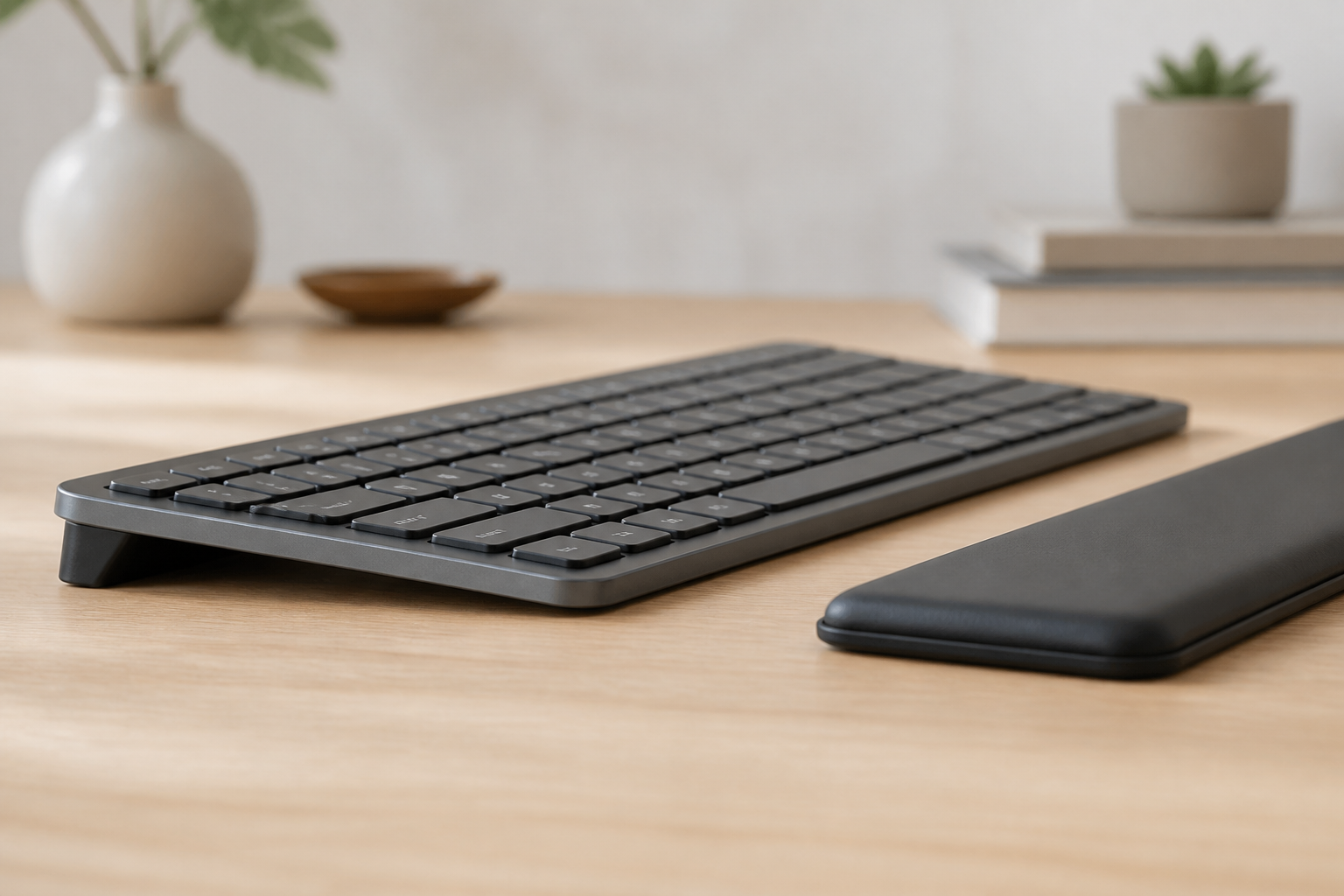
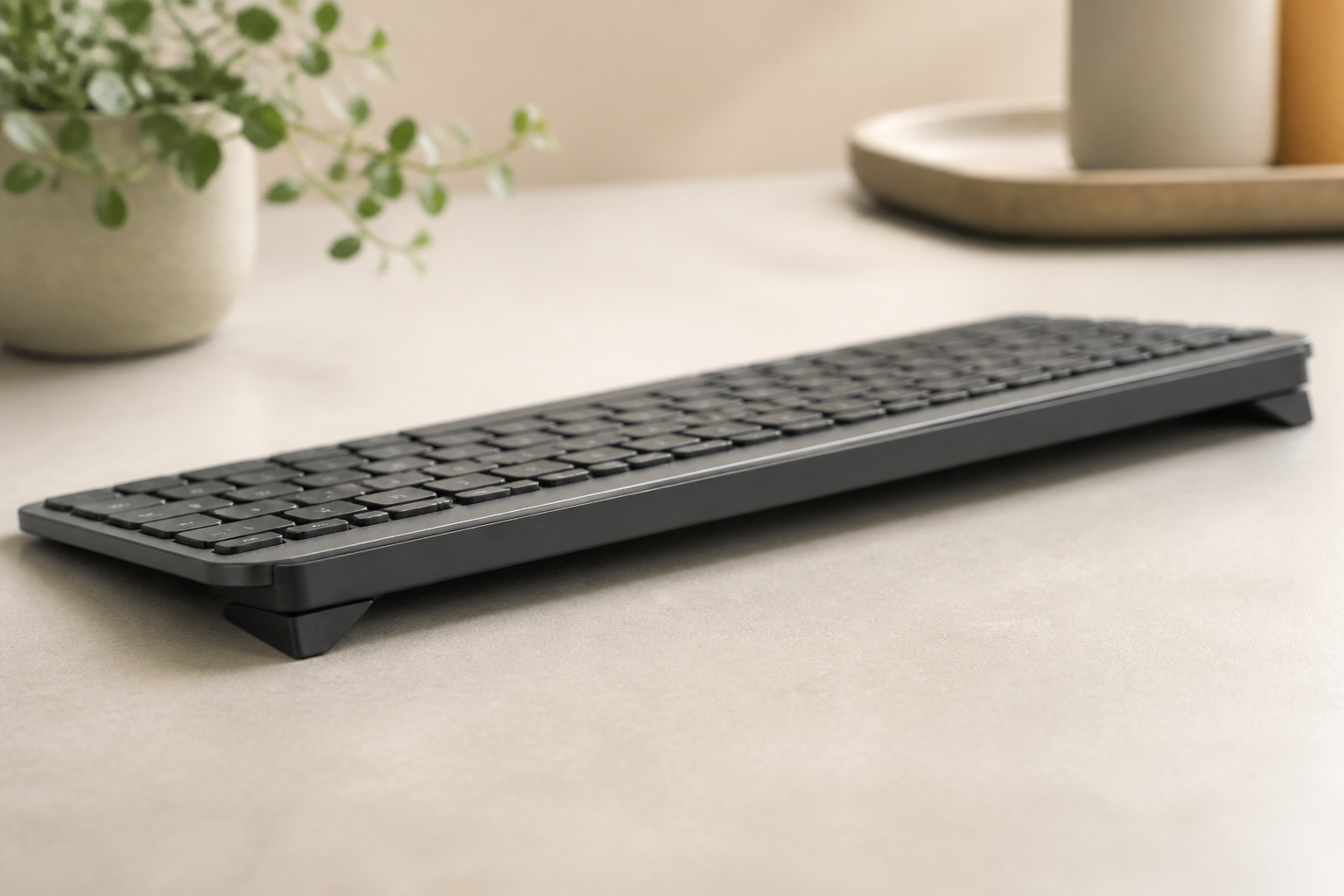
- Angle. The riser lifts the rear of the keyboard 12-15 degrees above the front — rear lift. The wrists approach neutral. Carpal tunnel pressure drops. This is the geometry that the JAIHA research supports.
- No broken feet to replace. The riser bypasses the need for replacement flip-out feet entirely. The keyboard sits on the riser, not on its own feet. The original flip-out feet can stay broken. The riser is the structural base.
A riser matched to the MX Keys footprint costs approximately $13. That is roughly the same cost as replacement rubber strips plus replacement flip-out feet from a third-party seller, with the added benefit of fixing the keyboard angle. For most MX Keys owners who have lost their rubber feet or broken their flip-out feet, the riser is the highest-ROI purchase.
What to Look for in a Replacement Riser
If you choose the riser route, the three buying criteria that matter for MX Keys owners replacing lost or broken feet:
1. Exact Footprint Match
The MX Keys family has specific dimensions. A riser that is too wide overhangs the keyboard and looks wrong on a clean desk. A riser that is too narrow leaves part of the keyboard unsupported, which creates wobble. The MX Keys full-size is 430 × 131 mm. The MX Keys Mini is 296 × 132 mm. The riser should match the keyboard’s rear-edge dimensions within approximately ±2 mm.
2. Material That Grips, Not Slides
The riser material should provide friction against the desk surface. PLA — the standard 3D printing material — has a textured surface that grips most desk materials well without leaving marks. Some risers include additional adhesive-backed rubber pads on the bottom surface for extra grip on glass or polished wood desks. If your desk is glass, look for a riser with integrated non-slip pads.
3. Fixed Angle, Not Adjustable
Adjustable risers — the kind with multiple angle settings — add complexity and potential failure points. A fixed 12-15 degree riser is simpler, more stable, and has nothing to break. The published research supports a fixed angle in the 8-15 degree range for most users. A fixed-angle riser does not need to be adjusted; it just works.
Install in Under 10 Seconds
A footprint-matched two-piece riser installs by sliding one piece under each rear corner of the keyboard. No adhesive. No clips. No tools. The pieces stay in place because they are shaped to the keyboard’s rear corners. If you need to remove the riser — to pack the keyboard for travel, for instance — just slide the pieces off. The original keyboard is unchanged. No residue. No damage. This is the key advantage over adhesive rubber strips: the riser is removable, reusable, and does not alter the keyboard.
What If You Need the Flip-Out Feet for Portable Use?
Some MX Keys owners use the flip-out feet when traveling — the keyboard flattens for packing, and the feet deploy at the destination. If you are in this category, do not replace the broken feet. Buy the riser for your permanent desk setup and keep the keyboard flat for travel. The riser stays on the desk. The keyboard travels flat. When you return, slide the keyboard back onto the riser. Two seconds. The best of both worlds.
Summary: The Three Options Compared
| Option | Cost | Fixes stability? | Fixes angle? | Time to install |
|---|---|---|---|---|
| Adhesive rubber strips | $3-6 | Yes | No | 2 minutes |
| Replacement flip-out feet | $8-12 | Partially | Wrong direction | 10-15 minutes |
| Footprint-matched riser | ~$13 | Yes | Yes — rear lift | Under 10 seconds |
For the majority of MX Keys owners, the footprint-matched rear-lift riser is the optimal fix. It replaces the lost rubber feet, bypasses the broken flip-out feet, fixes the keyboard angle, and costs less than two replacement parts combined. If you are going to spend time and money fixing the feet on your MX Keys, fix the angle at the same time.
Lost your MX Keys feet? Fix the stability AND the angle. Get the KeyRiser — matched to the MX Keys footprint →
Related: Keyboard Risers: The Complete Buyer’s Guide | Logitech MX Keys: The Complete Guide | How to Clean MX Keys
Frequently Asked Questions
Q: Can I just use adhesive rubber feet instead of a riser?
A: Yes, for stability only. Adhesive rubber strips stop the keyboard from sliding. They do not change the keyboard angle. If you want stability AND an ergonomic angle, a footprint-matched riser does both.
Q: Will a riser damage the rubber strips that are still attached?
A: No. A properly fitted riser contacts the rear edge of the keyboard chassis, not the adhesive rubber strips. If the rubber strips are partially peeling, the riser may press on the loose edge — trim the peeling portion off or remove the strip entirely before installing the riser.
Q: Does the riser work if my MX Keys flip-out feet are broken?
A: Yes. The riser is the solution for broken flip-out feet. The keyboard sits on the riser, not on its own feet. The broken feet are irrelevant. The riser handles both the stability and the angle.
Q: Can I use the same riser with the MX Keys Mini?
A: No. The MX Keys Mini has a different footprint — 296 × 132 mm versus the full-size 430 × 131 mm. A riser matched to the full-size MX Keys will overhang the Mini by more than 130 mm. Use a Mini-specific riser for the Mini.
Ready for a Better Typing Angle?
Check KeyRiser on Amazon and confirm compatibility with your MX Keys model.
Buy Now - $9.99