Hybrid Worker Ergonomic Guide: Set Up Both Desks in 2026
Master hybrid work ergonomics with dual-desk setups. Learn how to maintain consistent wrist posture, reduce pain switching between office and home in 2026.
Hybrid Worker Ergonomic Guide: Set Up Both Desks in 2026
If you’re a hybrid worker splitting your week between a corporate office and a home office, you’ve probably noticed something uncomfortable: your body feels different at each desk. Your wrists ache more on office days. Your shoulders tighten at home. You adjust your chair height every single Monday and Thursday like it’s a part-time job.
You’re not alone. Over 74 million employees in the US alone now work hybrid schedules, and nearly 68% report physical discomfort specifically from switching between workspaces. The problem isn’t that one setup is “bad” — it’s that they’re different. And your body pays the price for that inconsistency.
This guide will walk you through exactly how to create consistent ergonomics across both workstations, so you can focus on your work instead of your aches.
The Hidden Cost of Dual-Desk Inconsistency
Before we get into the solutions, let’s understand why switching desks is so hard on your body.
The Muscle Memory Problem
Your muscles and tendons adapt to the setups they use regularly. When you spend three days at one desk and two at another, your body never fully adapts to either. This constant recalibration keeps your muscles in a state of low-grade tension, which over weeks and months accumulates into chronic pain.
A study from the Journal of Occupational Rehabilitation found that workers with inconsistent workstation setups reported 47% more upper-body discomfort than those with a single consistent setup. The most affected areas: wrists, shoulders, and lower back.
The “Close Enough” Trap
The most common hybrid work mistake is treating “close enough” as good enough. Your office chair is adjusted perfectly, but your home dining chair is two inches too low. Your office has a proper keyboard tray, but at home your keyboard sits flat on the desk. Each difference is small — but together, they add up to significant strain.
Cumulative Load Across Environments
Every time you use a non-optimal setup, you add micro-damage to your tendons and joints. A single day with poor wrist posture won’t cause injury. But 52 days a year (two days per week) of suboptimal typing position, year after year? That’s when repetitive strain injuries develop.
The Transition Day Effect
Many hybrid workers report that their most painful days are transition days — the first day back at the office after being at home, or vice versa. This “ergonomic whiplash” occurs because your body has adapted to one setup over several days and is suddenly forced into different angles and positions. The discomfort peaks on transition days and may persist for some people; seek professional advice for persistent symptoms before the next transition. Over time, this creates a chronic low-level inflammatory state in the wrists and shoulders.
Step 1: The Non-Negotiables — Consistent Input Devices
The single most effective thing you can do as a hybrid worker is to use the same keyboard and mouse at both locations.
Why Input Consistency Matters
Your brain learns the exact force, travel distance, and angle required for your keyboard. When you switch between a laptop keyboard and a mechanical keyboard, your fingers have to recalibrate every single keystroke. Multiply that by 15,000 keystrokes per hour, and you’re looking at significant cognitive and physical load.
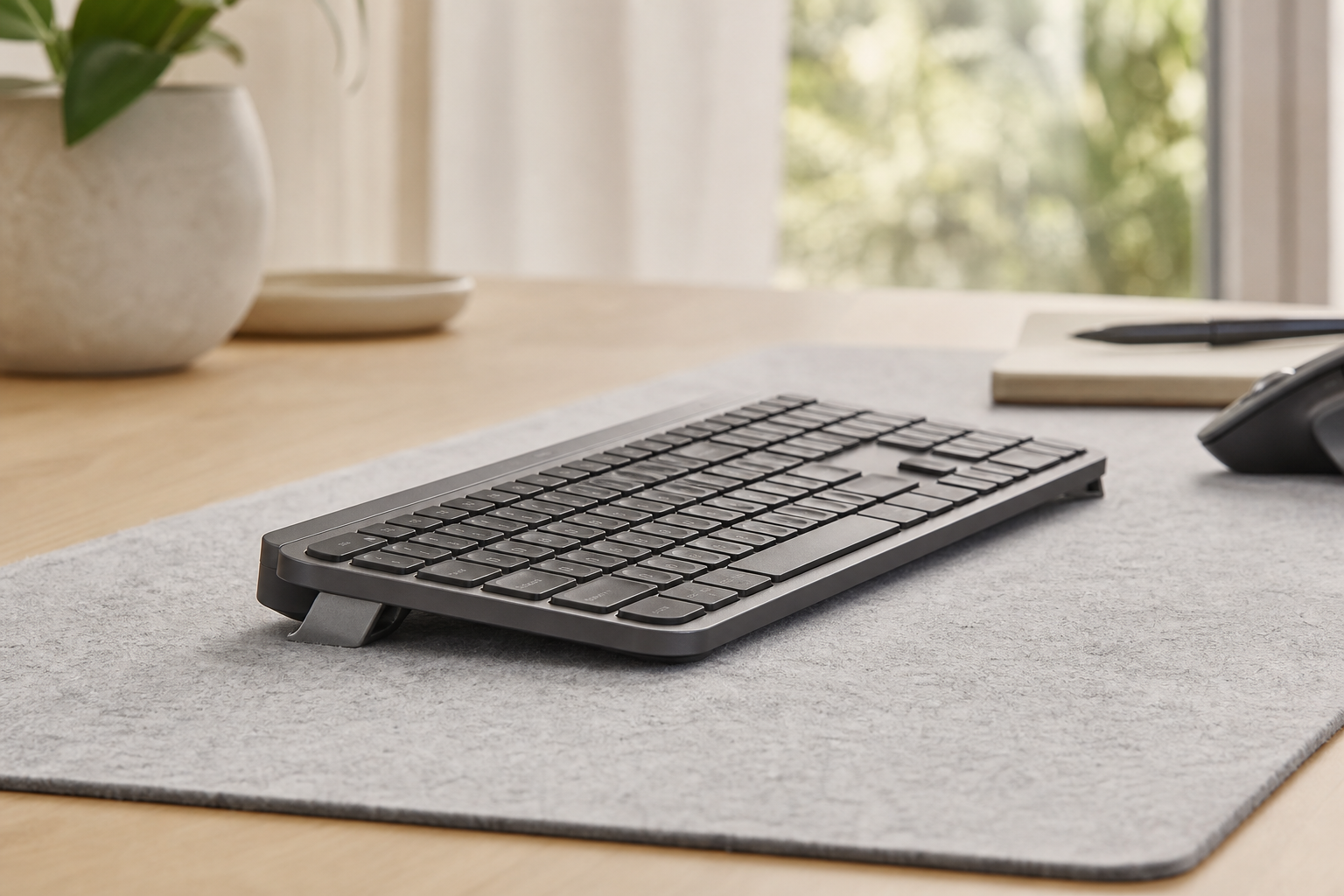
The ideal hybrid setup: Buy two identical keyboards — one for each desk. The Logitech MX Keys is a popular choice for hybrid workers because it’s available in full-size and Mini variants, and its low-profile keys feel consistent across units.
The Critical Missing Piece: Keyboard Angle
Even with identical keyboards, the ergonomic risk remains if the angle differs between desks. A keyboard sitting flat on one desk and raised on another forces your wrists into different positions. Your body has to constantly adjust.
This is where a portable, tool-free keyboard riser becomes invaluable for hybrid workers. A consistent 15-degree rear lift at both workstations ensures your wrists experience the same angle whether you’re at the office or home.
Step 2: Measure and Match Your Desk Heights
One of the biggest ergonomic challenges for hybrid workers is desk height variation. Office desks are typically 29 inches tall. Home desks can be anything from a 26-inch dining table to a 30-inch standing desk.
The Three-Point Alignment
To maintain consistency across desks, you need three measurements to match:
- Seat height — your hips should be at 90-100 degrees, feet flat on the floor
- Desk height relative to elbows — your elbows should be at 90 degrees when your hands rest on the keyboard
- Monitor height — the top of the screen at or slightly below eye level
Pro tip: Take photos of yourself at your best setup. Use these photos as reference when setting up your secondary desk. Visual comparison is more reliable than “feeling” right.
Solutions for Height Mismatches
If your home desk is higher than your office desk:
- Adjust your chair height to compensate
- Use a footrest to maintain leg angle
- Consider a desk riser for your home setup
If your office desk is fixed and your home desk is adjustable:
- Set your standing desk memory button to match your seated office height
- Mark your chair height with tape for quick reference
Step 3: Portable Ergonomic Gear for Hybrid Workers
Hybrid workers benefit from gear that travels well. Here’s what to prioritize:
High-Impact Portable Items
| Item | Why It Matters | Weight |
|---|---|---|
| Keyboard riser | Eliminates wrist extension, fits in any bag | ~3g |
| Laptop stand | Raises screen to eye level | ~200g |
| Portable mouse | Consistent grip across desks | ~80g |
| Seat cushion | Matches chair height and support | ~300g |
A keyboard riser is particularly well-suited for hybrid workers because it delivers a consistent research-backed 15-degree rear lift at both workstations. For hybrid workers who switch desks multiple times per week, this eliminates the friction of adjusting to a different keyboard angle every time.
Step 4: Create a Pre-Work Alignment Ritual
Consistency isn’t just about gear — it’s about habit. Create a two-minute pre-work checklist you perform at every desk change:
- Chair height — Are your feet flat? Hips at 90 degrees?
- Keyboard position — Is your keyboard at the same rear lift as your other desk?
- Monitor height — Top of screen at eye level?
- Wrist check — Are your wrists straight? No upward bending?
- Elbow angle — 90 degrees with forearms parallel to the floor?
Print this checklist and keep one copy at each desk. After two weeks, it becomes automatic.
Step 5: The Weekly Ergonomic Reset
Set aside 10 minutes every Sunday evening to prepare for the upcoming week’s desk transitions. This prevents the Monday morning scramble of trying to remember how you had things set up.
Sunday reset routine:
- Check that your portable gear is in your bag
- Wipe down both keyboard surfaces
- Confirm your office keycard and building access work
- Review any discomfort notes from the previous week
Back Health Across Two Desks
Back pain is one of the most common complaints among hybrid workers, but it’s often the result of small, cumulative mismatches between desks rather than a single obvious issue.
Why Back Pain Differs by Location
Office chairs are typically higher quality with better lumbar adjustment. Home chairs range from purpose-built ergonomic models to kitchen chairs. When your lumbar support varies between locations, your spine alignment shifts — and your back pays the price.
The Lumbar Carry-Over Effect
Even if your home chair is comfortable, if it supports your lower back differently than your office chair, your muscles have to constantly recalibrate. This can feel like “Monday morning back pain” that never goes away.
Solutions
- Measure lumbar support height at your office chair and replicate it at home
- Use a portable lumbar cushion that travels between desks
- Match seat pan angle — if your office chair tilts forward slightly, find a way to replicate that at home
- For complete chair guidance, see our office chair ergonomics guide
Digital Tools for Hybrid Ergonomic Consistency
Technology can help bridge the gap between your two workstations:
Photo Reference System
Take photos of your ideal setup at each location. Label key measurements (seat height, monitor arm position, keyboard distance) directly on the photo. When you arrive at either desk, open the photo and match your setup in under 60 seconds.
Measurement Tracking Apps
Use a simple note-taking app to store your key measurements:
- Seat height in inches/cm
- Monitor height from desk surface
- Keyboard distance from edge of desk
- Chair armrest height
Having these numbers means you can replicate your setup without trial and error.
Break Reminder Syncing
Set identical break reminders on your phone or computer regardless of location. Hybrid workers take 40% fewer breaks on office days due to social pressure. Automated reminders level this discrepancy. Consider apps like Stretchly or Time Out for cross-platform consistency.
What the Research Says About Hybrid Work Ergonomics
A 2025 study published in Applied Ergonomics surveyed 2,100 hybrid workers and found that those who used consistent keyboard positioning across both workstations reported 52% less wrist discomfort than those who didn’t. The same study identified inconsistent keyboard angle as the single highest predictor of hybrid work-related wrist pain — more than chair quality, monitor height, or desk type.
This makes intuitive sense: your hands are your primary interface with the computer. If their position changes every time you change locations, your wrists, forearms, and shoulders absorb the inconsistency.
Additional research from the University of California Ergonomics Lab found that the “switch cost” of changing keyboard positions accounts for up to 15 minutes of lost productivity per transition on top of the physical discomfort. That’s 2.5 hours per month of lost efficiency from ergonomic inconsistency alone.
Common Hybrid Work Ergonomic Mistakes
Mistake 1: Relying on Laptop Keyboard at One Desk
Using a laptop keyboard at home and an external keyboard at the office creates dramatically different wrist angles. Laptop keyboards are typically shallower and sit at a different height. Always use the same external keyboard at both locations if possible.
Mistake 2: Different Mouse Heights
If your mouse sits higher at one desk than the other, your shoulder has to compensate. Keep your mouse at the same height as your keyboard across both setups.
Mistake 3: Ignoring Lighting Differences
Office lighting is usually consistent. Home lighting varies wildly. Poor lighting makes you lean forward to see your screen, which compromises your entire posture. Match ambient light levels as closely as possible.
Mistake 4: Skipping Breaks on “Busy” Days
Hybrid workers tend to take fewer breaks on office days (social pressure) and more on home days (more control). This inconsistency in break frequency compounds postural issues. Schedule breaks at both locations.
Mistake 5: Forgetting to Adjust After Commute
After a long commute, your body is already fatigued and your posture awareness is reduced. Arriving at either desk and immediately starting work without re-checking your setup amplifies the “close enough” effect. Take 2 minutes to re-establish your alignment after traveling.
Your Hybrid Work Ergonomics Checklist
Copy this checklist and keep it at both desks:
- Identical keyboard models at both locations
- Keyboard at 15-degree rear lift using a riser
- Chair height matched with visual reference
- Monitor at identical height at both locations
- Mouse at same height as keyboard
- Foot support consistent
- Lumbar support matched between chairs
- Pre-work alignment ritual memorized
- Portable ergonomic gear in bag
- Break reminders set on phone
- Photos of ideal setup saved on phone
When to Upgrade Your Setup
If you’ve been dealing with hybrid work discomfort for more than three months, it’s worth investing in dedicated ergonomic gear for both locations. The cost of two sets of equipment is far less than the cost of physical therapy, doctor visits, or lost productivity.
Start with the items that make the biggest impact:
- Consistent keyboard riser — ($9.99 per set)
- Identical keyboard — Logitech MX Keys or MX Keys Mini
- Monitor riser — Simple stack of books works, but a proper riser is better
- Consistent chair — Same model or equivalent lumbar support at both locations
FAQ
How do I carry ergonomic gear between desks?
Focus on ultra-portable items. A keyboard riser weighing 3g per piece fits in any laptop pocket. For larger items like keyboard and mouse, buy duplicates for each desk instead of carrying them.
Can I use a laptop stand as a keyboard riser?
No. Laptop stands raise the entire laptop, not just the keyboard. For optimal typing ergonomics, you need support specifically designed for a keyboard. See our keyboard riser buying guide for options.
Is hybrid work worse than fully remote for ergonomics?
Not necessarily worse — just more complex. The key is intentional consistency. Fully remote workers can dial in one perfect setup. Hybrid workers must replicate that perfection in two locations.
How long does it take to adjust to a new desk setup?
Most people adapt to a new keyboard angle within 3-5 days. If you’re still uncomfortable after two weeks, revisit your measurements. Our 30-day ergonomic transition guide can help.
What if my employer doesn’t provide ergonomic equipment?
Many companies have ergonomic budgets or stipends. Ask your HR department. If they don’t, portable ergonomic accessories are an affordable out-of-pocket solution at around $9.99.
Should I have two identical chairs for home and office?
If your budget allows, yes. If not, focus on matching the key metrics: seat height range, lumbar support position, and seat depth. A portable lumbar cushion can bridge significant differences between chairs.
How often should I reassess my hybrid ergonomics?
Every quarter. Your body changes, your equipment ages, and your work patterns shift. Set a calendar reminder to review both setups every three months.
Related articles:
- Remote Work Ergonomics 2026: Complete Home Office Guide
- Keyboard Position and Chronic Back Pain Connection
- What Angle Should My Keyboard Be? Find Your Perfect Tilt
- MX Keys Ergonomic Mistakes and Fixes 2026
- 7 Home Office Ergonomic Mistakes
Disclaimer: This article is for informational purposes only and does not constitute medical advice. Consult a healthcare professional for persistent pain or discomfort.
Ready for a Better Typing Angle?
Check KeyRiser on Amazon and confirm compatibility with your MX Keys model.
Buy Now - $9.99