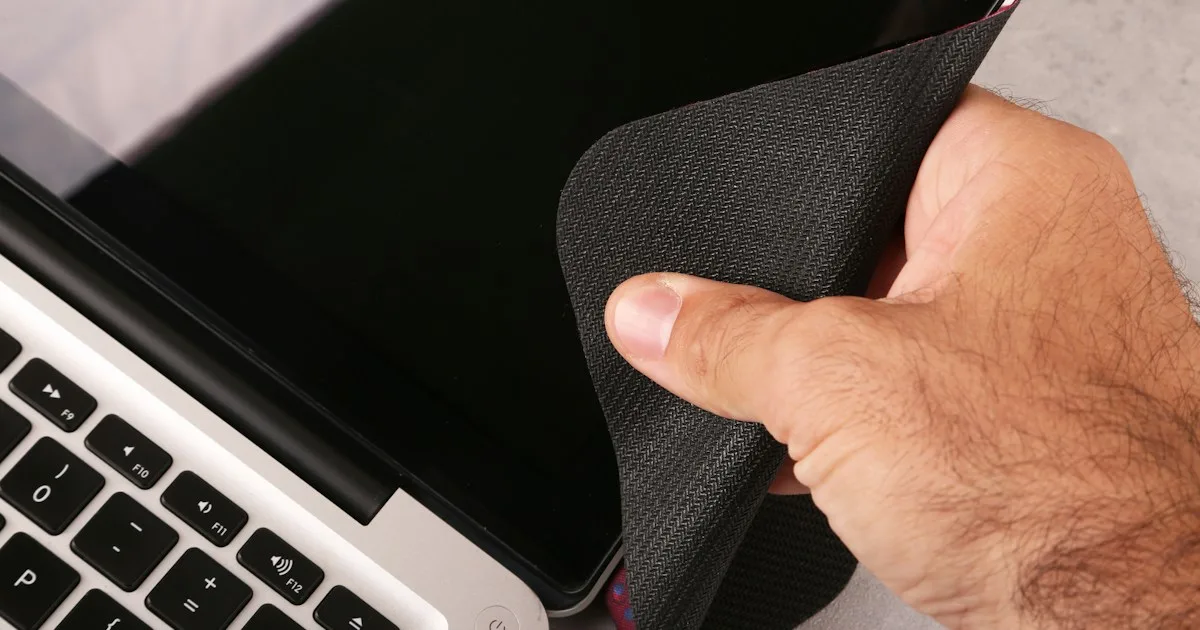
How to Remove, Clean, and Store KeyRiser Without Damage
Remove KeyRiser feet cleanly, clean the PLA the safe way, and store or travel with the pair so the next install seats just as well as the first.
How to Remove, Clean, and Store KeyRiser Without Damage
Short answer: KeyRiser is two PLA feet seated on the rear underside of a supported MX Keys keyboard. To remove them, pull each foot straight off — no twisting, no prying, no heat. To clean them, wipe with a damp cloth and mild soap, and keep them away from hot water, a dishwasher, a hot car, and direct heat, because PLA softens when it gets warm. To store or travel with them, keep the two feet together in a small bag or the original box so the next install seats the same way.
This is a maintenance page for people who already own KeyRiser. It is not a second install tutorial; the seating steps and the wobble checklist live in the installation guide. Here the job is keeping the feet in good shape between installs, and moving them around without damaging them or the keyboard.
KeyRiser is an independent accessory and is not affiliated with Logitech.
What the feet are made of, and why it matters
KeyRiser feet are 3D printed in matte-black PLA. That is a common, rigid plastic for printed parts, and it is durable for a small desk accessory handled normally. Its one real weakness is heat: PLA softens at temperatures well below what other plastics tolerate. It is not a dishwasher-safe, boiling-water, hot-car-dashboard material. Treat it like a precision part, not like a rubber bumper.
You do not need special tools or chemicals to look after it. In fact, the best care routine is mostly “do less”: no abrasives, no solvents, no heat, and no forcing. The current material and shape details are on the specifications page.
How to remove the feet safely
Removal should take a few seconds. If it takes longer, something is wrong.
- Unplug the keyboard if a charging cable is attached, so nothing snags as you flip the board.
- Turn the keyboard over onto a soft surface — a cloth or a mat — so the keys and the metal top plate are not resting on the desk.
- Find the two rear feet. They sit at the rear corners, the edge furthest from you when you type.
- Pull each foot straight away from the keyboard. Use a firm, even pull along the direction the foot was pressed on. Do not wiggle it side to side and do not lever it.
- Resist the urge to twist or pry. A twisting motion is how a printed part or a keyboard finish gets marked. If a foot will not come off with a straight pull, stop and check that you are pulling away from the seat rather than along it.
There is no adhesive to dissolve and no screw to undo. If your set is stuck, it is almost always a straight-pull problem, not a glued one.
Cleaning the PLA the right way
A little dust and desk grime is normal. Clean the feet with the least aggressive method that works.
Safe routine:
- Wipe with a soft, damp cloth. Water alone handles most dust.
- For light marks, add a drop of mild dish soap to the cloth, then wipe and dry.
- Use a soft toothbrush for the small curves and the contact face if grit collects there.
- Dry fully before you reseat the feet.
Avoid:
- Hot water, boiling water, or a dishwasher. Warmth is the one thing PLA does not like.
- A hot car, a radiator, a heater vent, or direct sun on a windowsill. Same reason.
- Solvents such as acetone, alcohol-heavy cleaners, paint thinner, or nail polish remover.
- Abrasive pads or sandpaper. They dull the matte finish and change the contact surface.
- Heat guns and hairdryers to “reshape” a foot. Do not reshape the geometry; buy the correct product for your keyboard instead.
None of this is exotic. The same care that keeps a printed part crisp also keeps the contact face flat, which is what makes the feet seat well.
Cleaning the keyboard around the feet
When you remove the feet, it is a good moment to clear the rear underside of the keyboard. Dust and crumbs under the rear edge can stop a foot from sitting flush, which then feels like wobble. Wipe the region with a dry or barely damp cloth, using the keyboard maker’s own guidance for the board itself. Do not spray liquid onto the keyboard and do not scrub the metal finish.
If the feet seat unevenly after cleaning, check the following before assuming the part is damaged: the keyboard model is supported, both feet are on the correct rear corners, and the desk surface is clean and flat.
Storing and traveling with KeyRiser
The two feet are small and easy to lose. Keep them together.
- Keep the pair in a small pouch or the original box. A zip bag works; the goal is to stop one foot from wandering into a bag pocket.
- Do not stack heavy objects on them for long periods, especially somewhere warm.
- For travel, pack them flat with the other small desk items, away from heat sources and away from anything that could press hard against them.
- Label the pair if you commute with them, so they do not get mixed up with a colleague’s hardware at a shared desk.
If you move between a home desk and an office desk with the same keyboard, you simply carry the two feet and reseat them on the other keyboard’s rear edge. There is nothing else to bring — no tray, no bracket, no cable. That portability is one of the practical differences between compact riser feet and a bulky stand.
When to reseat, replace, or stop
Most KeyRiser sets last because they are handled simply. A few signals to watch:
- A foot will not seat flush after cleaning. Check the model and the corner first; a near-fit keyboard is the usual cause, not a worn part.
- A visible crack or a chunk missing. Stop using that foot and check the order’s return options. Do not glue a cracked foot onto the keyboard.
- The finish looks polished or flattened. That usually means it was cleaned with an abrasive, not that the PLA failed.
- The keyboard rocks only when a cable is attached. That is cable routing, not the feet. Give the cable slack or use a low-profile connector.
If the fit problem is really the wrong keyboard, cleaning and storage will not fix it. Confirm the model with the identification guide and the compatibility page before deciding the product is at fault.
FAQ
How do I remove KeyRiser feet?
Pull each foot straight off the rear corner of a supported keyboard. No tools, no heat, no twisting. If it will not come off with a straight pull, stop and re-check your direction rather than forcing it.
Can I wash KeyRiser in water?
A damp cloth and mild soap are fine. Do not use hot water, a dishwasher, or a soak — PLA softens with heat. Dry the feet fully before reseating them.
Will cleaning damage the matte finish?
Water and mild soap will not. Abrasive pads, sandpaper, and solvents dull the finish. Keep cleaners mild and cloths soft.
Can I store the feet on the keyboard between uses?
Yes, if the keyboard is kept somewhere reasonably cool. If you put the keyboard in a hot car or direct sun, remove the feet first and store them flat in a cool spot.
Do I need anything else to move KeyRiser between desks?
No. It is two feet. Carry them in a pouch or the original box, reseat them on the supported keyboard at the other desk, and press-test for wobble.
What if one foot never sits flush?
Most often the keyboard is not one of the three supported models. Verify the model name, check the corner placement, clean the rear underside, and reseat once. If it still will not sit, contact support rather than forcing or gluing it.
Bottom line
Looking after KeyRiser is mostly about restraint: a straight pull to remove, a damp cloth to clean, and a cool, tidy spot to store the pair. Keep it away from heat and abrasives, keep the two feet together, and they will seat as well on the next desk as they did on the first. If a foot will not sit flush, suspect the keyboard model before you suspect the part, and check the installation guide and support page. When you are ready to add another keyboard to your setup, start from the product page or the purchase page.
This article is educational and is not medical advice. KeyRiser is an independent accessory and is not affiliated with Logitech. If you experience persistent pain, numbness, tingling, or weakness, consult a qualified health professional.
Ready for a Better Typing Angle?
Check KeyRiser on Amazon and confirm compatibility with your MX Keys model.
Buy Now - $9.99Related Articles



Complete your MX Keys setup
KeyRiser first, then the desk complements
KeyRiser addresses keyboard angle. These recommendations cover adjacent setup needs without replacing it.