Desk Depth and Keyboard Distance for MX Keys Comfort
Learn the right keyboard distance for wrist comfort, shoulder relaxation, and better MX Keys ergonomics using a simple desk depth checklist. Includes safe tips
Desk Depth and Keyboard Distance: Ergonomic Setup
TL;DR
Keyboard distance is one of the fastest ergonomic fixes you can make. Place the keyboard close enough that your elbows stay near your sides, but far enough that your wrists do not collapse into the desk edge. Combine that distance with a stable rear lift, relaxed shoulders, and a mouse positioned beside the keyboard.
Most keyboard ergonomics advice focuses on angle, chair height, or monitor position. Those are important, but desk depth quietly decides whether your setup works in real life. A desk that is too shallow forces the keyboard too close to the body. A desk that is too deep often pushes the keyboard away, making your shoulders reach forward all day.
For Logitech MX Keys and Logitech MX Keys Mini users, the goal is not to create a complicated workstation. The goal is a repeatable position: neutral wrists, relaxed shoulders, and a keyboard that stays in the same place every time you sit down.
Why Desk Depth Matters
Desk depth controls three practical things:
- The space between your torso and the keyboard
- The distance from keyboard to monitor
- The room left for a mouse, notebook, or keyboard riser
If the keyboard is too far away, your elbows drift forward. That small reach can make the shoulders tighten, the upper back round, and the wrists press harder into the desk surface. If the keyboard is too close, your wrists may bend sharply because the desk edge blocks your forearms.
The sweet spot is simple: your upper arms should hang comfortably, your elbows should sit slightly open, and your hands should reach the home row without lifting your shoulders.
The 60-Second Keyboard Distance Test
Use this checklist before buying new gear:
- Sit fully back in your chair with both feet supported.
- Let your shoulders drop and keep your elbows close to your ribs.
- Move the keyboard until your fingers rest naturally on the home row.
- Check that your wrists are straight, not bent up or pressed into the desk edge.
- Place the mouse beside the keyboard, not several inches forward or outside shoulder width.
If you have to lean forward to type, the keyboard is too far. If your forearms hit the desk edge, the keyboard is too close or the desk is too high.
Best Setup for MX Keys and MX Keys Mini
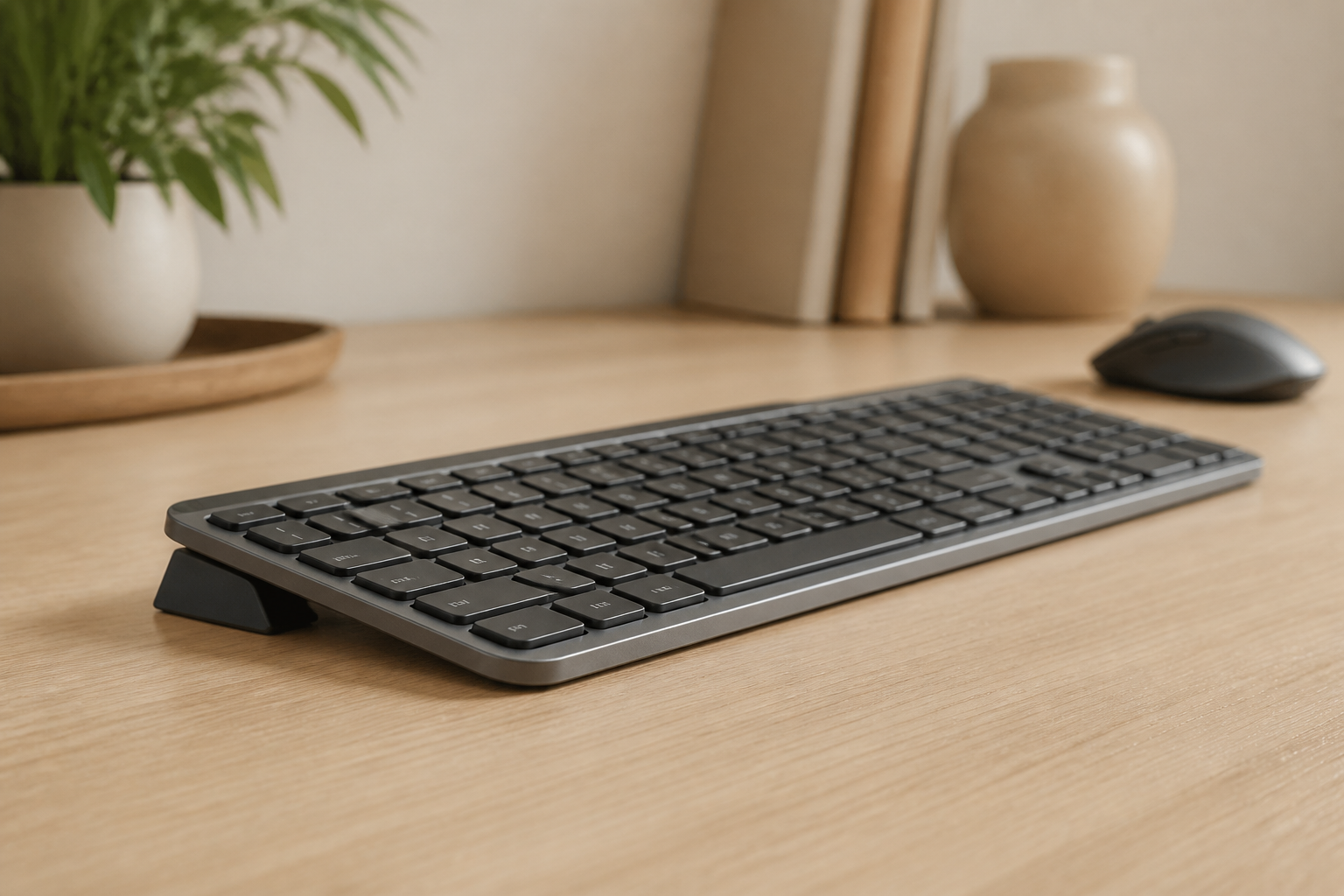
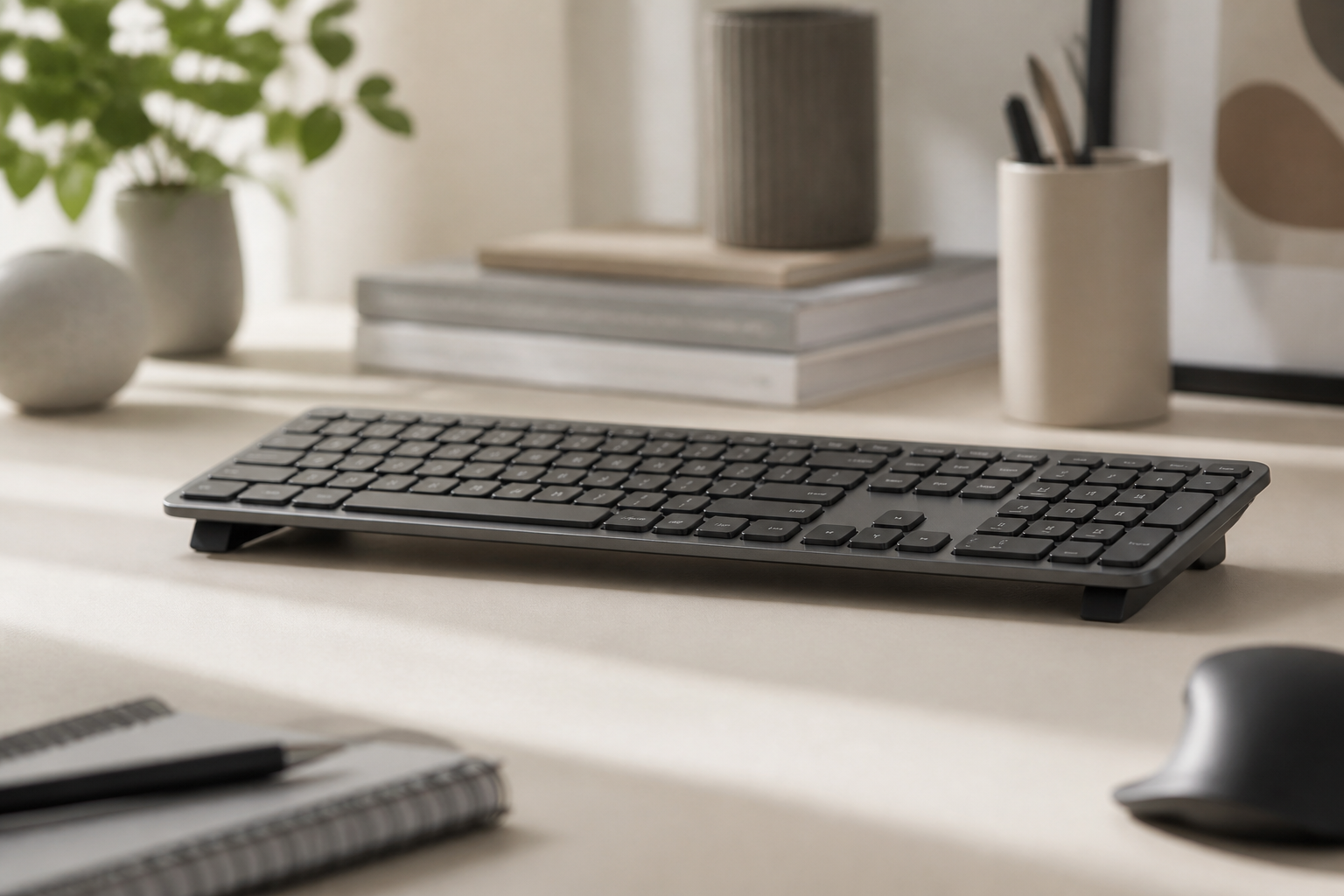
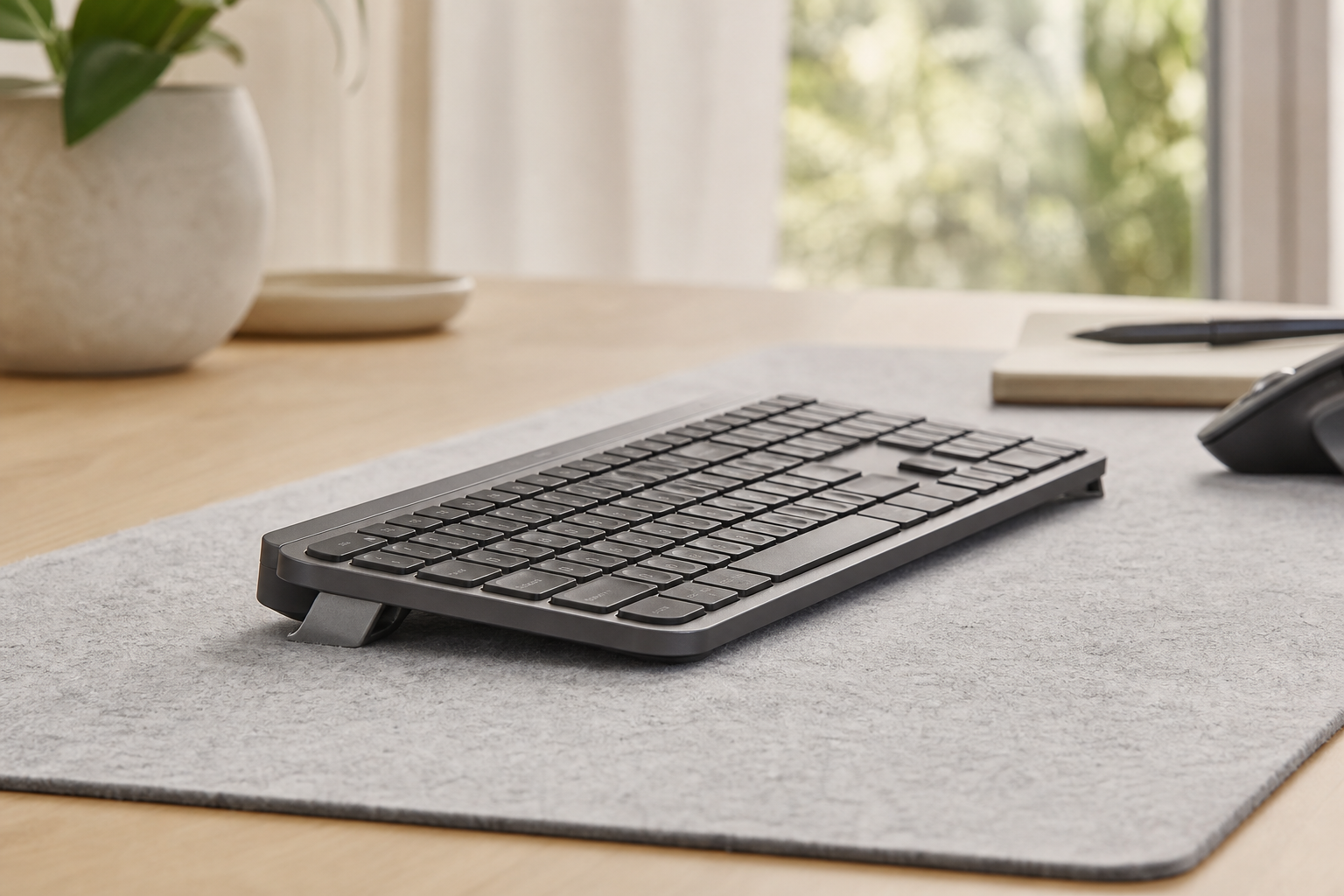
The MX Keys family is thin and stable, which makes it excellent for focused work. Its flat profile also means the angle depends heavily on your desk setup. KeyRiser helps by giving the keyboard a consistent ergonomic tilt without asking you to replace the keyboard you already use.
For a full-size MX Keys, keep the mouse as close as possible to reduce shoulder reach. For MX Keys Mini, use the extra side space to center the keyboard with your body instead of pushing it toward one side of the desk.
A practical setup looks like this:
- Keyboard centered with your torso
- Front edge lifted with a stable keyboard riser
- Mouse beside the keyboard at the same depth
- Monitor far enough back that your head stays upright
- Frequently used items outside the typing zone
Where KeyRiser Fits
KeyRiser is useful when your keyboard distance is already close, but your wrists still bend upward on a flat desk. It raises the front edge of compatible Logitech MX Keys models to support a more neutral typing angle. That lets you keep the keyboard near your body while reducing wrist extension.
This is especially helpful on compact desks, shared offices, and home setups where you cannot install a keyboard tray. The stand keeps the change small, stable, and reversible.
For product details, see the KeyRiser compatibility page. For buying options, visit KeyRiser purchase information.
Common Mistakes
The most common mistake is solving distance with posture. People notice the keyboard is far away, then lean forward instead of moving the keyboard closer. That creates a posture problem while leaving the setup problem untouched.
Another mistake is centering the keyboard on the desk instead of centering it on the body. Your desk may be wide, but your shoulders still need the keyboard aligned with your torso.
The third mistake is forgetting the mouse. A good keyboard position loses value if the mouse sits too far forward or too far to the side.
Recommended Next Reads
FAQ
How far should my keyboard be from the desk edge?
Use your body as the reference. The keyboard should be close enough for relaxed elbows, with enough room that your wrists do not press into the edge.
Does a deeper desk always improve ergonomics?
No. A deeper desk helps only if you keep the keyboard close and use the extra depth for monitor distance, documents, or accessories.
Can KeyRiser fix keyboard distance?
KeyRiser fixes keyboard angle, not reach. Use it after placing the keyboard at a comfortable distance.
Final Takeaway
Before changing your chair, desk, or keyboard, check distance. A well-positioned MX Keys setup with a stable KeyRiser can feel more natural because the keyboard is close, centered, and angled for neutral wrists.
Ready for a Better Typing Angle?
Check KeyRiser on Amazon and confirm compatibility with your MX Keys model.
Buy Now - $9.99