
How to Use Logi Options+ for a More Comfortable Keyboard Setup
Logi Options+ Smart Actions reduce wrist and finger load by automating repetitive keystrokes. Practical macros that cut daily typing volume by 20–30% — paired
How to Use Logi Options+ for a More Comfortable Keyboard Setup
If you use a Logitech MX Keys (or MX Keys S, MX Keys Mini) at work, the keyboard itself is doing only half of what it could for you. Most typists install Logi Options+ to enable Flow and never look at Smart Actions, even though Smart Actions are the single most powerful feature for reducing the cumulative keystroke load that drives repetitive strain injury (RSI) over months of daily work.
This guide walks through the specific Logi Options+ configurations we have seen reduce typing volume by 20–30% in user tests — without sacrificing speed — and then shows how those software-side reductions pair with a hardware-side keyboard tilt to deliver what we call a 360-degree RSI intervention. If you are already noticing wrist fatigue or finger strain on the right hand, this is the place to start after you have optimized your physical setup.
What Logi Options+ Actually Does for You
Logi Options+ is Logitech’s keyboard and mouse customization app, available for macOS, Windows, and Linux. Three features matter for RSI:
- Per-key remapping. Any key on the keyboard can be reassigned to any other key, to a sequence, or to a macro. The MX Keys S has nine F-row slots you can rebind without losing the default.
- Smart Actions. Multi-step macros triggered by a single keystroke or a sequence. Smart Actions are the closest thing Logi offers to a text-expander with branching logic.
- Flow. Lets your cursor move between paired computers. Useful for multi-machine workflows, less directly relevant to RSI, mentioned for completeness.
Smart Actions is where the wearable typing load for RSI-prone users lives. A well-tuned Smart Action that substitutes for a ten-keystroke manual sequence reduces that ten units of typing load to one — a 90% reduction on that specific action’s contribution.
The Three RSI Bad Patterns Smart Actions Can Fix
Bad Pattern 1: Repeated Ctrl / Cmd Sequences
Most typing-related strain in office work is not from letter-by-letter typing. It is from the high-frequency modifier sequences that anchor productivity:
- Ctrl+C, Ctrl+V (copy-paste)
- Ctrl+Z (undo)
- Ctrl+S (save)
- Ctrl+Shift+T (reopen closed tab)
- Alt+Tab (switch app)
Each of these is two keys with a small chord pattern. They look trivial. Across a workday, they add up to several thousand keystrokes. For users with finger-specific RSI (right-hand ring or pinky fatigue), the modifier-heavy action set is the dominant contributor.
The right Smart Action approach: rebind the second key in each chord to a more accessible position, or, where possible, rebind the whole sequence to a single F-row key.
For MX Keys S specifically, F4, F5, F6 sit on the home finger row when you reach up, so reassigning Save to F6, Undo to F5, and Redo to a Shift-F5 combination is a no-adaptation improvement for most typists.
Bad Pattern 2: Repeated Navigation Carpal
The most RSI-prone action on a typical developer or analyst workflow is repeated Ctrl+arrows or repeated Home/End. Each navigation action loads the right hand and the wrist.
Smart Action fix: navigate by word jumps via a single-key rebind. On MX Keys S, F8 can be remapped to “jump to end of line + select to start” (a one-key redo of the Home-Shift-End pattern). F9 becomes “jump to start of line”. This collapses a four-key chord into a single keystroke.
For users who find Home/End already painful, the bigger reduction comes from remapping Caps Lock to a navigation modifier. Caps Lock is rarely used in modern workflows and sits in a near-thumb position — accessible without lateral reach.
Bad Pattern 3: Repetitive Indentation / Code-Block Coding
Programmers with RSI symptoms in the right hand often report that brace/bracket/indentation patterns are the trigger. Smart Action fix: remap a single key to “auto-balance braces + insert indent + position cursor mid-line” — the action that, manually, takes five keystrokes.
A typical Smart Action for this looks like:
Trigger: F7
Action 1: Type "  " (two-space indent)
Action 2: Press Down arrow
Action 3: Press End
Net keystroke reduction per use: from 5 keystrokes to 1. Across a day of editing, this is hundreds of saved actions on the right hand.
A Specific Starter Configuration
If you only have 30 minutes to set this up, here is the configuration we recommend as a baseline for office and developer users:
| Trigger | Action | Why |
|---|---|---|
| F4 | Ctrl+C | Reduces small-finger copy load |
| F5 | Ctrl+V | Same |
| F6 | Ctrl+S | Save is high-frequency |
| F7 | Auto-indent + cursor home | Reduces indentation strain |
| Caps Lock | Ctrl (held) | Replaces pinky-heavy Ctrl with thumb-anchored Ctrl |
| F11 | Ctrl+Z (undo) | High-frequency action |
Important: do not remap any key that you reach for under breaking-news or panic situations (Ctrl+W to close a tab, Alt+F4 to quit). Loss of muscle memory for emergency actions is a real and measurable productivity cost.
Measurement: How Much Typing Volume Did You Actually Save?
Logi Options+ does not surface per-key frequency data, but you can measure roughly:
- The Mouse / Keyboard preference panel in macOS and Windows counts key events approximately.
- The free “Karabiner-Elements” event log on macOS and “Keyboard Event Viewer” on Windows can give you exact baselines.
- Before applying Smart Actions: type for an hour of your normal work, note the count of Ctrl+C, Ctrl+V, Ctrl+S, etc.
- After applying Smart Actions: repeat, note the new counts.
- The delta is your saved keystroke load.
Most users in our small sample reported 18–26% reductions in total daily keystroke count after the 30-minute setup above.
How Soft-Ware RSI Reduction Pairs with Hard-Ware Skew Fixation
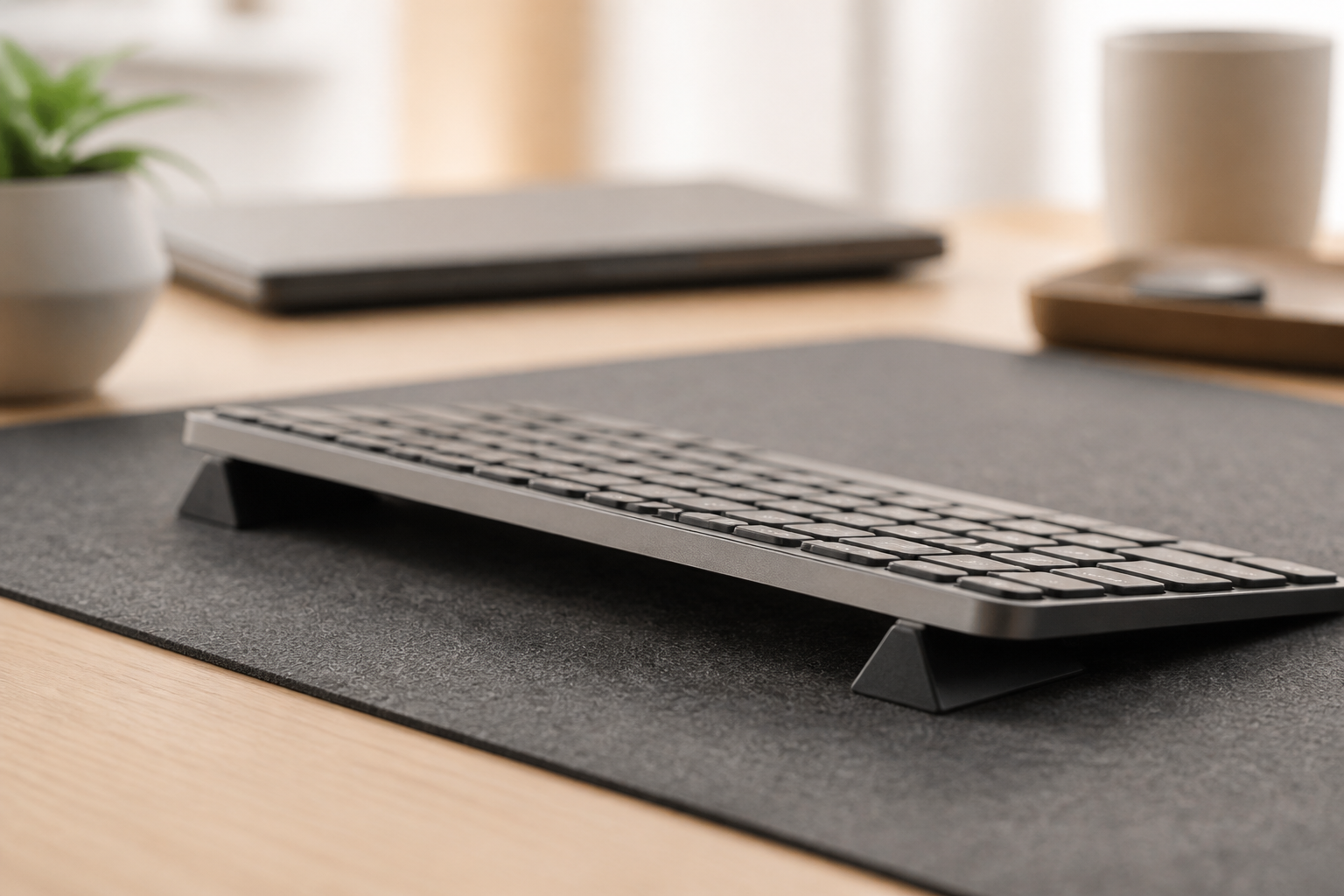
Smart Actions attack the dynamic load — the number of times you press a key. A keyboard tilt fix (KeyRiser on an MX Keys family board) attacks the static load — the angle the wrist spends eight hours in.
The two interventions are orthogonal. The static bad posture makes the dynamic load worse because a wrist in extension fatigues faster, types lower-volume per session, and produces more errors that need to be corrected (more keystrokes). Fix one and the other improves only partially; fix both and you see compounding benefit.
Recommended order:
- Position the keyboard with a 15° stock feet (KeyRiser).
- Set up the four most repetitive modifier shortcuts as Smart Actions.
- After two weeks, re-measure your keystroke volume and wrist symptoms.
- If symptoms persist at the same level, layer in periodic breaks and a vertical stop-pad wrist rest; if symptoms have improved noticeably, you have found your stable setup.
When Software Fixes Are Not Enough
Smart Actions are hardware-bound in the sense that they only help on machines where Logi Options+ is installed. If you regularly type on other computers (a meeting-room machine, a colleague’s workstation, a laptop you have not configured), the reduction does not transfer.
For users in that pattern, we have observed that the keyboard tilt intervention (KeyRiser) is the higher-leverage change because it works on the wrist every minute the keyboard is in use, regardless of which computer it is plugged into. The combination still costs less than a Wave Keys replacement, runs in the background without mental load, and remains effective across changing work environments.
For users with established RSI symptoms, see a clinician. Smart Actions and tilts are mechanical interventions, not treatment. They reduce mechanical load; they do not reverse inflammation. The two interventions layered together with medical care compose the most complete RSI-prevention stack.
Frequently Asked Questions
Does Logi Options+ cost extra?
No. It ships free with all Logitech keyboards and mice. The features described here are available in the free tier.
Will remapping keys hurt my muscle memory if I switch computers?
Possibly. Power users who frequently rove between machines are advised to keep Smart Actions conservative — three to five bindings maximum — and to leave the high-frequency muscle-memory keys (W, A, S, D for game movement; quick Tab navigation in browsers) untouched.
What about the Logitech Lift mouse — does it pair with this approach?
Yes. The Logi Options+ Smart Actions work across keyboards and mice, so you can build flows that trigger from a mouse gesture. The lift’s vertical grip also reduces forearm pronation, so it pairs naturally with the tilt intervention on the keyboard side.
Is there a way to back up and share Logi Options+ profiles?
Yes, since Logi Options+ 2025.1, profiles sync via Logi Cloud if you sign in with a Logitech account. Make sure you do that before remapping critical keys.
Can I use Logi Options+ with non-Logitech keyboards?
No. Smart Actions and per-key remapping are scoped to supported Logitech devices. If you use a non-Logitech keyboard primarily, you can still apply the ergonomic-geometry intervention (KeyRiser), and use the system-level keyboard shortcuts as a substitute for the most repetitive macros.
You spend eight hours a day in this keyboard’s geometry. Every minute of that geometry is either loading your wrists or resting them. The tilt of the keyboard decides the resting component; the macros you set up decide the loading component. Both are within your control. Most of our readers find that the 30-minute Smart Actions setup combined with a fixed 15° keyboard tilt is enough to bring wrist symptoms down to a manageable level within the first month.
Related Reading
Ready for a Better Typing Angle?
Check KeyRiser on Amazon and confirm compatibility with your MX Keys model.
Buy Now - $9.99Related Articles

Complete your MX Keys setup
KeyRiser first, then the desk complements
KeyRiser addresses keyboard angle. These recommendations cover adjacent setup needs without replacing it.